



























-
HYPERVSN Knowledge Base
How to prepare for using SmartV 3D Library?
To prepare for using the HYPERVSN SmartV 3D Library, follow the steps below.
Step 1: Assemble hardware and accessories
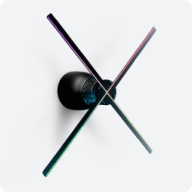
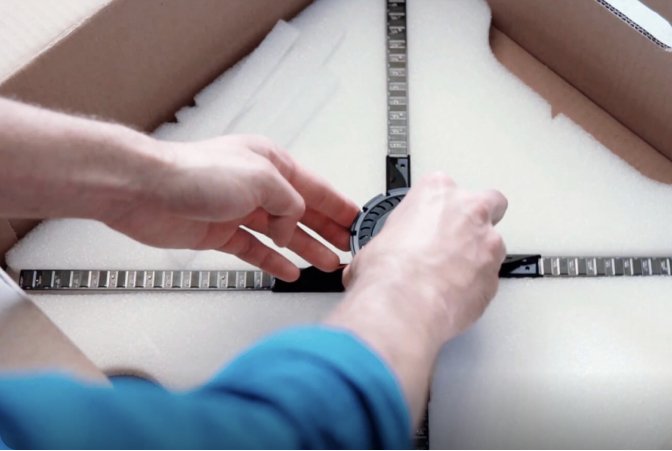
1.1 Install SmatV Displays: Mount your SmartV Solo or SmartV Wall setuo into the compatible accessories.
1.2 Connect SmartV Displays to the SmartV Box (1, 6, or 12, depending on your setup) using optic cables and to the Power module using power cables.
Step 2: Connect additional equipment
2.1 Connect a PC (required to run the Windows-based 3D Library application) to the same local network as your SmartV Box.
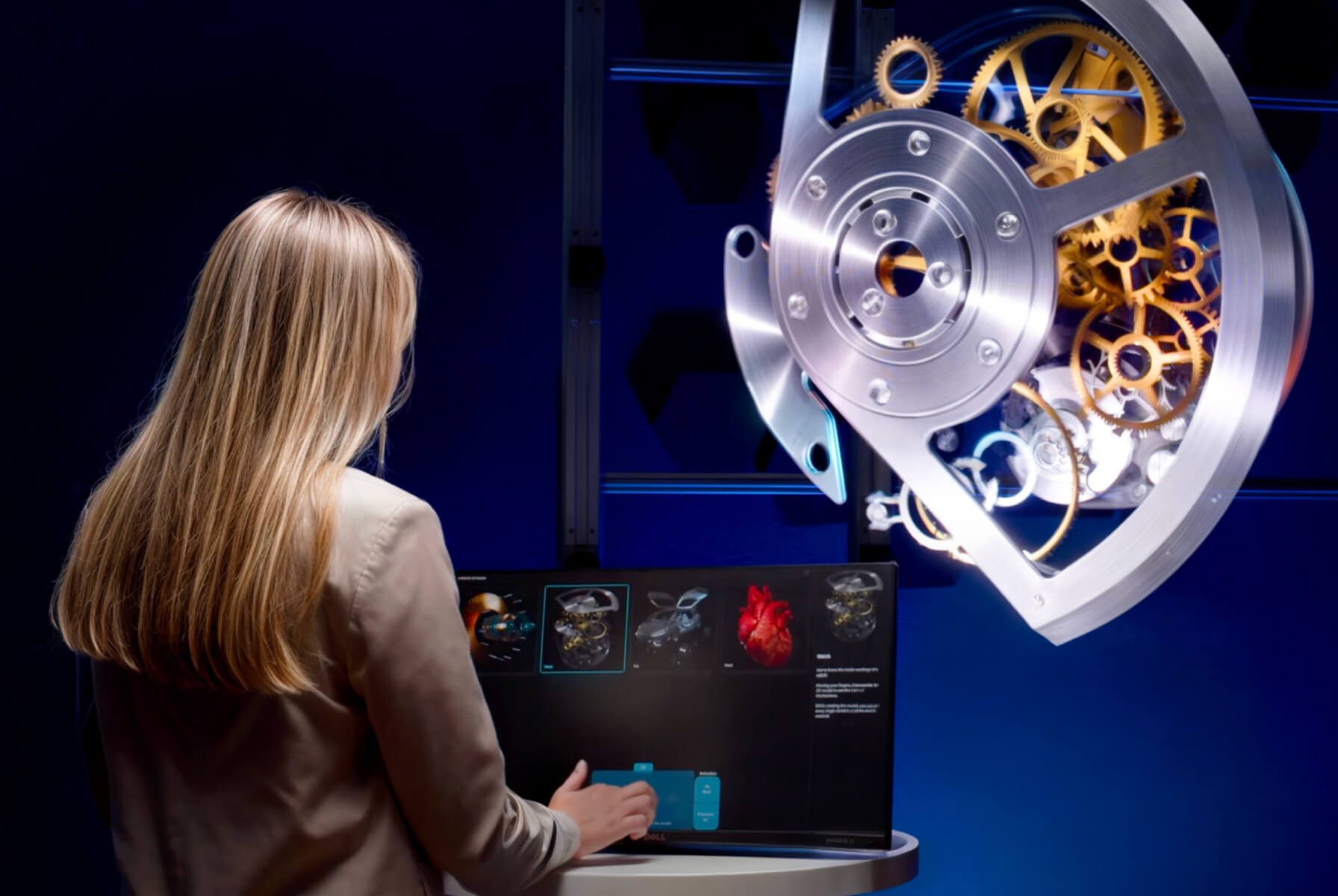
2.2 Connect a touchscreen monitor to the PC using HDMI and USB cables.
2.3 Optional: You may also connect speakers to the SmartV Box and use a keyboard and mouse for the initial administrative configuration.
Step 3: Software setup and activation
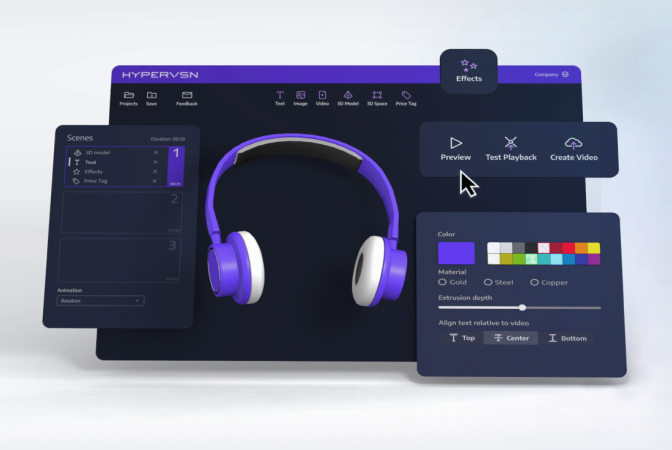
3.1 Register your HYPERVSN CMS account and install the HYPERVSN App.
3.2 Log in to the HYPERVSN App, activate your SmartV Box, perform the setup and calibration.
3.3 Ensure the SmartV Box is set to Player mode.
3.4 Navigate to the Devices page in the CMS and activate your SmartV 3D Library subscription.
Step 4: Create playlists
4.1 Use the HYPERVSN App to create and name playlists directly on the SmartV Box.
4.2 Once you log in to the 3D Library application on your PC, these playlists will be synchronised and become available for assignment to your navigation buttons.
Step 5: Configure the interaction scenario
5.1 Once the hardware and playlists are ready, open the Admin interface (Ctrl + S) in the 3D Library app and set the following:
● Add the main page title.
● Create groups and subpages.
● Assign your prepared playlists to specific images or text elements.
● Set timing options, such as idle timeouts, to ensure the display returns to a default state when not in use.
Related QuestionsCan’t find your answer?
Request a Callback
☎️
Demo Request form
Support contact

Thank you!
We’ve received your message and will get back to you shortly.