






















HYPERVSN 3D Modeller

  • What is the HYPERVSN SmartV 3D Modeller? 

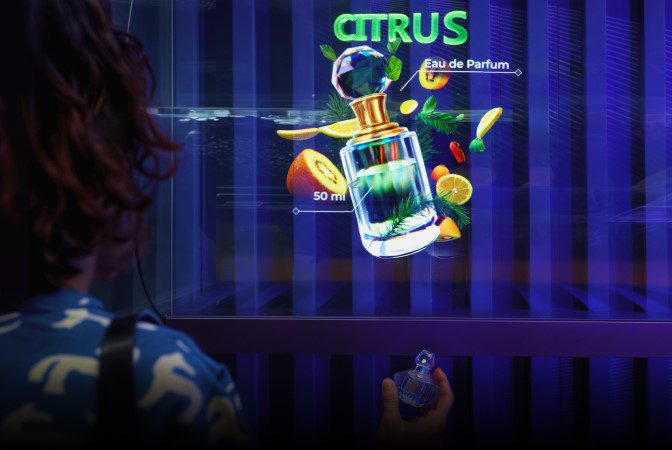
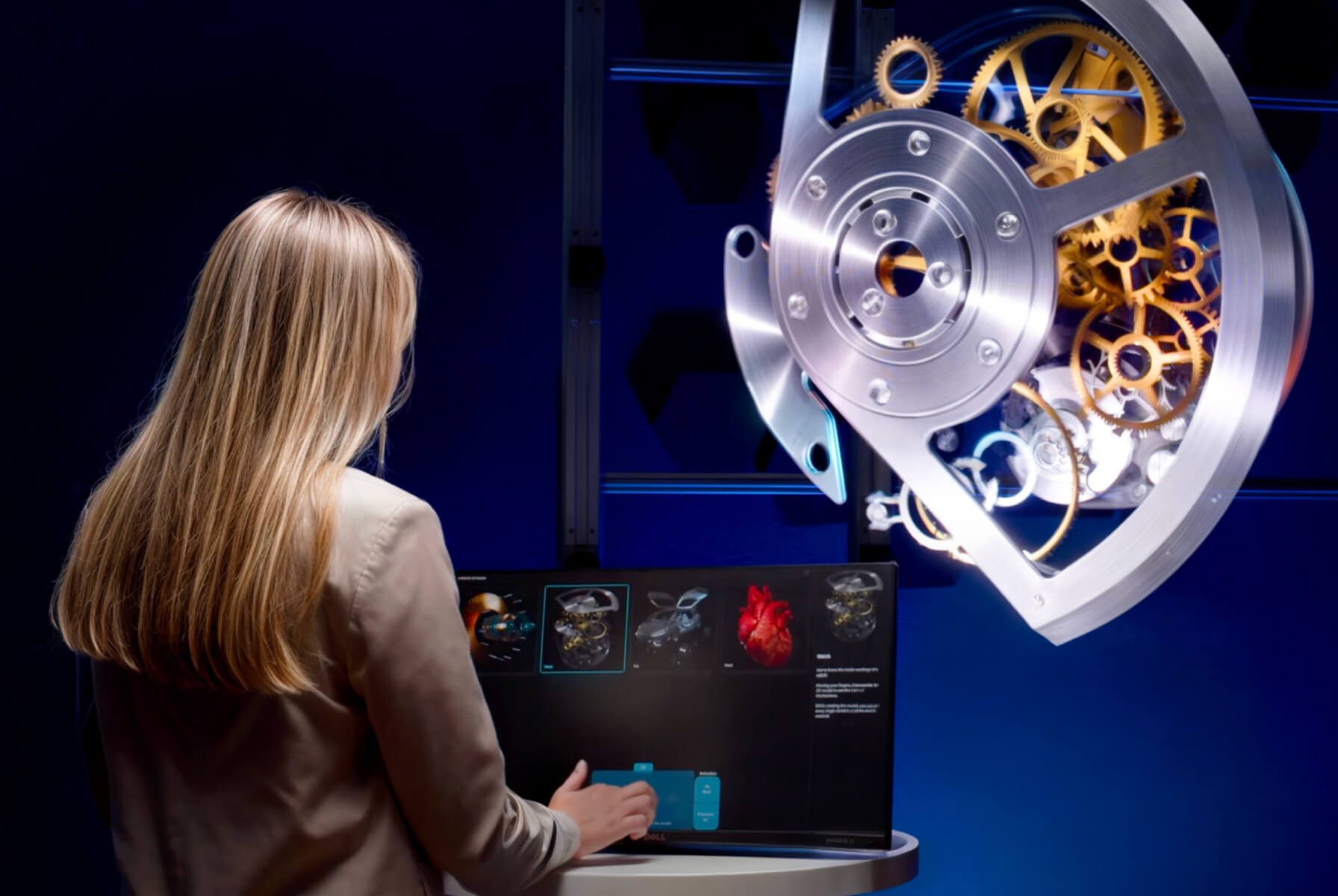
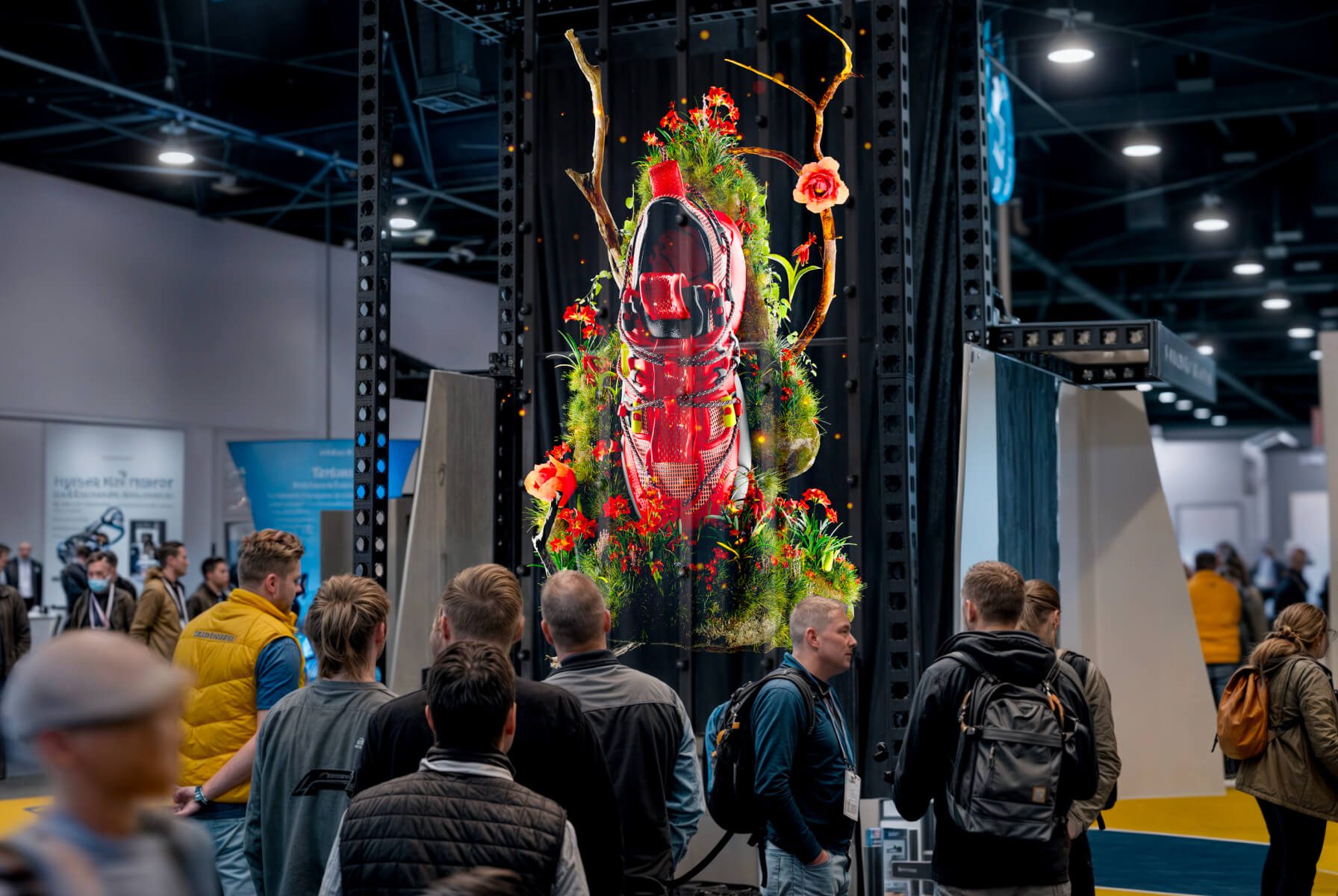
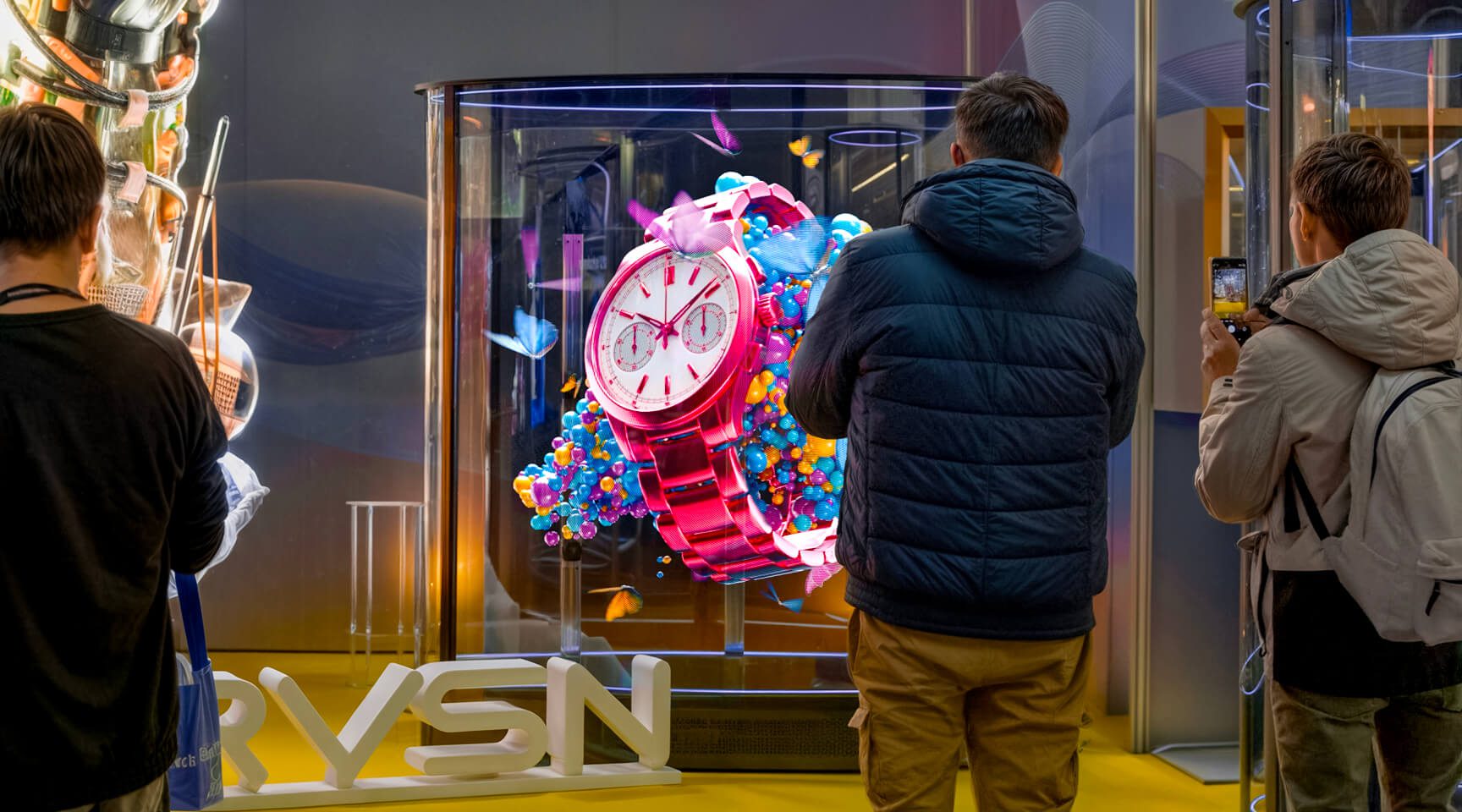
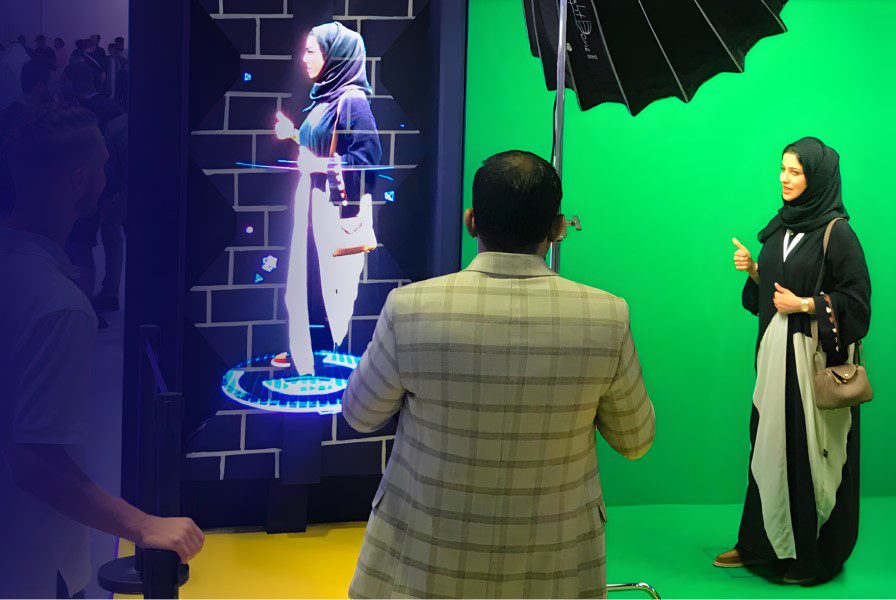
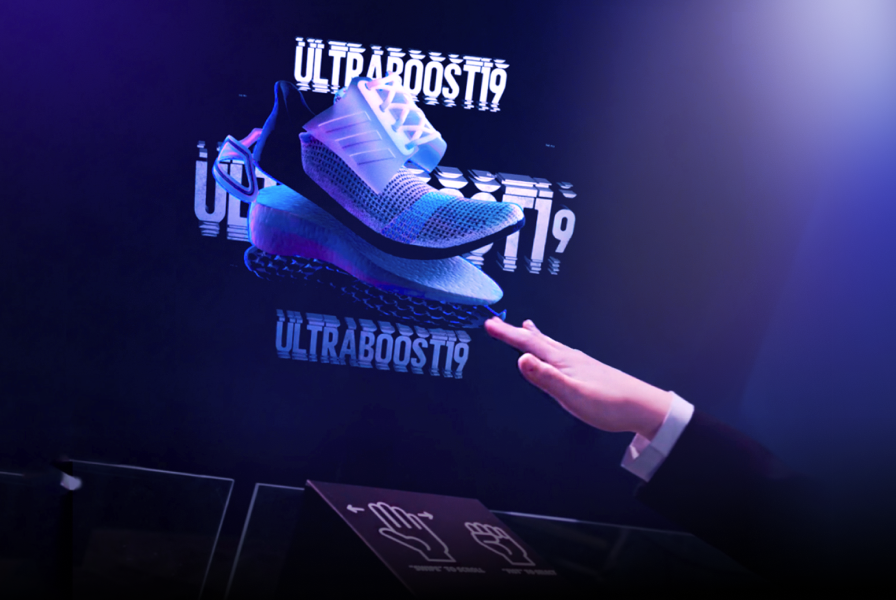
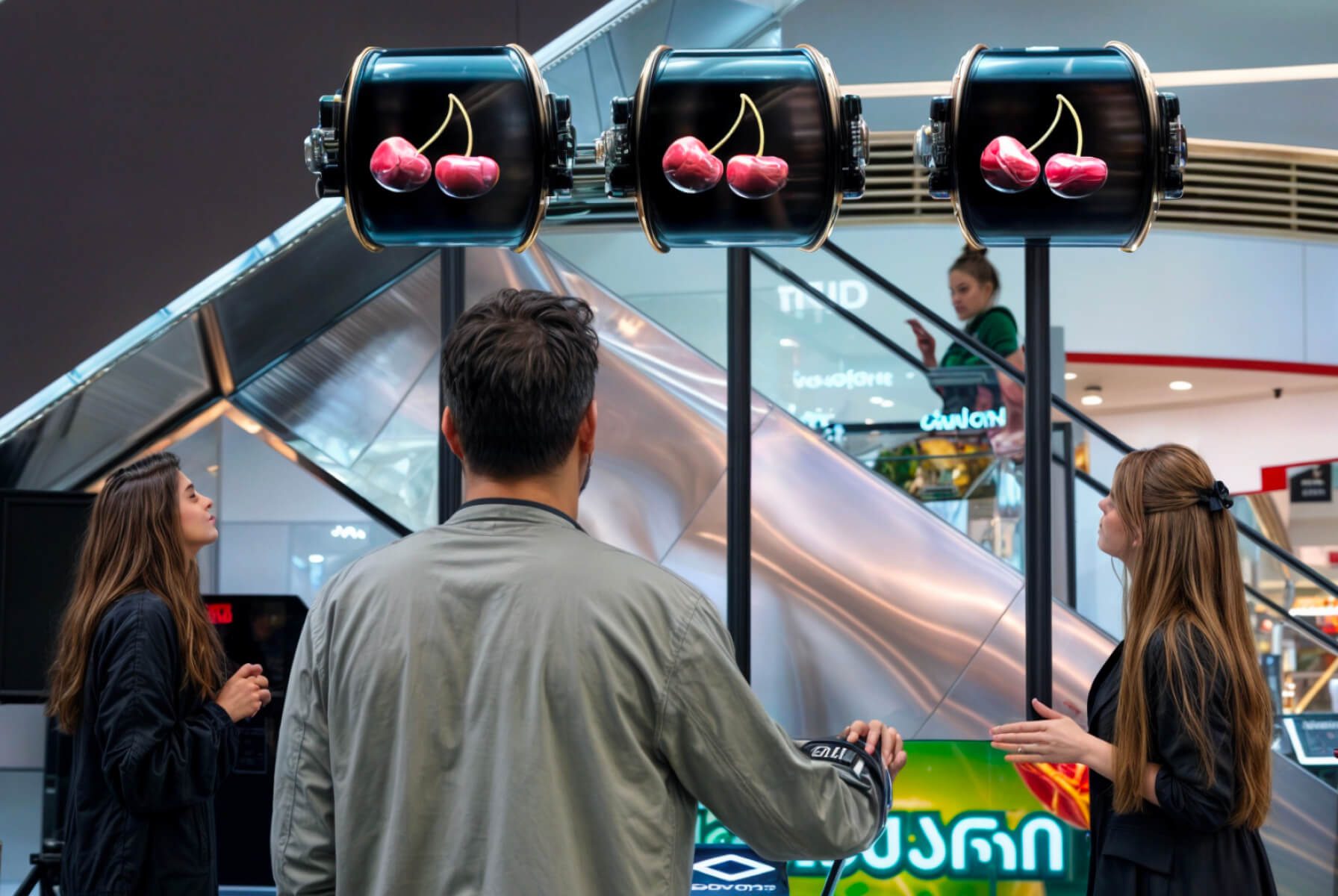
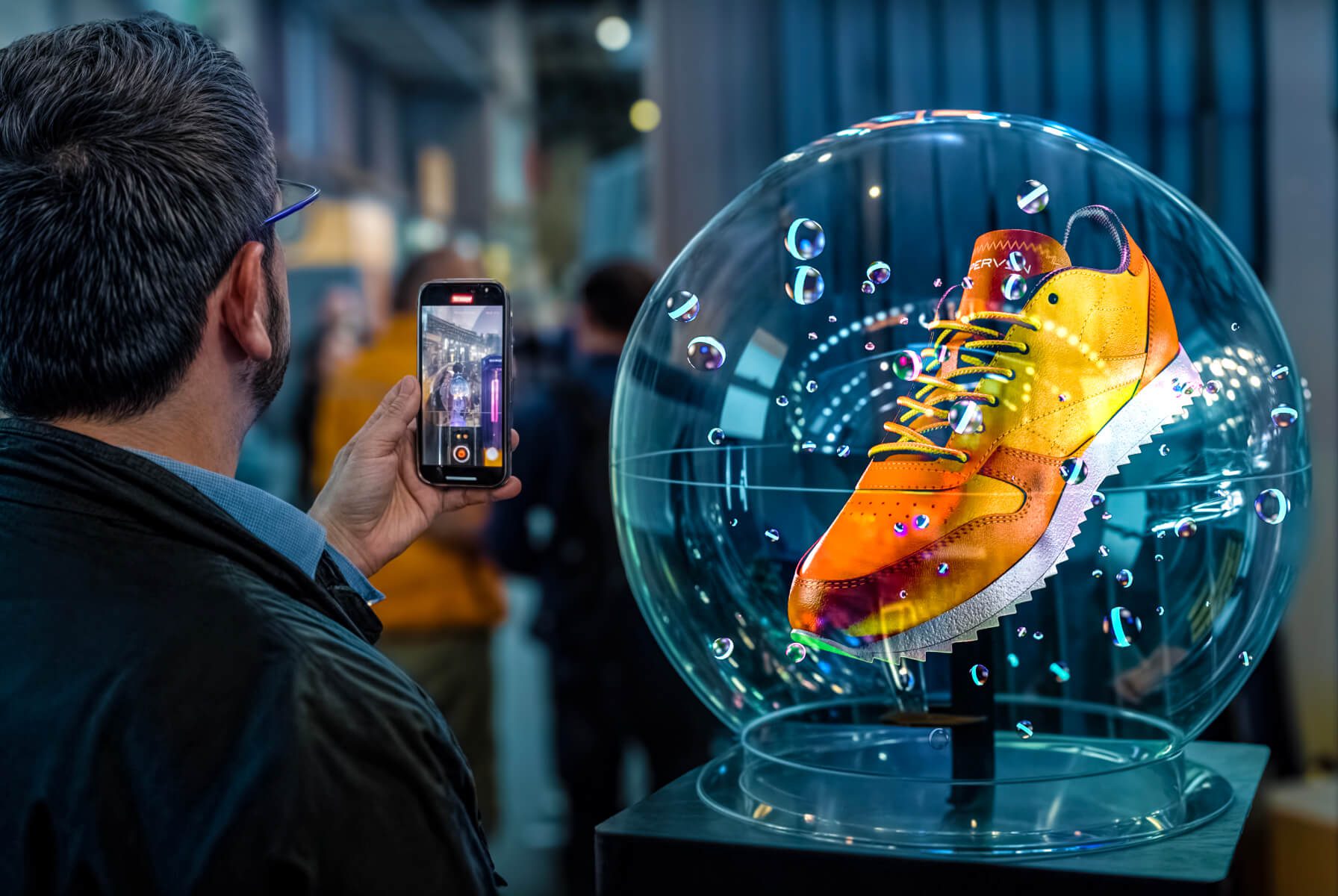
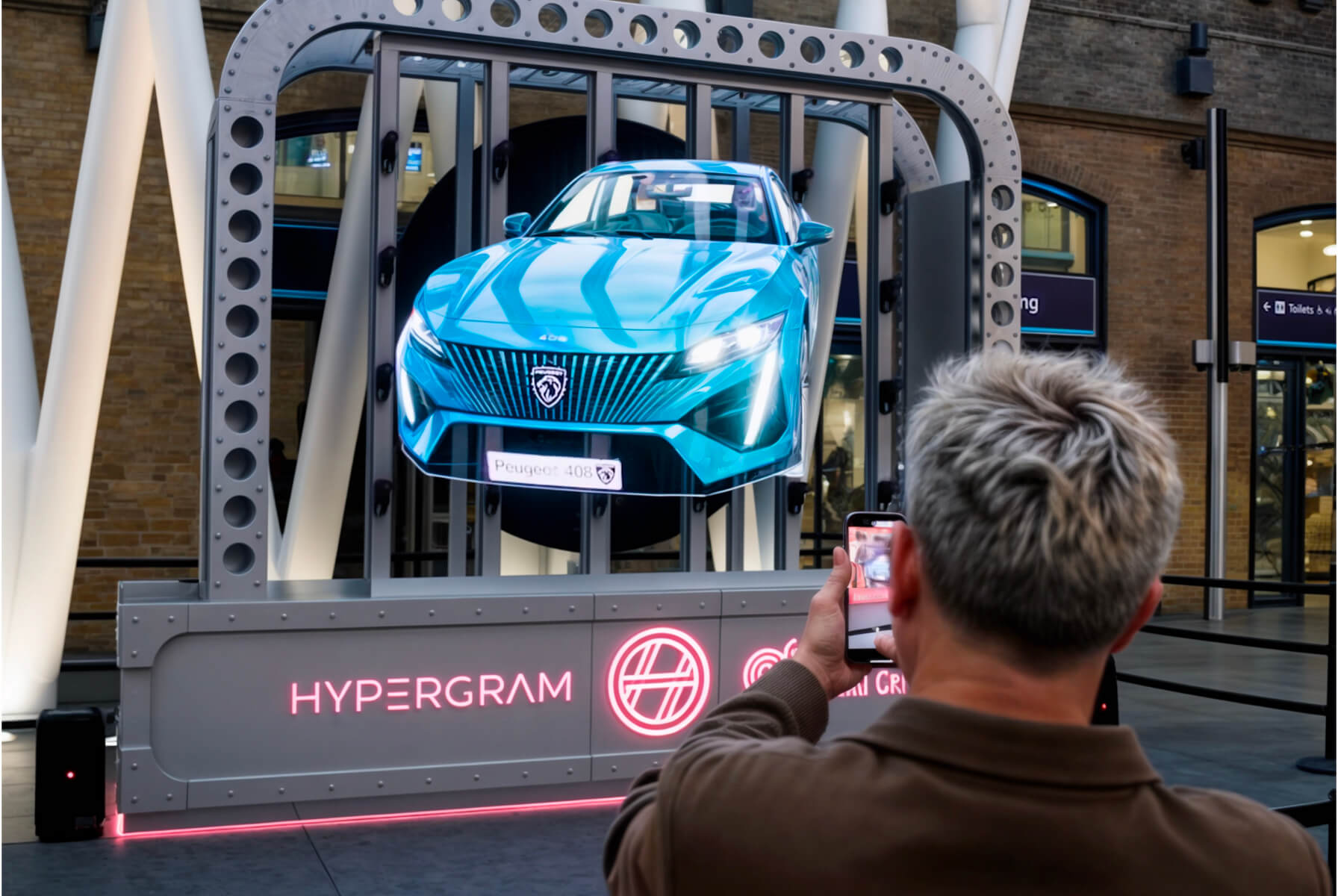
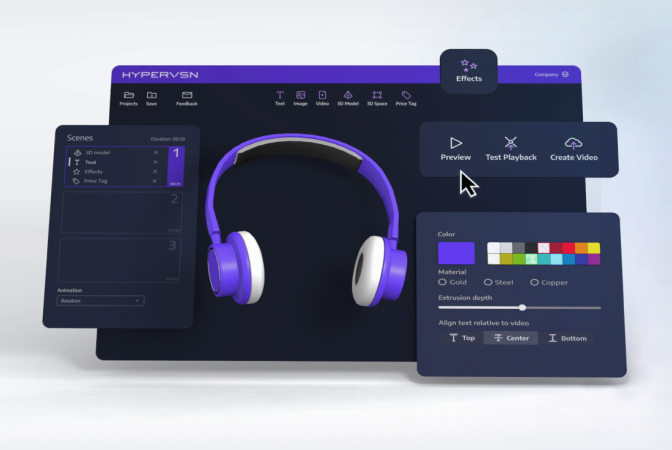
    The HYPERVSN SmartV 3D Modeller is an interactive software application designed to control and display 3D models on SmartV Displays using a touchscreen or an air mouse. The solution allows viewers to interact with holographic objects floating in mid-air.

  • What are the key benefits of the 3D Modeller? 

    Key benefits and feature highlights of the 3D Modeller solution include:

    ● Immersive user interaction: It allows viewers to interact with holographic objects floating in mid-air by manually rotating, moving, and disassembling them using animations.

    ● Multiple control interfaces: Users can choose between the interaction methods such as a touchscreen or an air mouse.

    ● Content flexibility: In addition to a default set of demo models, such as an engine or a heart, administrators can upload and manage custom models.

    ● Model animation: To ensure the holographic effect is always maximised, the system automatically rotates static models clockwise and anticlockwise. If a model is animated, the system can be configured to loop animations continuously.

    ● Intelligent automated operation: The application lets users set model-switching intervals and automatically changes the model after the specified time.

    ● Compatibility: The 3D Modeller is compatible with both SmartV Solo devices and SmartV Wall configurations from 6 to 16 Displays, making it suitable for both small-scale and large-scale installations.

  • What are the core hardware and software components of the 3D Modeller solution? 

    The following equipment and software components are required to set up and use the SmartV 3D Modeller solution.

    1. Hardware:

      ● SmartV Displays M/LB: Up to 16 units.

      ● SmartV Box (1, 6, or 12): Depending on the setup.

      ● SmartV Power 1000: For the SmartV Wall setups.

      ● PC.

      2. Accessories:

        ● Any Solo/Wall accessory compatible with the setup.

        ● Control Stand (Recommended): An accessory used to organise the PC, and touch monitor.

        3. Any of the selected additional equipment for model control:

          ● Touchscreen: A monitor connected to the PC using HDMI and USB cables.

          ● Air mouse: A Bluetooth-enabled mouse compatible with Windows 10 or 11.

          4. Software:

            ● HYPERVSN SmartV 3D Modeller: Used for 3D models management and manipulation.

            ● HYPERVSN App: Used to activate SmartV Box.

            ● HYPERVSN CMS: Used to activate subscription.

          1. What are the recommended PC technical specifications for 3D Modeller? 

            To run the HYPERVSN SmartV 3D Modeller application, the following PC technical specifications are recommended:

            ● Operating system: Windows 10 or 11.

            ● Processor (CPU): Intel Core i7, 11th generation or better; 64-bit with at least 4 cores and SSE2 support.

            ● Memory (RAM): 12 GB recommended, 8 GB absolute minimum.

            ● Graphics card (GPU): A discrete NVIDIA GeForce graphics card is required. Recommended models for higher vertex counts include the RTX 3070 (up to 6,000,000 vertices) or RTX 4070 (up to 8,000,000 vertices).

            ● Ports: At least one USB A-type port and one HDMI port to connect to the SmartV Box.

          2. What are the supported SmartV Wall layouts by 3D Modeller?

            The following SmartV Wall layouts are supported by the 3D Modeller solution:

            ● 3×2 (6 Displays)

            ● 3×3 (9 Displays)

            ● 4×3 (12 Displays)

            ● 4×4 (16 Displays)

            Note: Other horizontal and square layouts can be discussed and provided upon additional request to meet specific project requirements.

          3. How to activate the SmartV 3D Modeller subscription in the CMS? 

            To activate a SmartV 3D Modeller subscription in the HYPERVSN CMS, follow these steps:

            1. Log in to your HYPERVSN CMS account and navigate to the Devices page.

            2. Locate the specific SmartV Box from the devices list that you wish to activate.

            3. Click the Activate subscription button located near the serial number of that SmartV Box.

            4. In the Activate subscription dialogue, select the SmartV 3D Modeller subscription from the drop-down menu.

            5. Click the Activate subscription button to finalise the process.

            To update the subscription information on your SmartV Box, connect it to the internet.

            Note: Your subscription period begins as soon as you activate the subscription in your CMS account.

          4. Which accessories are compatible with the 3D Modeller solution? 

            The 3D Modeller is compatible with both SmartV Solo and SmartV Wall configurations. Compatible mounting options include:

            ● Solo accessories: Plex Box, Globe, Tripod, Ceiling Mount, Dome, Dome Ultra, and other Solo accessories.

            ● SmartV Wall accessories: Any accessory compatible with the SmartV Wall setup.

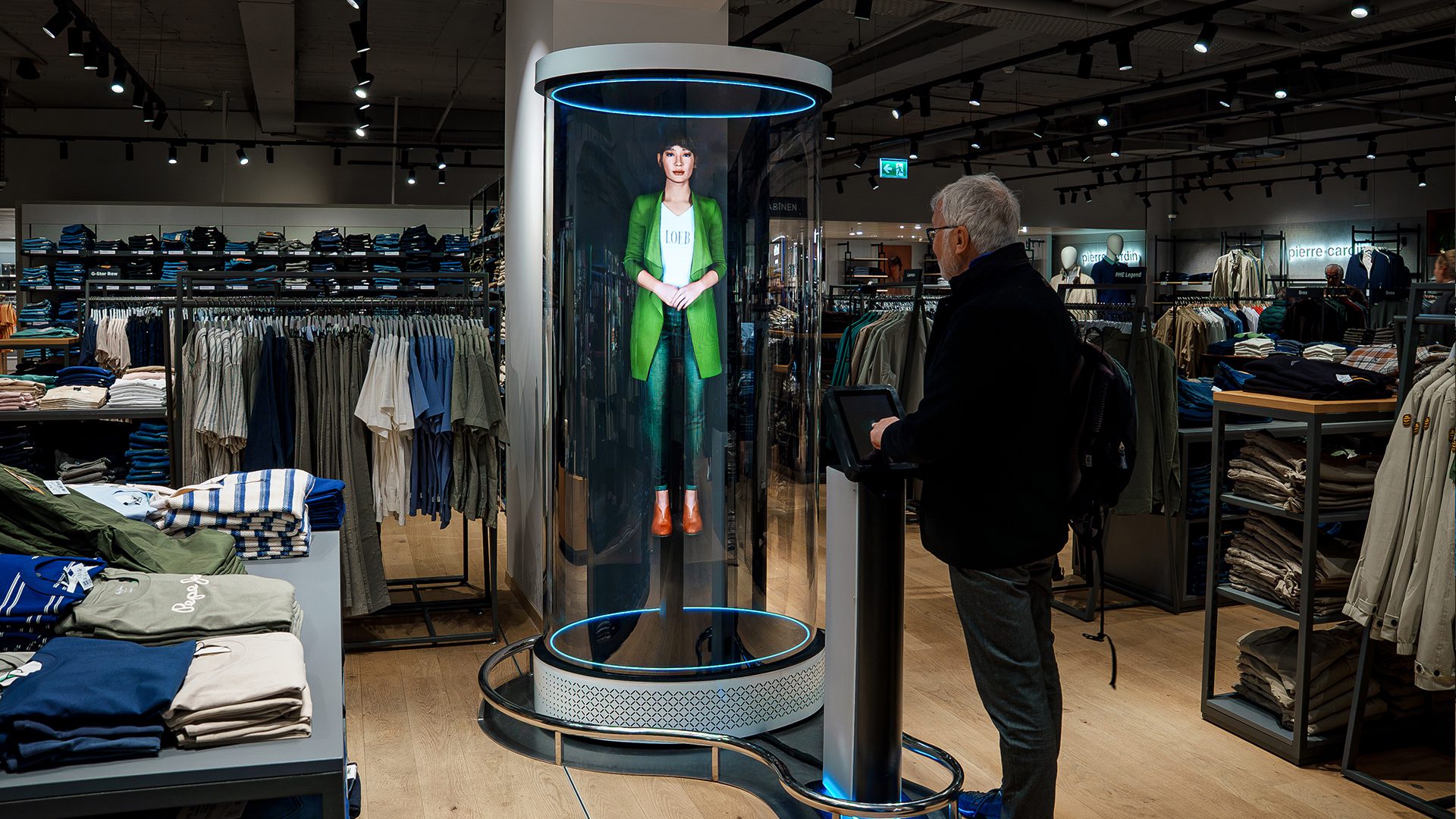
            ● Control Stand: A recommended accessory for organising the equipment, including the PC and touch monitor.

            ● Solo Station: A specialised integrated accessory that combines the SmartV Crystal M housing with a Control Stand, providing a complete single-display interactive setup.

          5. How to download and log in to the 3D Modeller application? 

            The HYPERVSN SmartV 3D Modeller application is a Windows-based desktop program. You can download it directly from the Microsoft Store.

            To log in to the HYPERVSN SmartV 3D Modeller application, follow these steps:

            1. Run the application on your PC.

            2. Enter your credentials. Use the same email and password associated with your HYPERVSN CMS account.

            3. Once logged in, choose the specific SmartV Box you wish to control from the provided list.

            Upon logging in, the application will automatically perform the following checks:

            ● Verify that your SmartV 3D Modeller subscription is active.

            ● Confirm that the selected SmartV Box is registered to your account.

            ● Check that your SmartV Solo or SmartV Wall is powered on.

            If any of these conditions are not met, the app will display a message indicating what needs to be addressed.

          6. What are the 3D model file requirements for 3D Modeller? 

            3D models must adhere to the following technical specifications:

            ● Supported formats: GLTF+BIN (most recommended), FBX (with embedded textures or relative paths), GLB, and OBJ+MTL.

            ● Asset naming: All asset names must use Latin characters and numerical digits only.

            ● UV mapping: Every object within the 3D model must contain one UV map.

            ● Maximum file size: 1000 MB.

            ● Maximum texture resolution: 4K.

            ● Material standards: Use standard Physically Based Rendering (PBR) materials with correctly applied settings.

            ● Lighting: Custom light sources, HDRI maps, and cameras are not required, as the application uses its own preset light source and camera to reproduce media content.

          7. How to add custom 3D models to the application? 

            To add custom 3D models to the HYPERVSN SmartV 3D Modeller application, follow these technical steps:

            1. Ensure that SmartV 3D Modeller is running on your PC.

            2. On the PC keyboard, press left CTRL + S to open the Settings window.

            3. Navigate to the Custom operating mode tab.

            4. Click the Add 3D Model button.

            5. Browse your PC and select a model in a supported format. The model appears in the list on the Settings page and is ready to be displayed.

          8. How to control and rotate models using the air mouse? 

            For remote interaction, users must first press Left Alt + S and select Remote Control on the PC keyboard to enable air mouse functionality. 

            Model selection 

            Position the cursor on the Next or Previous buttons and left-click to cycle through the model list. 

            Rotation 

            Position the air mouse cursor over the displayed 3D model, press and hold the left air mouse button, and rotate the device in the desired direction (left, right, up, or down). Release the button to stop the movement. 

            Animation control 

            Position the cursor and left-click the following on-screen buttons: 

            ● Explode: Starts the animation from the beginning.

            ● Reset: Displays the animation in reverse, from the end to the beginning.

          9. How to control and rotate models in the 3D Modeller app using the touch screen? 

            When using a touch screen, the SmartV 3D Modeller operates through a web interface consisting of a Web Settings page for configuration and a Web Demo page for user interaction. 

            Model selection 

            Users may start playback of any model by tapping the desired model thumbnail on the Web Demo page. 

            Rotation 

            To rotate a selected model, which is highlighted in blue in the list, use the virtual touchpad located on the touch screen interface. 

            Animation control 

            If the model has animations enabled in its settings, use the Next and Previous buttons to trigger them: 

            Next: Starts the next animation in the sequence from beginning to end. 

            Previous: Starts the previous animation from end to beginning. 

          10. How to prepare for using 3D Modeller? 

            To prepare for using the HYPERVSN SmartV 3D Modeller, follow the steps below.

            Step 1: Assemble hardware and accessories

            1.1 Install the SmartV Displays into their compatible accessories.

            1.2 Connect the SmartV Displays to the SmartV Box (1, 6, or 12) using optic cables and to the Power module using power cables.

            Step 2: Connect additional equipment

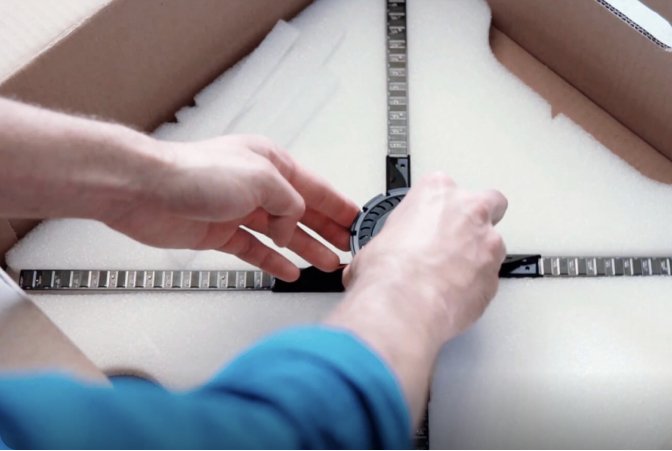
            2.1 Connect a PC to the HDMI IN port of the SmartV Box using an 8K Ultra High Speed HDMI cable.

            2.2 Connect the chosen interaction device to the PC:

            ● To connect a touchscreen, use HDMI and USB cables.

            ● To connect an air mouse, use Bluetooth.

            2.3 Optional: You may also connect speakers to the SmartV Box for audio.

            Step 3: Activate and set up software

            3.1 Register your HYPERVSN CMS account and install the HYPERVSN App on your mobile phone.

            3.2 Log in to the HYPERVSN App to activate your SmartV Box and perform SmartV Display setup and calibration.

            3.3 Ensure the SmartV box is in HDMI mode.

            3.4 In your Windows settings, set the SmartV hardware as the second screen.

            3.5 In the HYPERVSN App, on the Device tab, select General > Show Advanced, and adjust the following settings:

            ● Ensure FPS is set to 60.

            ● Ensure the HDMI Autoscale toggle is off.

            Edge effects are set to Fit.

            3.6 In the HYPERVSN CMS, navigate to the Devices page and activate your SmartV 3D Modeller subscription.

            Step 4: Install and run the application

            4.1 Install the HYPERVSN SmartV 3D Modeller application from the Microsoft Store.

            4.2 Launch the app and log in using your CMS credentials. Select the specific SmartV Box you intend to control from the provided list.

            Step 5: Configure the interaction scenario

            5.1 Once the 3D Modeller is running, press Ctrl + S on your keyboard to open the Settings interface and configure the following:

            ● Select operating mode: Choose Demo to use the default content or Custom to apply your own content.

            ● Select the default content or upload custom 3D models.

            ● Set the frequency for switching between models and reorder the sequence in which they appear.

            ● Select specific animations for selected models to define how they behave during playback.

          11. What is the difference between the 3D Modeller and the 3D Library solution? 

            The 3D Modeller is for manipulating a single 3D object, while the 3D Library is for navigating a collection of pre-recorded content.

            The primary difference between the 3D Modeller and the 3D Library lies in the type of content they display and how the user interacts with it:

            ● HYPERVSN SmartV 3D Modeller is designed for the real-time manipulation of 3D objects. Users can rotate, zoom, and move actual 3D models and trigger pre-designed animations using a touchscreen or air mouse. It is used to showcase detailed items from all angles.

            ● HYPERVSN 3D Library functions as an interactive menu for pre-recorded content. It allows users to navigate a hierarchical interface of groups and subpages on a touchscreen to select and play specific playlists on the SmartV Displays.

          Can’t find your answer?

          4 Item in cart

          HYPERVSN 3D Catalog

          USD 1,200

          Qty

          Remove Item

          HYPERVSN 3D Catalog

          USD 1,200

          Qty

          Remove Item

          HYPERVSN 3D Catalog

          USD 1,200

          Qty

          Remove Item

          Cart Subtotal:

          USD 3,600