

























HYPERVSN 3D Library

  • What is HYPERVSN SmartV 3D Library?  

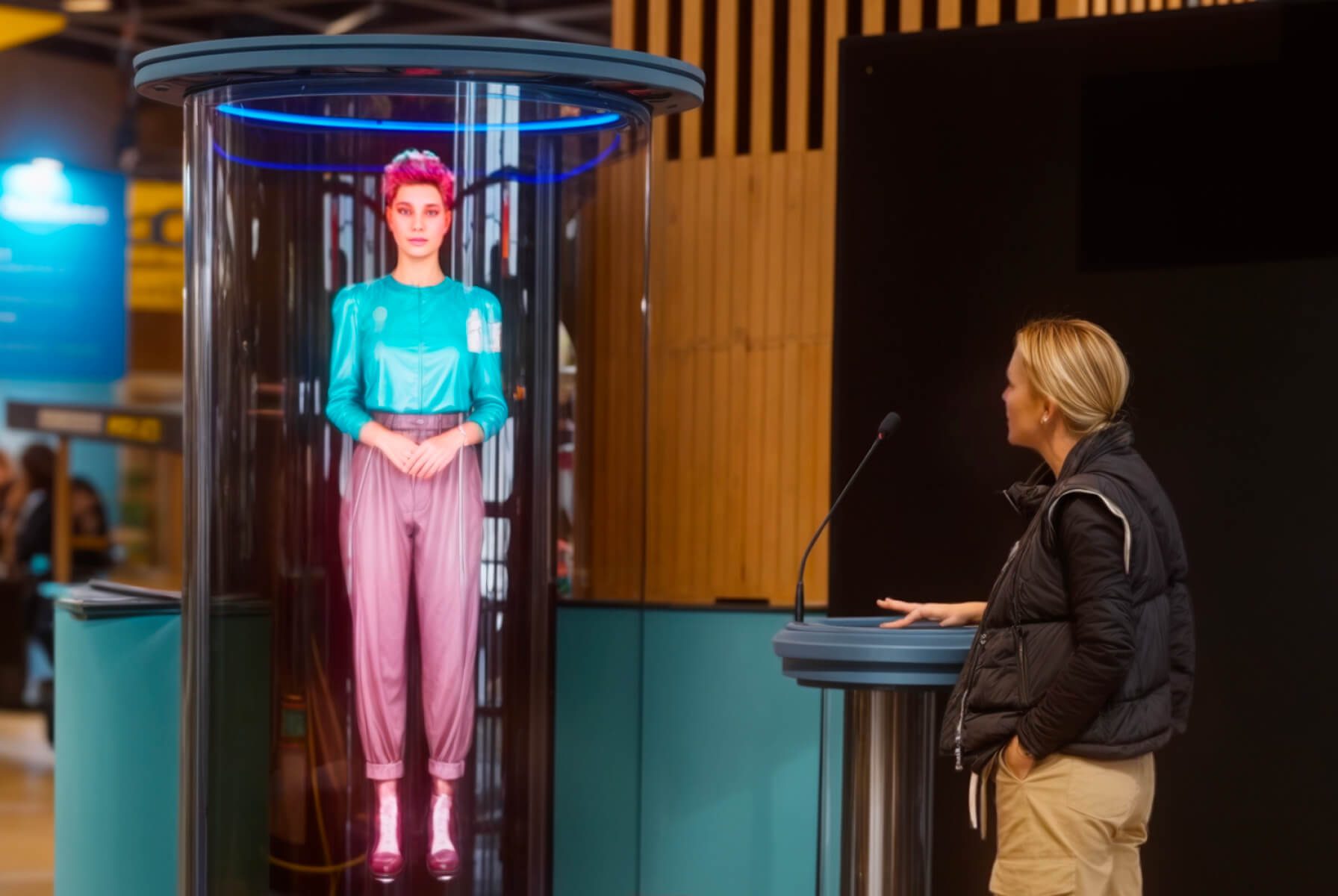
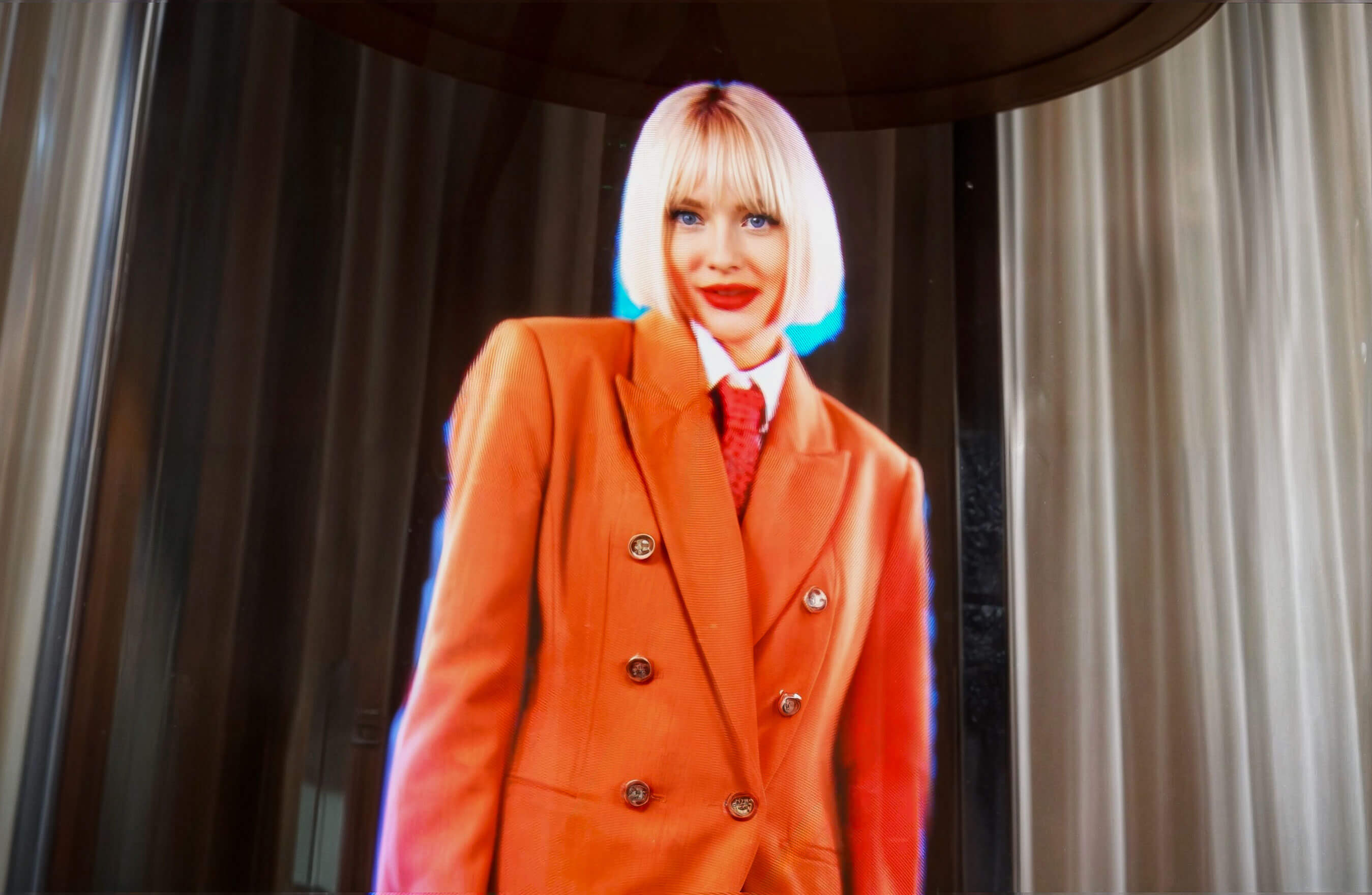
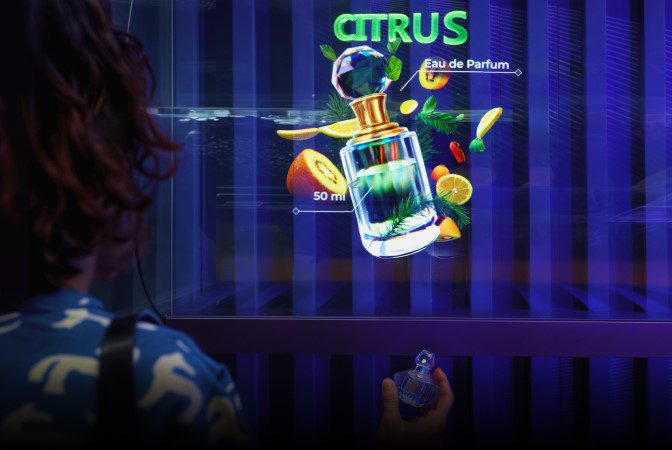
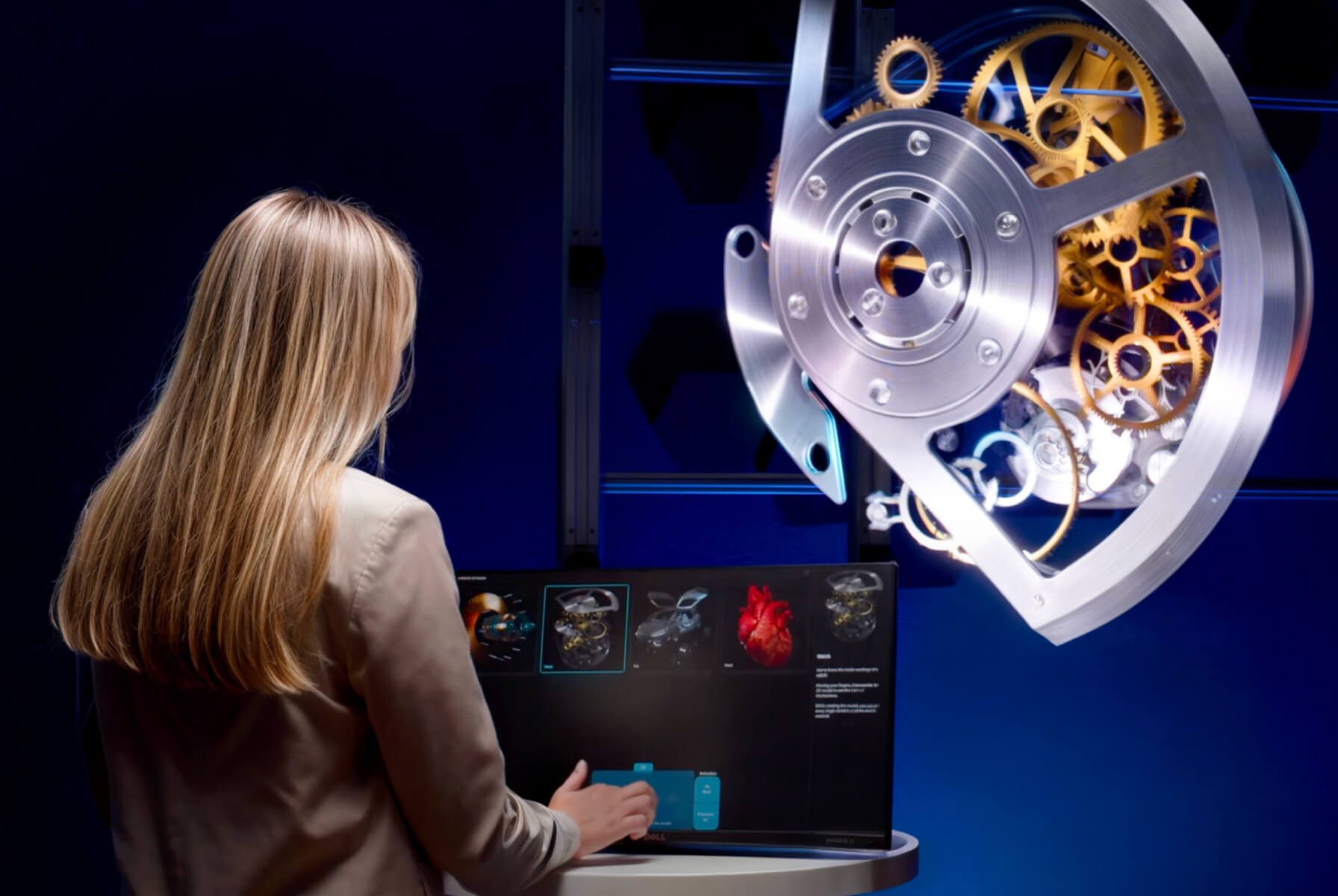
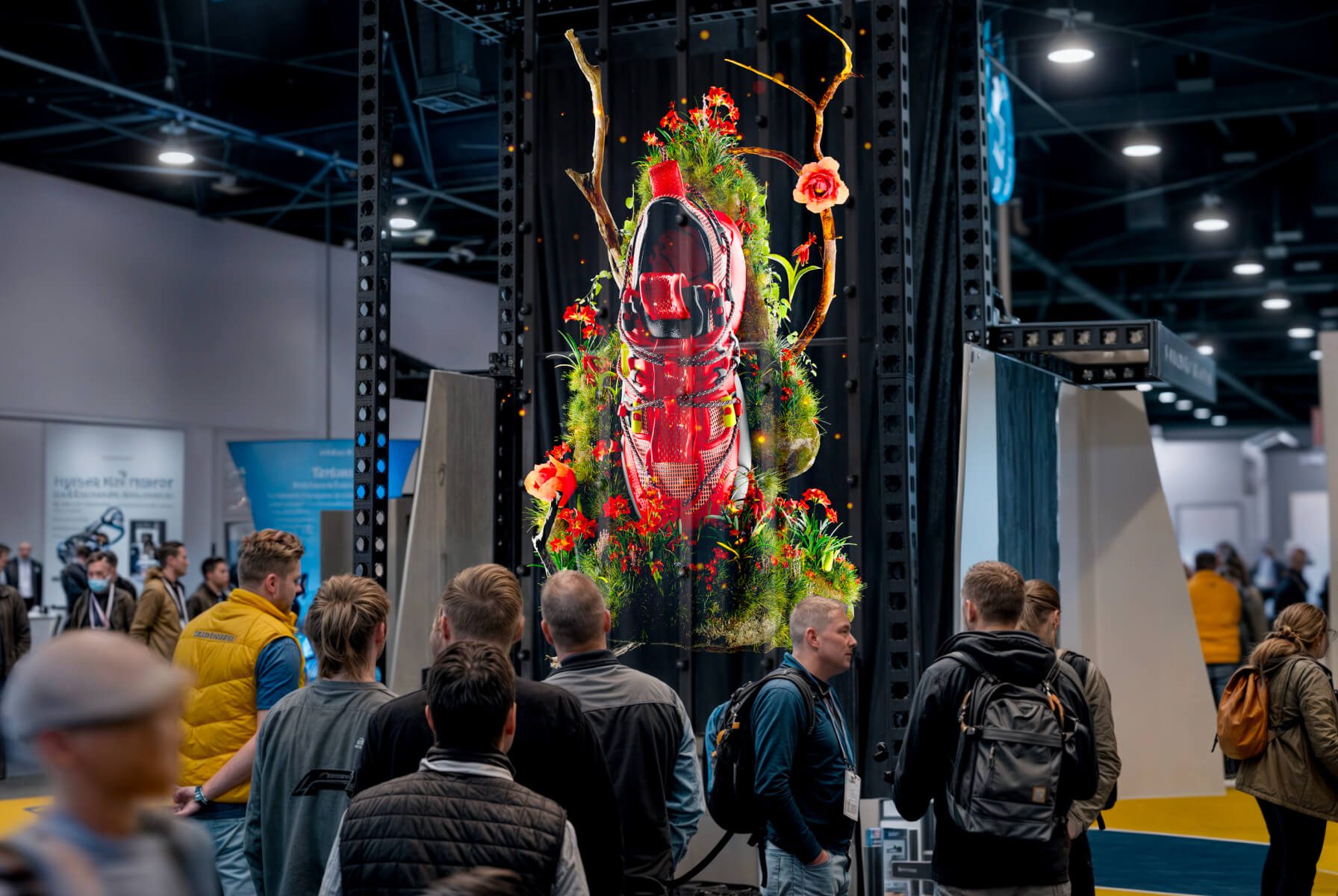
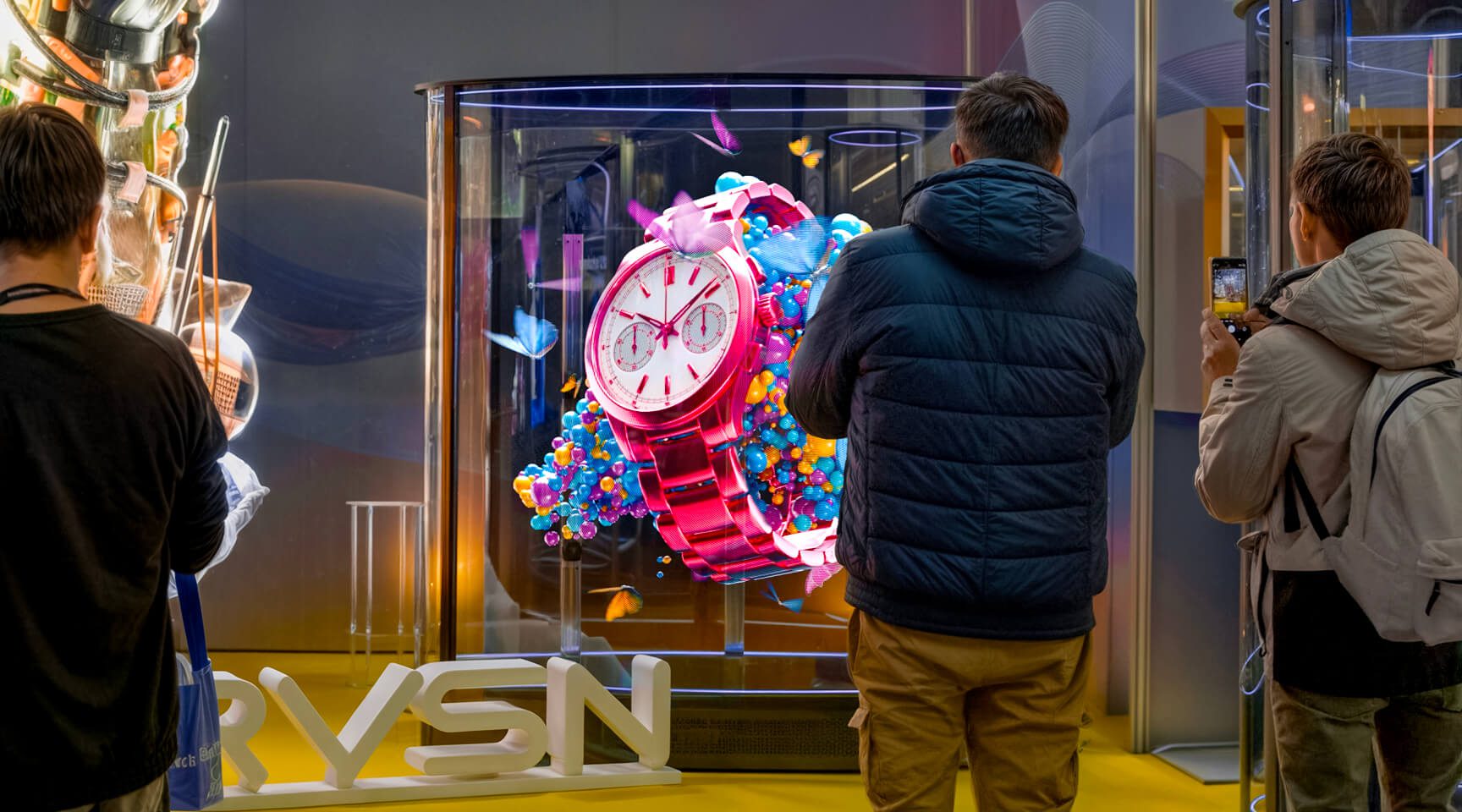
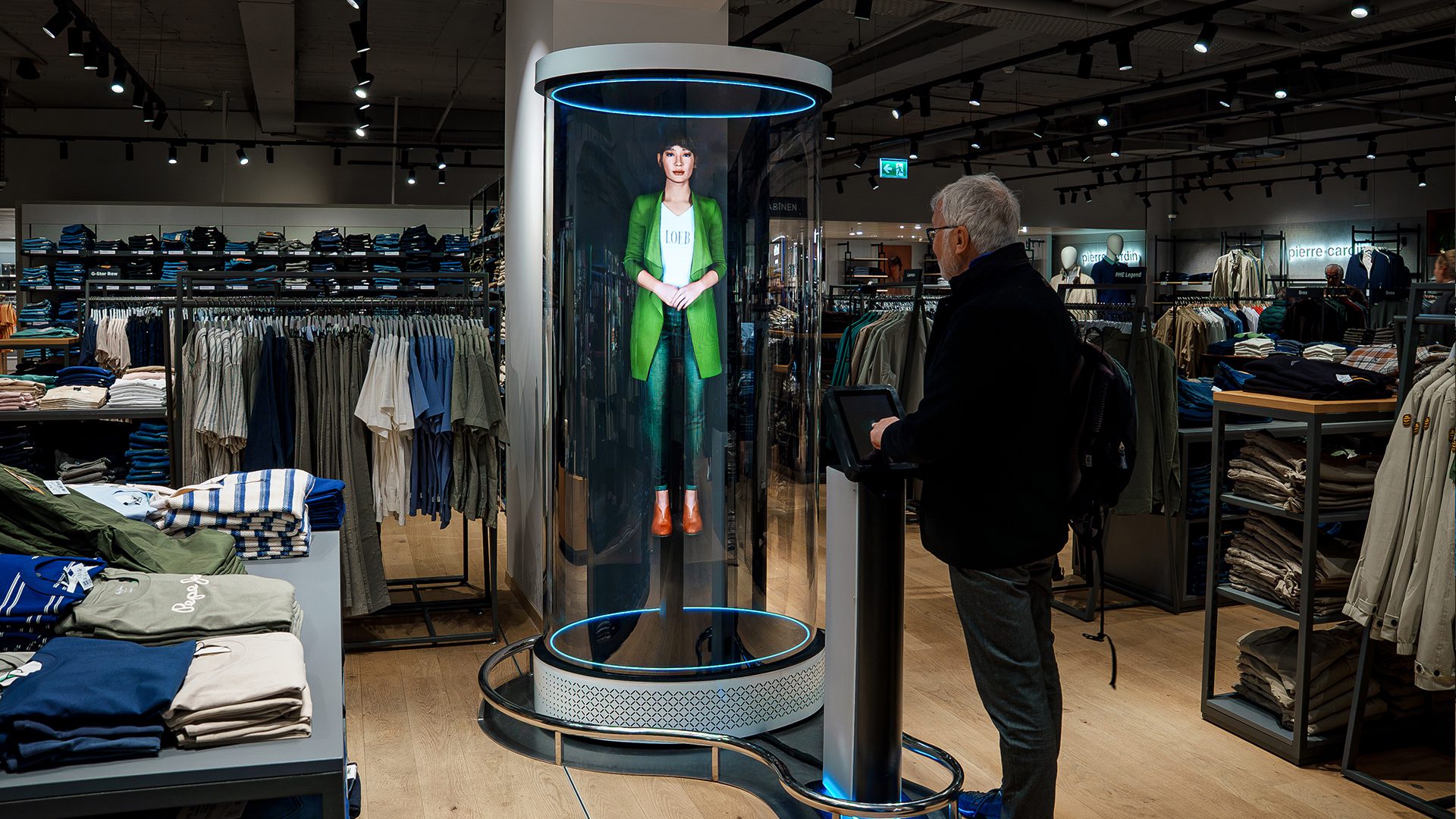
    The HYPERVSN 3D Library is an interactive solution designed to control media playback on SmartV devices using a touchscreen interface. The solution can demonstrate products, provide information, showcase the latest trends, or support custom scenarios.

  • What are the core hardware and software components of the 3D Library? 

    The following equipment and software components are required to set up and use the SmartV 3D Library solution.

    1. Hardware:

    ● Any number of the SmartV Displays (size M or L)

    ● SmartV Box 1, 6, 12 (depending on the number of SmartV Displays)

    2. Accessories:

    ● Any accessories with a control stand compatible with your SmartV Solo or Wall setup

    3. Additional equipment:

    ● PC

    ● Touchscreen in portrait orientation

    ● Optional: Keyboard and mouse (required only for setting up the 3D Library)

    ● Optional: Speakers

    4. Software:

    ● HYPERVSN App to set up hardware and create playlists

    ● HYPERVSN CMS to activate the SmartV 3D Library subscription

    ● 3D Library to create and run interaction scenario

  • What are the key benefits of SmartV 3D Library? 

    The key benefits and feature highlights of the 3D Library are the following:

    ● Interactive audience engagement: It transforms passive viewing into an active experience, allowing users to navigate through holographic content using a touchscreen interface.

    ● Bespoke interaction scenarios: Administrators have the flexibility to create customised navigation paths and hierarchies, grouping text and images to trigger specific media playlists based on business needs.

    ● Compatibility: The solution is compatible with all SmartV hardware, including SmartV Solo devices and SmartV Wall or Multi-Wall configurations of any layout.

    ●Customisable layout: Administrators can select layouts for elements, edit main page title, and button labels.

    ● User-friendly interface: The application features a dual-interface system, separating the user-facing navigation from the administrative configuration tools, which makes it intuitive both for users and administrators.

  • Which accessories are compatible with the SmartV 3D Library solution? 

    The HYPERVSN 3D Library is an interactive solution designed to work with both SmartV Solo devices and SmartV Wall configurations of any layout. It is compatible with any accessories with a Control Stand suitable for the selected setup.

    Control Stand is an accessory designed to organise equipment:

    ● PC

    ● Touch monitor

    ● Speakers

    The Control Stand can be connected to SmartV Wall and Solo accessories.

  • How are playlists prepared and managed for the 3D Library? 

    To prepare and manage playlists for HYPERVSN SmartV 3D Library, administrators must first create them using the HYPERVSN App, as the 3D Library application is primarily used for assigning these playlists to interactive scenarios.

    1. Prepare playlists on the SmartV Box.

    2. Synchronise playlists with the 3D Library:

    ● When you log into the 3D Library application on your PC, it automatically synchronises with the SmartV Box and fetches all available playlists.

    ● Use the Refresh button to sync playlists between the HYPERVSN App and 3D Library. When tapped, it fetches the latest changes made to playlists in the HYPERVSN App and applies them to the 3D Library playlist, ensuring both are aligned.

    3. Create interaction scenario in the 3D Library’s Admin interface:

    ● Assign specific playlists to Groups, Subpages, or the Back button.

    Assign the playlist that will play automatically on the SmartV Displays whenever the touchscreen has not been used for a specified period.

  • What customisation options are available for the user interface in the 3D Library? 

    The 3D Library offers customisation options, allowing administrators to tailor the appearance and navigation of the interactive touchscreen experience.

    The following customisations are available:

    ● Main page title: The heading displayed at the top of the client interface can be edited.

    ● Groups and subpages: The interface is built using a hierarchical structure. Administrators can create nested subpages at multiple levels to group content logically.

    ● Reordering: The sequence of groups and subpages can be adjusted.

    ● Images: Administrator can upload a custom image for every group and subpage. Image requirements: PNG format, 500×500 px.

    ● Layout options: Administrators can select from several layout styles to define how elements appear and behave on the touchscreen.

    ● Behavioural and timing settings: Administrators can control the user’s interactive journey using timing parameters such as screen delay, idle timeout, and others.

  • How to prepare for using SmartV 3D Library? 

    To prepare for using the HYPERVSN SmartV 3D Library, follow the steps below.

    Step 1: Assemble hardware and accessories

    1.1 Install SmatV Displays: Mount your SmartV Solo or SmartV Wall setuo into the compatible accessories.

    1.2 Connect SmartV Displays to the SmartV Box (1, 6, or 12, depending on your setup) using optic cables and to the Power module using power cables.

    Step 2: Connect additional equipment

    2.1 Connect a PC (required to run the Windows-based 3D Library application) to the same local network as your SmartV Box.

    2.2 Connect a touchscreen monitor to the PC using HDMI and USB cables.

    2.3 Optional: You may also connect speakers to the SmartV Box and use a keyboard and mouse for the initial administrative configuration.

    Step 3: Software setup and activation

    3.1 Register your HYPERVSN CMS account and install the HYPERVSN App.

    3.2 Log in to the HYPERVSN App, activate your SmartV Box, perform the setup and calibration.

    3.3 Ensure the SmartV Box is set to Player mode.

    3.4 Navigate to the Devices page in the CMS and activate your SmartV 3D Library subscription.

    Step 4: Create playlists

    4.1 Use the HYPERVSN App to create and name playlists directly on the SmartV Box.

    4.2 Once you log in to the 3D Library application on your PC, these playlists will be synchronised and become available for assignment to your navigation buttons.

    Step 5: Configure the interaction scenario

    5.1 Once the hardware and playlists are ready, open the Admin interface (Ctrl + S) in the 3D Library app and set the following:

    ● Add the main page title.

    ● Create groups and subpages.

    ● Assign your prepared playlists to specific images or text elements.

    ● Set timing options, such as idle timeouts, to ensure the display returns to a default state when not in use.

  • How to activate the 3D Library subscription in the CMS?  

    To activate a SmartV 3D Library subscription in the CMS, follow these steps:

    1. Log in to your HYPERVSN CMS account and navigate to the Devices page.

    2. Locate the specific SmartV Box from the devices list that you wish to activate.

    3. Click the Activate subscription button located near the serial number of that SmartV Box.

    4. In the Activate subscription dialogue, select the SmartV 3D Library subscription from the drop-down menu.

    5. Click the Activate subscription button to finalise the process.

    6. To update the subscription information on your SmartV Box, connect it to the internet.

    Note: Your subscription period begins as soon as you activate the subscription in your CMS account.

Can’t find your answer?

4 Item in cart

HYPERVSN 3D Catalog

USD 1,200

Qty

Remove Item

HYPERVSN 3D Catalog

USD 1,200

Qty

Remove Item

HYPERVSN 3D Catalog

USD 1,200

Qty

Remove Item

Cart Subtotal:

USD 3,600