





















HYPERVSN Knowledge Base

  • What is the HYPERVSN SmartV Lift & Learn automation? 

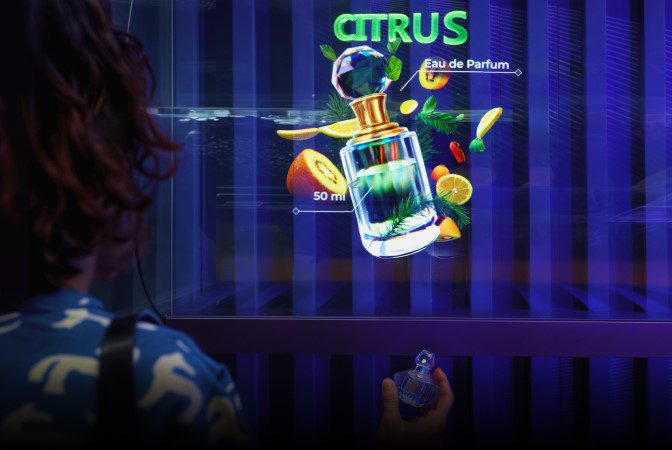
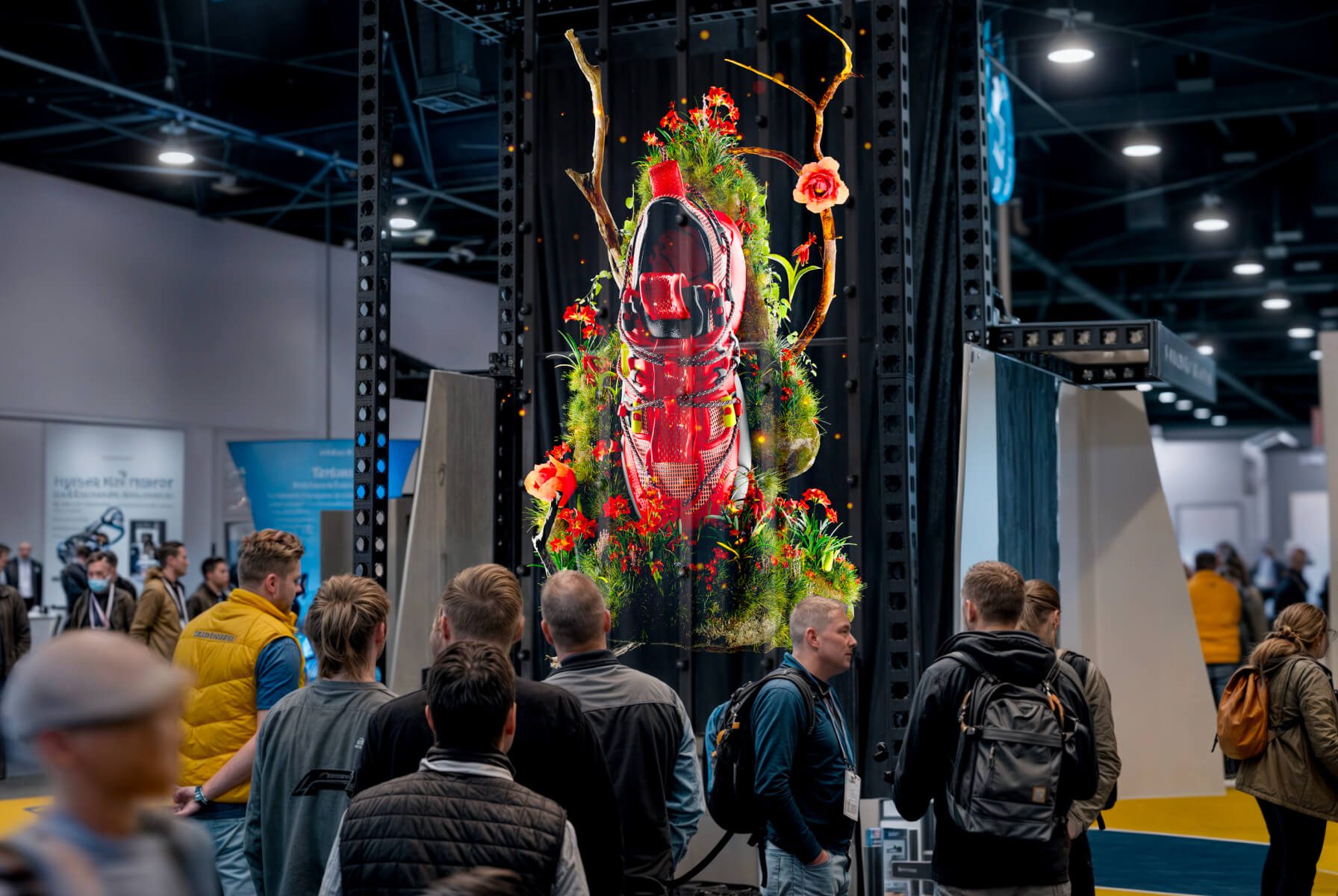
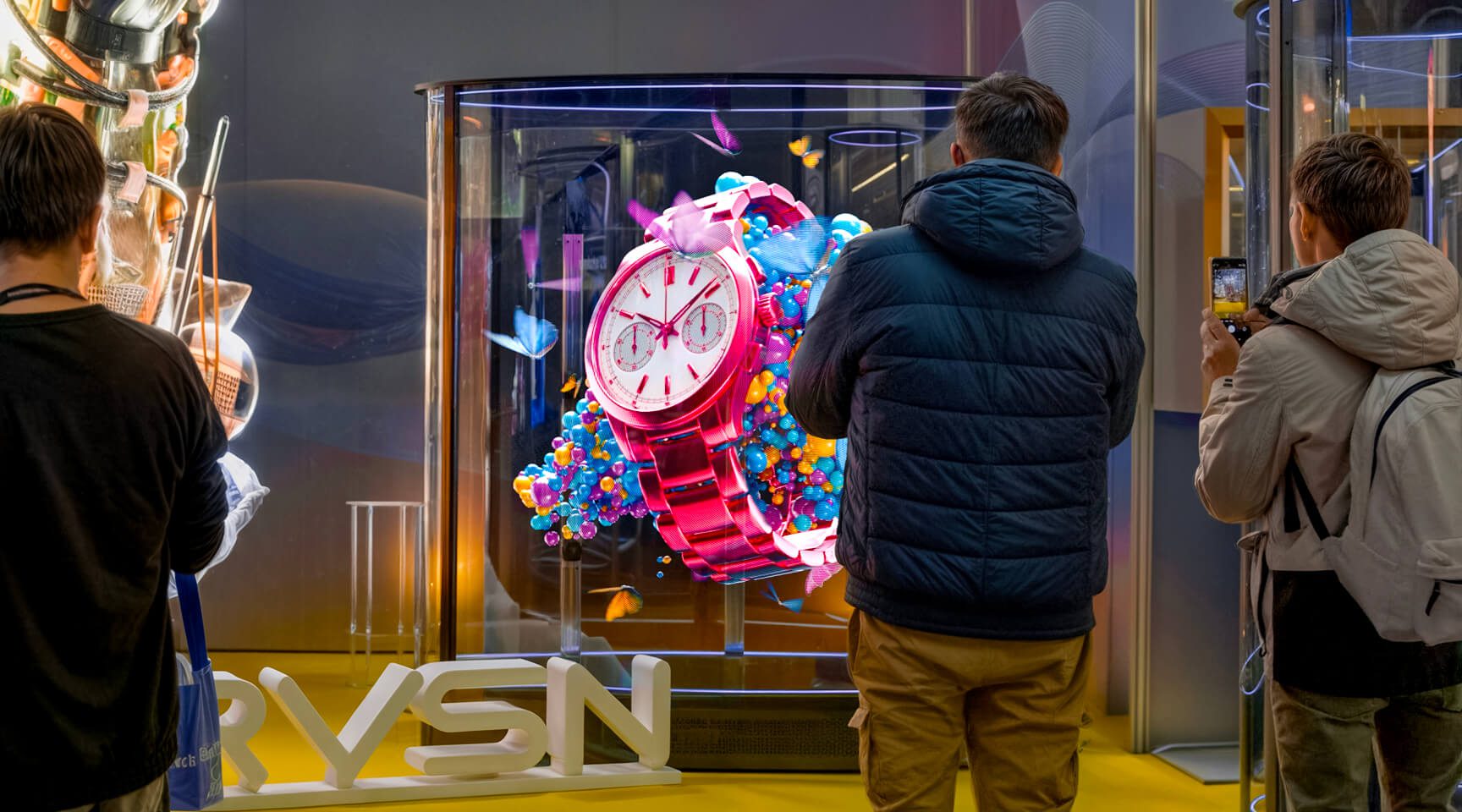
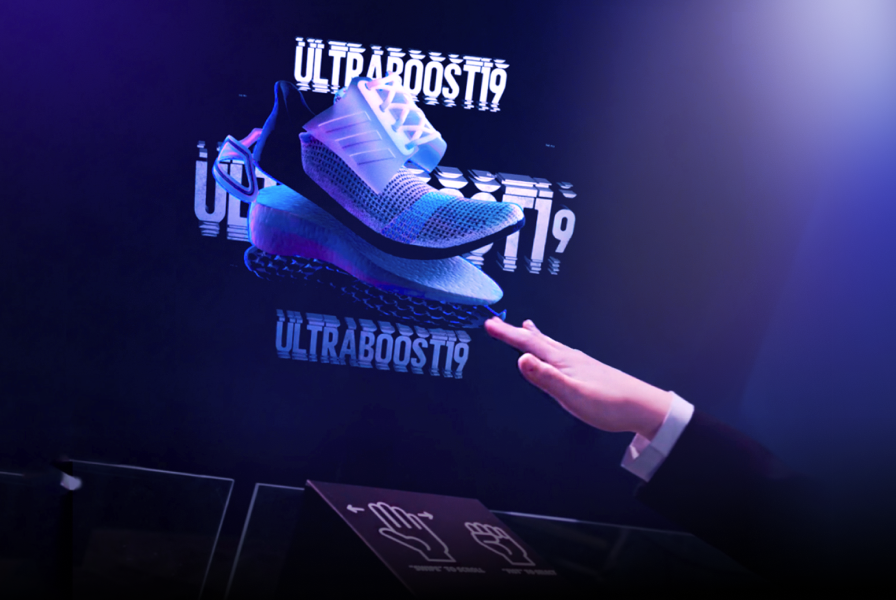
    HYPERVSN SmartV Lift & Learn is an interactive automation solution that controls holographic SmartV Displays using external triggers, such as sensors. It is designed to provide users with high-resolution 3D holographic information about a physical product while they are engaged in real-time haptic interaction with it.

    The solution functions by linking physical movements of a product to specific digital content:

    ● Pick-up action: When a customer picks up a product, related holographic content immediately appears on the SmartV Display.

    ● Place-back action: The content can be switched or reset to a default state when the customer places the product back in its original position.

  • What are the key benefits of Lift & Learn? 

    HYPERVSN SmartV Lift & Learn provides the following key benefits:

    ● Interactive haptic engagement: The solution enables users to receive information about a product while they are engaged in real-time haptic interaction with it.

    ● Multi-sensory immersive experience: To enhance the realism of the hologram, the visuals can be accompanied by speech, sounds, and visual effects.

    ● Versatile sensor integration: The solution supports various specialised triggers from Nexmosphere, including light sensors, RFID tags with antennas, and wired X-Snappers. This flexibility allows the system to be adapted for a wide range of product types.

    ●Compatibility: Lift & Learn is highly versatile and can be used with SmartV Solo, SmartV Wall, or Multi-Wall setups of any layout and type.

    ● Scenario creation using HYPERVSN App: Scenarios are managed and configured through the HYPERVSN App using its built-in Automation feature, allowing administrators to link specific physical triggers to digital playlists without complex programming.

  • What are the core hardware and software components required for Lift & Learn? 

    The following equipment and software components are required to set up and use the Lift & Learn solution.

    1. Hardware:

      ● SmartV Displays M/LB: Any number.

      ● SmartV Box (1, 6, or 12): Depending on the setup.

      ● SmartV Power 1000: For SmartV Wall setups.

      2. Accessories:

        ● Any Solo/Wall accessory compatible with the setup.

        ● Shelves for sensors and antennas: These should be custom-made depending on the number of products and sensors type. Shelves are not supplied by HYPERVSN. They can be created upon request at additional cost.

        3. Interaction components:

          ● Nexmosphere controllers: Required to transfer data between the triggers and the SmartV Box.

          ● Any of the following sensors:

          a) Light sensors for wireless pick-up detection.

          b) RFID tags, RFID antennas, and RFID antenna driver.

          с) Wired sensors for physical, wired detection of product release.

          4. Software:

            ● HYPERVSN App: Automation is a built-in feature.

          1. What are the available sensor options for Lift & Learn? 

            For the HYPERVSN SmartV Lift & Learn solution, there are three primary categories of external interaction sensors available to trigger holographic content: Light, RFID, and Wired (X-Snapper). All of these options are typically provided by Nexmosphere and connect to the SmartV Box using a controller. 

            1. Light sensors (Wireless Detection) 

            This option detects whether a physical product is currently placed on top of the sensor or has been removed from it. 

            Dimensions: 29 × 22 × 10 mm. 

            2. Antennas & RFID tags (Wireless detection) 

            This category uses RFID tags attached to products, which are detected by antennas built into the shelf. A single antenna can detect up to four RFID tags simultaneously.  

            Dimensions: 26 mm diameter. 

            3. Wired Detection (X-Snapper) 

            The X-Snapper provides a physical, wired connection to the product. It is useful for security and reliable pick-up registration. The X-Snapper detects when a product is physically released from or reconnected to its counter block, registering both pick-ups and place-downs. 

            Dimensions: 46 × 23 × 10.3 mm. 

            Cable length: Features a 180 cm cable. 

            Regardless of the sensor type, the sensors must be linked to the SmartV Box using a Nexmosphere controller. The controller transfers data between the triggers and the SmartV Box using a USB-A to Micro-USB cable. 

          2. Which accessories are compatible with Lift & Learn? 

            Lift & Learn can be used with any accessory compatible with the selected setup.

            Additional custom shelves are required to place sensors and antennas. These shelves are custom-made depending on the following:

            ● Number of merchandise items

            ● Type of sensors

            Custom shelves are not supplied by HYPERVSN and can be created upon request at an additional cost.

          3. How to access the “Automation” feature in the HYPERVSN App? 

            To access the “Automation” feature, follow these steps: 

            1. In the HYPERVSN App, open the Device tab and select the SmartV Box where you want to create an automation scenario. 

            2. On the Device tab, tap Automation > Add Automation

          4. What happens when multiple RFID tags are used simultaneously? 

            When multiple products with RFID sensors are lifted at the same time, the system plays the content linked to the first triggered sensor.

          5. What merchandise can sensors be used with? 

            Sensors can be used with the following product categories:

            ● Sneakers

            ● Skincare products

            ● Fragrance

            ● Make-up

            ● Smartphones and electronic devices

            ● Headphones and wearables

            ● Watches and jewellery

            ● Handbags

            ● Grocery / FMCG products

            ● Pharmaceuticals

            For anything beyond standard retail products (e.g. very heavy items, large products, fully metal-cased items), it is worth confirming with technical support.

          6. Which media content works with Lift & Learn?

            Lift & Learn works with all content available in the HYPERVSN CMS platform in the form of media files.

            Ensure that each sensor is linked to a particular playlist.

          7. Is a subscription required to use Lift & Learn? 

            No. The HYPERVSN Lift & Learn solution does not require a dedicated, solution-specific subscription to operate.

          8. What is the HYPERVSN Holographic Truck solution? 

            The Holographic Truck is a specialised cargo vehicle engineered with a modular SmartV Wall integrated directly into the truck’s body. This configuration transforms the vehicle into a mobile holographic billboard, allowing the deployment of large-scale 3D visuals in any outdoor or event-based environment.

          9. What are the key benefits of the Holographic Truck? 

            The HYPERVSN Holographic Truck solution provides the following key benefits:

            ● Visibility from a distance: HoloTruck advertising is visible even from far away, ensuring the brand message reaches audiences across large open spaces.

            ● City aesthetics: Instead of covering buildings with traditional banners and signs, the HoloTruck delivers brand messages without adding visual clutter to city infrastructure.

            ● Transformation of any location into an advertising space: As a mobile solution, the HoloTruck can travel to different locations, ensuring the brand message reaches audiences in multiple areas rather than being fixed to one spot.

            ● Versatile deployment: HoloTruck is suitable for a wide range of outdoor and event-based settings, from street promotions to large festivals.

            ● Mobility with no setup required: The SmartV Wall is integrated directly into the truck’s body, so you do not need to assemble or disassemble the Displays when moving between locations. The holographic Wall is ready to use immediately upon arrival.

            ● Displays work while moving: The SmartV Displays can display content while the truck is in motion during transit between locations. This means your brand message can be visible even while the vehicle is driving, not just when it is parked.

            ● No need for additional transport providers: Since the holographic Wall is built into the vehicle, you do not need to hire separate carriers or logistics companies to transport the equipment.

            ● Two-in-one solution: The HoloTruck functions as both a cargo vehicle and an advertising Wall, maximising utility and reducing overall costs.

            ● Local power infrastructure: The 3D HoloTruck utilises a self-contained power architecture consisting of an onboard diesel generator and a battery buffer, removing the requirement for venue power hookups or external electrical connections. This energy independence facilitates unrestricted deployment in remote or high-traffic locations where grid access is restricted or unavailable.

          10. What are the visible display area on the 3D Holo-Truck? 

            The standard 3D Holo-Truck is equipped with an integrated SmartV Wall in a 6 × 4 configuration. This large-scale Wall consists of 24 synchronised SmartV Displays Model L featuring high-brightness LB rays.

            The SmartV Wall 6 × 4 provides the following dimensions for the visible display area:

            ● Visible display width: 3.4 m

            ● Visible display height: 2.4 m

            SmartV Wall’s configuration can be customised. The size of the visible area is limited by the vehicle’s design.

          11. What are the core hardware and software components of the HYPERVSN Holographic Truck solution? 

            The following equipment and software components are required to set up and use the HYPERVSN Holographic Truck solution.

            1. Hardware

              ● SmartV Displays Model LB: The standard configuration is the SmartV Wall L24, which uses 24 synchronised Displays.

              ● SmartV Box: Multiple SmartV Box 12 modules.

              ● SmartV Power 1000: One SmartV Power 1000 is required for each 6 SmartV Displays.

              2. Vehicle and mounting

                Vehicle and mounting options are market-specific and depend on the project. Below is an example of possible configuration.

                ● Base vehicle: The Mercedes-Benz Atego 1530.

                ● Mounting system: Custom reinforced mounting racks equipped with a specialised suspension mechanism to protect the hardware from vibrations and movement while the vehicle is in motion.

                ● LED lighting strips (Optional): Installed around the frame edges to amplify the 3D depth effect and visual impact.

                ● Perspex covers (Optional): The weatherproof protective panels designed to shield the hardware from environmental factors during outdoor operations.

                ● Climate control systems (Optional).

                3. Power management

                  ● An onboard diesel generator provides the main AC power.

                  ● Four 12V car batteries function as a buffer to smooth power fluctuations during motion or generator start-up/shut-down.

                  ● A 220V inverter converts output for the display system.

                  4. Monitoring and connectivity

                    ● 4G/5G internet router: Provides high-speed data connectivity for remote content management.

                    ● Wi-Fi Camera (Optional): Installed for live performance tracking and audience engagement monitoring.

                    5. Software

                      ● HYPERVSN CMS

                      ● HYPERVSN App

                      ● HYPERVSN Pro App

                      ● Special mobile firmware: A proprietary firmware engineered to enable the SmartV Wall platform to operate reliably in vehicle-mounted, mobile environments.

                    1. How is the Holographic Truck powered while in motion?

                      The 3D Holo-Truck’s integrated, self-contained power architecture provides a significant strategic benefit by removing the requirement for local power infrastructure.

                    2. Is it possible to customise or change the size of the holographic Wall on the truck?  

                      Yes. While the 3D HoloTruck features a standard high-impact configuration, the system is engineered for flexibility to meet specific campaign requirements. The SmartV Wall platform is modular by design, allowing SmartV Displays to be arranged in various horizontal and vertical configurations.

                      The standard configuration is the SmartV Wall L24 (6 × 4), producing a 3.4 m × 2.4 m display area.

                      The display area is scalable, but all customisations must adhere to the technical boundaries defined by the vehicle’s structural architecture.

                    3. What are the temperature, humidity, and wind limits for outdoor operation? 

                      The SmartV hardware modules typically operate within the following technical boundaries:

                      ● Operating temperature: From 0°C to 35°C+.

                      ● Operating humidity: Up to 75%.

                      However, for specialised outdoor solutions like the 3D HoloTruck, these limits are extended through custom engineering and climate control systems.

                      Adaptation to the specific climatic conditions at the installation site is mandatory for every 3D HoloTruck deployment. Stakeholders must collaboratively evaluate the following factors to ensure system reliability:

                      ● Duration of outdoor use: Short-term event activations vs. 24/7 permanent DOOH campaigns require different maintenance and protection tiers.

                      ● Regional weather patterns dictate the required level of ingress protection.

                      ● Diurnal temperature shifts and seasonal variations (e.g., winter vs. summer) impact the thermal management strategy.

                      The following climate adaptation measures may be implemented:

                      ● Enhanced weatherproofing: Specialised seals and housing to protect the SmartV Wall components from moisture and dust.

                      ● Temperature regulation: Active climate control systems (heaters or cooling units) to maintain the hardware within its optimal thermal range.

                      ● Material selection: Use of specialised plexiglass that can enhance wind resistance.

                    4. Will the holographic content be visible if the 3D Truck is operating on a bright, sunny day?  

                      The Holographic Truck is optimised for evening and low-light operation. The display runs at 3,000 nits brightness, which provides strong visibility in many outdoor conditions – but direct midday sunlight may affect the 3D effect .

                      A daytime model is available on request. This involves positioning the Displays to avoid direct sun angles.

                    5. Is a double-sided configuration available for the 3D HoloTruck? 

                      Yes. For 360-degree visibility, the 3D HoloTruck is available in a double-sided configuration. This setup integrates two independent SmartV Walls into the opposing sides of the vehicle’s body, allowing simultaneous holographic playback to audiences on both sides of the transit route or activation site.

                    6. How many operational hours per day are recommended for the 3D HoloTruck? 

                      The operating hours are only limited by the need for technical maintenance of the vehicle, such as filling with fuel, servicing the generator, and other required work.

                    7. What is the HYPERVSN SmartV Prime? 

                      The HYPERVSN SmartV Prime is an all-in-one holographic solution consisting of a SmartV Wall that is pre-mounted inside a SmartV Ellipse accessory. This solution is designed to provide a ready-to-use, integrated setup for high-impact holographic displays.

                    8. What are the available configurations of SmartV Prime? 

                      The HYPERVSN SmartV Prime solution is available in several configurations based on the size of the SmartV Wall and the suitable Ellipse accessory.

                      The available configurations include:

                      ● Prime L3: Features 3 SmartV Displays pre-mounted in the SmartV Ellipse L3 accessory. This setup is designed for vertical layouts, such as those used for the Digital Avatar or Holographic Human.

                      ● Prime L6: Features 6 SmartV Displays pre-mounted in the SmartV Ellipse L6 accessory. The standard layout for this configuration is 2×3.

                      ● Prime L9: Features 9 SmartV Displays pre-mounted in the SmartV Ellipse L9 accessory. The standard layout for this configuration is 3× 3.

                      ● Prime L12: Features 12 SmartV Displays pre-mounted in the SmartV Ellipse L12 accessory. This is available in two distinct orientation options:

                      a) Horizontal 3× 4 configuration.

                      b) Vertical 4× 3 configuration.

                    9. What are the core components of the Prime solution? 

                      The SmartV Prime solution comes as a complete, ready-to-use package. The exact number of components depends on your chosen configuration, but every setup includes the following core elements:

                      ● SmartV Displays size L: The number of SmartV Displays varies by configuration.

                      ● SmartV Box 6 or 12: The model of the SmartV Box is selected based on how many displays are in your setup.

                      ● SmartV Power 1000: The number of power modules depends on the size of your setup.

                      ● SmartV Ellipse accessory: Your package includes the corresponding Ellipse L3, L6, L9, L12 accessory that matches the number of SmartV Displays.

                    10. What are the technical specifications and power requirements for Ellipse?

                      The technical specifications and power requirements for the HYPERVSN SmartV Ellipse series vary by configuration. The power consumption listed below for the accessories generally covers the specialised housing components (such as fans and built-in LED lighting) and does not include the requirements for the SmartV Displays or SmartV Boxes themselves unless specified.


                      Ellipse L3

                      ● Dimensions: 2201 × 1026 × 820 mm

                      ● Weight: 87 kg (enclosure only)

                      ●Accessory power consumption: Average 110 W; peak 250 W

                      ● Total system power (peak): Approximately 639 W for standard media playback or 1,228 W for the full Digital Avatar interactive solution (including PC, monitor, and audio)

                      ● Noise level: < 56 dB


                      Ellipse L6 (2 × 3)

                      ● Dimensions: 2208 × 1596 × 940 mm

                      ● Weight: 155 kg (approximate weight with equipment)

                      ● Accessory power consumption: Average 110 W; peak 250 W

                      ● Noise level: < 59 dB


                      Ellipse L9 (3 × 3)

                      ● Dimensions: 2201 × 2130 × 940 mm

                      ● Weight: Maximum 190 kg (with equipment)

                      ● Accessory power consumption: Average 110 W; peak 250 W

                      ● Noise level: < 62 dB


                      Ellipse L12 (3 × 4 horizontal orientation)

                      ● Dimensions: 2883 × 2130 × 928 mm

                      ● Weight: Maximum 228 kg (with equipment)

                      ● Accessory power consumption: Average 110 W; peak 250 W


                      Ellipse L12 (4 × 3 vertical orientation)

                      ● Dimensions: 2621 × 3166 × 1366 mm

                      ● Weight: Maximum 360 kg (with equipment)

                      ● Accessory power consumption: Average 110 W; peak 250 W

                    11. How to clean protective panels without damaging the surface?

                      To clean the protective panels on your HYPERVSN accessories (such as the SmartV Ellipse) without damaging them, follow these steps:

                      ● Always use a clean microfiber or terry cloth to remove dust and dirt.

                      ● Use non-abrasive cleaning fluids specifically suitable for plastic surfaces.

                      To prevent micro-cracks, scratches, or chemical degradation of the panels, strictly avoid the following:

                      ● Do not use cleaning fluids containing alcohol, acetone, ammonia, or other strong solvents and corrosive substances. These chemicals can cause the plastic to degrade or develop micro-cracks.

                      ● Avoid using a dry cloth without cleaner, as this is likely to scratch the plastic surface.

                      ● Never use abrasive scrubbers, brushes, or rough sponges, which will permanently damage the panel’s finish.

                    12. What is the SmartV Live-Stream solution?

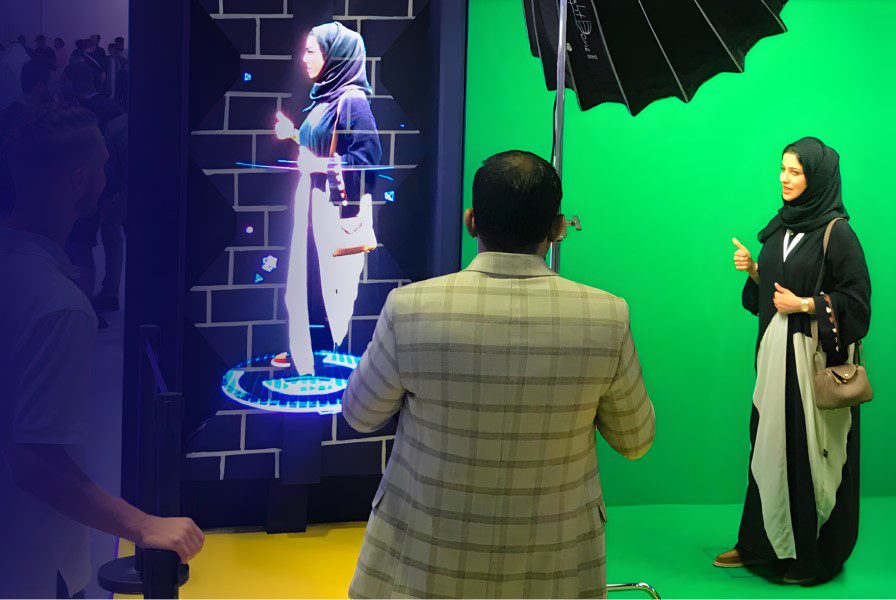
                      SmartV Live-Stream is an audio-visual solution that converts and translates a video captured from a human into a 3D visual in real-time. This 3D visual is seen by viewers as a high-resolution hologram. Accompanying speech, sounds, and visual effects enhance the holographic effect and a more realistic experience.

                      The solution offers two primary methods for live streaming:

                      ● Local stream: The video signal is translated directly from a camera to the SmartV Displays without requiring external means of communication.

                      ● Video conferencing: The video stream is transformed into holographic imagery and integrated with meeting platforms such as Microsoft Teams or Skype.

                    13. What are the key benefits of the Live-Stream?

                      The HYPERVSN SmartV Live-Stream solution offers the following key benefits:

                      ● Real-time 3D transformation: The system converts live video footage of a person into a 3D visual in real-time, which is perceived by viewers as a high-resolution hologram.

                      ● Immersive realism: To enhance the holographic effect, the visuals are accompanied by speech, sounds, and visual effects, providing a deeply realistic experience for the audience.

                      ● Video conferencing integration: The solution transforms video streams into holographic imagery that can be integrated with popular meeting platforms such as Microsoft Teams and Skype.

                      ● Local streaming versatility: For internal or on-site needs, the solution supports a local stream, where a signal is translated directly from a camera to the SmartV Displays without requiring external communication channels.

                      ● Multi-audience capability: In video conferencing mode, there is no limit to the number of audience that can receive the holographic stream, if the provided the network requirements are met.

                    14. What is the HYPERVSN SmartV 3D Modeller? 

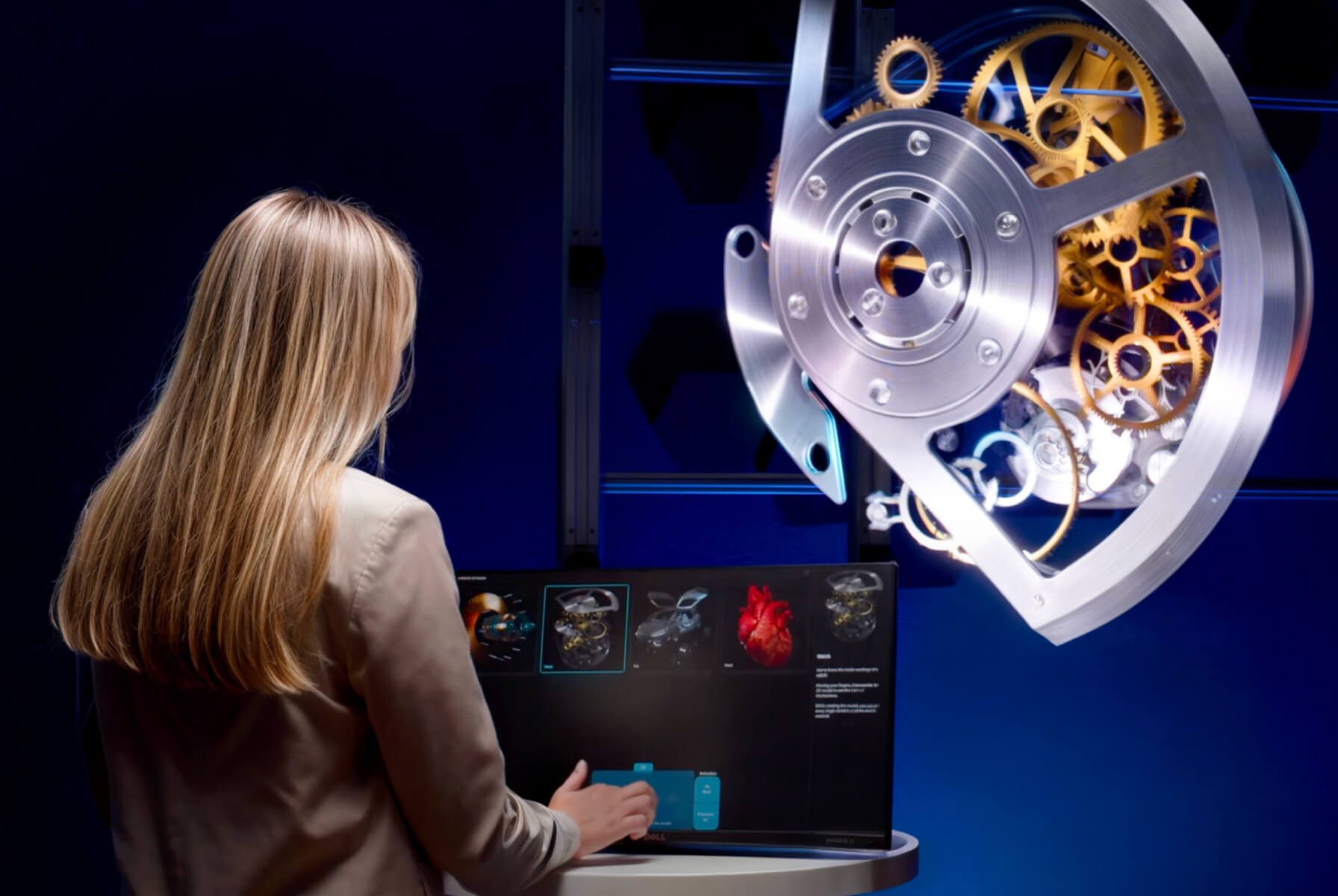
                      The HYPERVSN SmartV 3D Modeller is an interactive software application designed to control and display 3D models on SmartV Displays using a touchscreen or an air mouse. The solution allows viewers to interact with holographic objects floating in mid-air.

                    15. What are the key benefits of the 3D Modeller? 

                      Key benefits and feature highlights of the 3D Modeller solution include:

                      ● Immersive user interaction: It allows viewers to interact with holographic objects floating in mid-air by manually rotating, moving, and disassembling them using animations.

                      ● Multiple control interfaces: Users can choose between the interaction methods such as a touchscreen or an air mouse.

                      ● Content flexibility: In addition to a default set of demo models, such as an engine or a heart, administrators can upload and manage custom models.

                      ● Model animation: To ensure the holographic effect is always maximised, the system automatically rotates static models clockwise and anticlockwise. If a model is animated, the system can be configured to loop animations continuously.

                      ● Intelligent automated operation: The application lets users set model-switching intervals and automatically changes the model after the specified time.

                      ● Compatibility: The 3D Modeller is compatible with both SmartV Solo devices and SmartV Wall configurations from 6 to 16 Displays, making it suitable for both small-scale and large-scale installations.

                    16. What are the core hardware and software components of the 3D Modeller solution? 

                      The following equipment and software components are required to set up and use the SmartV 3D Modeller solution.

                      1. Hardware:

                        ● SmartV Displays M/LB: Up to 16 units.

                        ● SmartV Box (1, 6, or 12): Depending on the setup.

                        ● SmartV Power 1000: For the SmartV Wall setups.

                        ● PC.

                        2. Accessories:

                          ● Any Solo/Wall accessory compatible with the setup.

                          ● Control Stand (Recommended): An accessory used to organise the PC, and touch monitor.

                          3. Any of the selected additional equipment for model control:

                            ● Touchscreen: A monitor connected to the PC using HDMI and USB cables.

                            ● Air mouse: A Bluetooth-enabled mouse compatible with Windows 10 or 11.

                            4. Software:

                              ● HYPERVSN SmartV 3D Modeller: Used for 3D models management and manipulation.

                              ● HYPERVSN App: Used to activate SmartV Box.

                              ● HYPERVSN CMS: Used to activate subscription.

                            1. What are the recommended PC technical specifications for 3D Modeller? 

                              To run the HYPERVSN SmartV 3D Modeller application, the following PC technical specifications are recommended:

                              ● Operating system: Windows 10 or 11.

                              ● Processor (CPU): Intel Core i7, 11th generation or better; 64-bit with at least 4 cores and SSE2 support.

                              ● Memory (RAM): 12 GB recommended, 8 GB absolute minimum.

                              ● Graphics card (GPU): A discrete NVIDIA GeForce graphics card is required. Recommended models for higher vertex counts include the RTX 3070 (up to 6,000,000 vertices) or RTX 4070 (up to 8,000,000 vertices).

                              ● Ports: At least one USB A-type port and one HDMI port to connect to the SmartV Box.

                            2. What are the supported SmartV Wall layouts by 3D Modeller?

                              The following SmartV Wall layouts are supported by the 3D Modeller solution:

                              ● 3×2 (6 Displays)

                              ● 3×3 (9 Displays)

                              ● 4×3 (12 Displays)

                              ● 4×4 (16 Displays)

                              Note: Other horizontal and square layouts can be discussed and provided upon additional request to meet specific project requirements.

                            3. How to activate the SmartV 3D Modeller subscription in the CMS? 

                              To activate a SmartV 3D Modeller subscription in the HYPERVSN CMS, follow these steps:

                              1. Log in to your HYPERVSN CMS account and navigate to the Devices page.

                              2. Locate the specific SmartV Box from the devices list that you wish to activate.

                              3. Click the Activate subscription button located near the serial number of that SmartV Box.

                              4. In the Activate subscription dialogue, select the SmartV 3D Modeller subscription from the drop-down menu.

                              5. Click the Activate subscription button to finalise the process.

                              To update the subscription information on your SmartV Box, connect it to the internet.

                              Note: Your subscription period begins as soon as you activate the subscription in your CMS account.

                            4. Which accessories are compatible with the 3D Modeller solution? 

                              The 3D Modeller is compatible with both SmartV Solo and SmartV Wall configurations. Compatible mounting options include:

                              ● Solo accessories: Plex Box, Globe, Tripod, Ceiling Mount, Dome, Dome Ultra, and other Solo accessories.

                              ● SmartV Wall accessories: Any accessory compatible with the SmartV Wall setup.

                              ● Control Stand: A recommended accessory for organising the equipment, including the PC and touch monitor.

                              ● Solo Station: A specialised integrated accessory that combines the SmartV Crystal M housing with a Control Stand, providing a complete single-display interactive setup.

                            5. How to download and log in to the 3D Modeller application? 

                              The HYPERVSN SmartV 3D Modeller application is a Windows-based desktop program. You can download it directly from the Microsoft Store.

                              To log in to the HYPERVSN SmartV 3D Modeller application, follow these steps:

                              1. Run the application on your PC.

                              2. Enter your credentials. Use the same email and password associated with your HYPERVSN CMS account.

                              3. Once logged in, choose the specific SmartV Box you wish to control from the provided list.

                              Upon logging in, the application will automatically perform the following checks:

                              ● Verify that your SmartV 3D Modeller subscription is active.

                              ● Confirm that the selected SmartV Box is registered to your account.

                              ● Check that your SmartV Solo or SmartV Wall is powered on.

                              If any of these conditions are not met, the app will display a message indicating what needs to be addressed.

                            6. What are the 3D model file requirements for 3D Modeller? 

                              3D models must adhere to the following technical specifications:

                              ● Supported formats: GLTF+BIN (most recommended), FBX (with embedded textures or relative paths), GLB, and OBJ+MTL.

                              ● Asset naming: All asset names must use Latin characters and numerical digits only.

                              ● UV mapping: Every object within the 3D model must contain one UV map.

                              ● Maximum file size: 1000 MB.

                              ● Maximum texture resolution: 4K.

                              ● Material standards: Use standard Physically Based Rendering (PBR) materials with correctly applied settings.

                              ● Lighting: Custom light sources, HDRI maps, and cameras are not required, as the application uses its own preset light source and camera to reproduce media content.

                            7. How to add custom 3D models to the application? 

                              To add custom 3D models to the HYPERVSN SmartV 3D Modeller application, follow these technical steps:

                              1. Ensure that SmartV 3D Modeller is running on your PC.

                              2. On the PC keyboard, press left CTRL + S to open the Settings window.

                              3. Navigate to the Custom operating mode tab.

                              4. Click the Add 3D Model button.

                              5. Browse your PC and select a model in a supported format. The model appears in the list on the Settings page and is ready to be displayed.

                            8. How to control and rotate models using the air mouse? 

                              For remote interaction, users must first press Left Alt + S and select Remote Control on the PC keyboard to enable air mouse functionality. 

                              Model selection 

                              Position the cursor on the Next or Previous buttons and left-click to cycle through the model list. 

                              Rotation 

                              Position the air mouse cursor over the displayed 3D model, press and hold the left air mouse button, and rotate the device in the desired direction (left, right, up, or down). Release the button to stop the movement. 

                              Animation control 

                              Position the cursor and left-click the following on-screen buttons: 

                              ● Explode: Starts the animation from the beginning.

                              ● Reset: Displays the animation in reverse, from the end to the beginning.

                            9. How to control and rotate models in the 3D Modeller app using the touch screen? 

                              When using a touch screen, the SmartV 3D Modeller operates through a web interface consisting of a Web Settings page for configuration and a Web Demo page for user interaction. 

                              Model selection 

                              Users may start playback of any model by tapping the desired model thumbnail on the Web Demo page. 

                              Rotation 

                              To rotate a selected model, which is highlighted in blue in the list, use the virtual touchpad located on the touch screen interface. 

                              Animation control 

                              If the model has animations enabled in its settings, use the Next and Previous buttons to trigger them: 

                              Next: Starts the next animation in the sequence from beginning to end. 

                              Previous: Starts the previous animation from end to beginning. 

                            10. How to prepare for using 3D Modeller? 

                              To prepare for using the HYPERVSN SmartV 3D Modeller, follow the steps below.

                              Step 1: Assemble hardware and accessories

                              1.1 Install the SmartV Displays into their compatible accessories.

                              1.2 Connect the SmartV Displays to the SmartV Box (1, 6, or 12) using optic cables and to the Power module using power cables.

                              Step 2: Connect additional equipment

                              2.1 Connect a PC to the HDMI IN port of the SmartV Box using an 8K Ultra High Speed HDMI cable.

                              2.2 Connect the chosen interaction device to the PC:

                              ● To connect a touchscreen, use HDMI and USB cables.

                              ● To connect an air mouse, use Bluetooth.

                              2.3 Optional: You may also connect speakers to the SmartV Box for audio.

                              Step 3: Activate and set up software

                              3.1 Register your HYPERVSN CMS account and install the HYPERVSN App on your mobile phone.

                              3.2 Log in to the HYPERVSN App to activate your SmartV Box and perform SmartV Display setup and calibration.

                              3.3 Ensure the SmartV box is in HDMI mode.

                              3.4 In your Windows settings, set the SmartV hardware as the second screen.

                              3.5 In the HYPERVSN App, on the Device tab, select General > Show Advanced, and adjust the following settings:

                              ● Ensure FPS is set to 60.

                              ● Ensure the HDMI Autoscale toggle is off.

                              Edge effects are set to Fit.

                              3.6 In the HYPERVSN CMS, navigate to the Devices page and activate your SmartV 3D Modeller subscription.

                              Step 4: Install and run the application

                              4.1 Install the HYPERVSN SmartV 3D Modeller application from the Microsoft Store.

                              4.2 Launch the app and log in using your CMS credentials. Select the specific SmartV Box you intend to control from the provided list.

                              Step 5: Configure the interaction scenario

                              5.1 Once the 3D Modeller is running, press Ctrl + S on your keyboard to open the Settings interface and configure the following:

                              ● Select operating mode: Choose Demo to use the default content or Custom to apply your own content.

                              ● Select the default content or upload custom 3D models.

                              ● Set the frequency for switching between models and reorder the sequence in which they appear.

                              ● Select specific animations for selected models to define how they behave during playback.

                            11. What is the difference between the 3D Modeller and the 3D Library solution? 

                              The 3D Modeller is for manipulating a single 3D object, while the 3D Library is for navigating a collection of pre-recorded content.

                              The primary difference between the 3D Modeller and the 3D Library lies in the type of content they display and how the user interacts with it:

                              ● HYPERVSN SmartV 3D Modeller is designed for the real-time manipulation of 3D objects. Users can rotate, zoom, and move actual 3D models and trigger pre-designed animations using a touchscreen or air mouse. It is used to showcase detailed items from all angles.

                              ● HYPERVSN 3D Library functions as an interactive menu for pre-recorded content. It allows users to navigate a hierarchical interface of groups and subpages on a touchscreen to select and play specific playlists on the SmartV Displays.

                            12. What is HYPERVSN SmartV Holographic Human? 

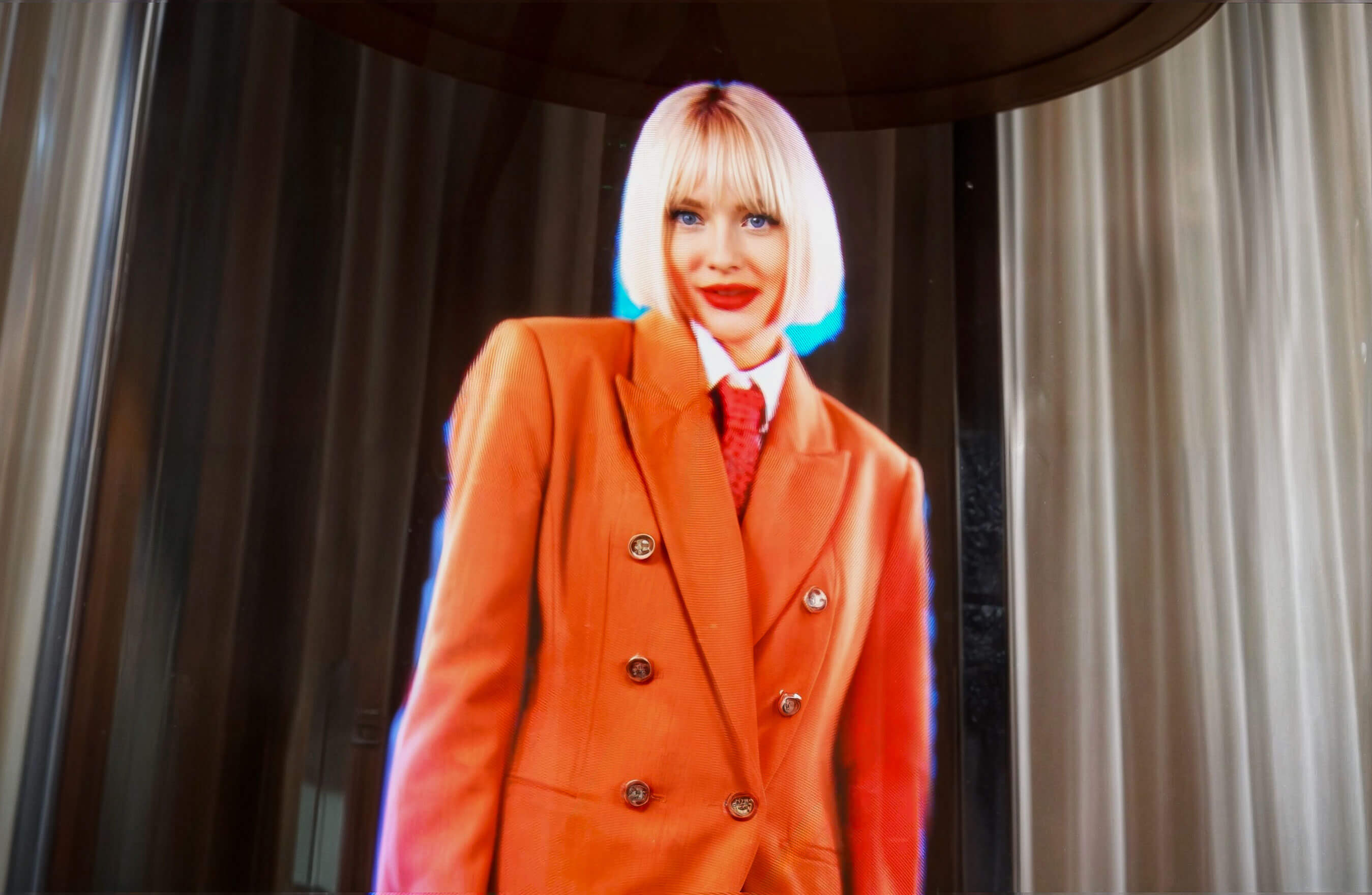
                              The SmartV Holographic Human is an audio-visual solution designed to display 3D visuals that viewers see as a high-resolution human hologram floating in mid-air. Accompanying speech and sound effects enhance the realism of the experience. The hologram is displayed on a vertical setup of three HYPERVSN SmartV Solo LB devices or on a custom setup. The content is pre-recorded. 

                              Videos used for Holographic Human are initially created by customers according to their needs and then processed by HYPERVSN. 

                            13. What are the main components of the Holographic Human solution? 

                              The following equipment and software components are required to set up and use the Holographic Human solution.

                              1. Hardware components:

                              ● 3 SmartV Displays LB

                              ● SmartV Box 6

                              ● SmartV Power 1000

                              2. Accessories:

                              ● SmartV Ellipse L3: A case for life-size holograms designed to enhance the 3D depth effect and protect the SmartV Displays from being touched.

                              ● SmartV Edge L3: An accessory with glass-like protective panels framed with glowing LED tubes.

                              ● Any SmartV Solo or SmartV Wall accessories: For custom layouts.

                              3. Software suite:

                              ● HYPERVSN CMS: A web-based platform used to manage media content, schedule media campaigns, and perform remote device updates.

                              ● HYPERVSN App: Used for initial setup tasks, such as device activation, SmartV Wall layout configuration, and SmartV Display calibration.

                              4. Media content:

                              ● Custom 3D visuals: Customers create their own video footage, which is then processed by HYPERVSN to ensure it is optimised for high-resolution holographic playback.

                            14. How to create and prepare media content for Holographic Human? 

                              To create a video for HYPERVSN SmartV Holographic Human, two primary options are available:

                              Option 1: Customer records the video, and the Design Lab team performs keying, masks the footage for the 1×3 vertical setup, and enriches the video with 3D effects or text.

                              Option 2: Customer handles the full process of video creation and post-production independently.

                              To ensure a high-quality holographic effect, raw materials should generally follow these standards:

                              ● Use a green screen with maximum separation between the subject and the background.

                              ● Professional studio lighting (approx. 6000K) should illuminate the subject evenly without overexposure.

                              ● Subjects should move smoothly in a horizontal plane (e.g., keeping arms below the head) and stay entirely within the frame to avoid visual breaks.

                              Your final output must be an mp4 (H265) with a resolution of 1040×2450 and a pure black RGB (000) background.

                              While the SmartV Holographic Human solution is primarily designed to display a human figure as media content, it may be used it to display any media content, images, or videos.

                            15. Which accessories are compatible with the Holographic Human solution? 

                              The HYPERVSN SmartV Holographic Human solution is compatible with the following accessories:

                              ● SmartV Ellipse L3: A case for life-size holograms designed to enhance the 3D depth effect and protect the Displays from being touched.

                              ● SmartV Edge L3: An accessory with glass-like protective panels framed with glowing LED tubes.

                              ● Any SmartV Solo or SmartV Wall accessories: For custom layouts.

                            16. What is the difference between Holographic Human and Digital Avatar? 

                              The primary difference is that SmartV Holographic Human is a display solution for pre-produced 3D content, while Digital Avatar is an interactive AI solution capable of real-time conversation. 

                            17. How to prepare for using Holographic Human? 

                              To prepare for using the HYPERVSN SmartV Holographic Human, follow the steps below.

                              Step 1: Assemble and connect hardware

                              1.1 Depending on your installation needs, assemble the accessory.

                              1.2 Install 3 SmartV Displays LB in the accessory.

                              1.3 Connect the SmartV Displays to the SmartV Box 6 using optic cables and to the SmartV Power 1000 using power cables.

                              Step 2: Prepare software

                              2.1 Register a CMS account.

                              2.2 Install the HYPERVSN App (version 3.3.5 or higher) on your smartphone.

                              Step 3: Set up and calibrate SmartV Wall

                              3.1 Activate the SmartV Box.

                              3.2 Configure the layout.

                              3.3 Calibrate the image.

                              Step 4: Create media content

                              4.1 Handle the full content creation process independently, following the technical specifications, or record raw footage for professional post-production by the HYPERVSN Design Lab.

                              Step 5: Manage content playback

                              5.1 Upload media to the Media Library in your CMS account.

                              5.2 In the HYPERVSN App, add your media to the playlist and run it on the SmartV Displays.

                            18. What is HYPERVSN SmartV 3D Library?  

                              The HYPERVSN 3D Library is an interactive solution designed to control media playback on SmartV devices using a touchscreen interface. The solution can demonstrate products, provide information, showcase the latest trends, or support custom scenarios.

                            19. What are the core hardware and software components of the 3D Library? 

                              The following equipment and software components are required to set up and use the SmartV 3D Library solution.

                              1. Hardware:

                              ● Any number of the SmartV Displays (size M or L)

                              ● SmartV Box 1, 6, 12 (depending on the number of SmartV Displays)

                              2. Accessories:

                              ● Any accessories with a control stand compatible with your SmartV Solo or Wall setup

                              3. Additional equipment:

                              ● PC

                              ● Touchscreen in portrait orientation

                              ● Optional: Keyboard and mouse (required only for setting up the 3D Library)

                              ● Optional: Speakers

                              4. Software:

                              ● HYPERVSN App to set up hardware and create playlists

                              ● HYPERVSN CMS to activate the SmartV 3D Library subscription

                              ● 3D Library to create and run interaction scenario

                            20. What are the key benefits of SmartV 3D Library? 

                              The key benefits and feature highlights of the 3D Library are the following:

                              ● Interactive audience engagement: It transforms passive viewing into an active experience, allowing users to navigate through holographic content using a touchscreen interface.

                              ● Bespoke interaction scenarios: Administrators have the flexibility to create customised navigation paths and hierarchies, grouping text and images to trigger specific media playlists based on business needs.

                              ● Compatibility: The solution is compatible with all SmartV hardware, including SmartV Solo devices and SmartV Wall or Multi-Wall configurations of any layout.

                              ●Customisable layout: Administrators can select layouts for elements, edit main page title, and button labels.

                              ● User-friendly interface: The application features a dual-interface system, separating the user-facing navigation from the administrative configuration tools, which makes it intuitive both for users and administrators.

                            21. Which accessories are compatible with the SmartV 3D Library solution? 

                              The HYPERVSN 3D Library is an interactive solution designed to work with both SmartV Solo devices and SmartV Wall configurations of any layout. It is compatible with any accessories with a Control Stand suitable for the selected setup.

                              Control Stand is an accessory designed to organise equipment:

                              ● PC

                              ● Touch monitor

                              ● Speakers

                              The Control Stand can be connected to SmartV Wall and Solo accessories.

                            22. How are playlists prepared and managed for the 3D Library? 

                              To prepare and manage playlists for HYPERVSN SmartV 3D Library, administrators must first create them using the HYPERVSN App, as the 3D Library application is primarily used for assigning these playlists to interactive scenarios.

                              1. Prepare playlists on the SmartV Box.

                              2. Synchronise playlists with the 3D Library:

                              ● When you log into the 3D Library application on your PC, it automatically synchronises with the SmartV Box and fetches all available playlists.

                              ● Use the Refresh button to sync playlists between the HYPERVSN App and 3D Library. When tapped, it fetches the latest changes made to playlists in the HYPERVSN App and applies them to the 3D Library playlist, ensuring both are aligned.

                              3. Create interaction scenario in the 3D Library’s Admin interface:

                              ● Assign specific playlists to Groups, Subpages, or the Back button.

                              Assign the playlist that will play automatically on the SmartV Displays whenever the touchscreen has not been used for a specified period.

                            23. What customisation options are available for the user interface in the 3D Library? 

                              The 3D Library offers customisation options, allowing administrators to tailor the appearance and navigation of the interactive touchscreen experience.

                              The following customisations are available:

                              ● Main page title: The heading displayed at the top of the client interface can be edited.

                              ● Groups and subpages: The interface is built using a hierarchical structure. Administrators can create nested subpages at multiple levels to group content logically.

                              ● Reordering: The sequence of groups and subpages can be adjusted.

                              ● Images: Administrator can upload a custom image for every group and subpage. Image requirements: PNG format, 500×500 px.

                              ● Layout options: Administrators can select from several layout styles to define how elements appear and behave on the touchscreen.

                              ● Behavioural and timing settings: Administrators can control the user’s interactive journey using timing parameters such as screen delay, idle timeout, and others.

                            24. How to prepare for using SmartV 3D Library? 

                              To prepare for using the HYPERVSN SmartV 3D Library, follow the steps below.

                              Step 1: Assemble hardware and accessories

                              1.1 Install SmatV Displays: Mount your SmartV Solo or SmartV Wall setuo into the compatible accessories.

                              1.2 Connect SmartV Displays to the SmartV Box (1, 6, or 12, depending on your setup) using optic cables and to the Power module using power cables.

                              Step 2: Connect additional equipment

                              2.1 Connect a PC (required to run the Windows-based 3D Library application) to the same local network as your SmartV Box.

                              2.2 Connect a touchscreen monitor to the PC using HDMI and USB cables.

                              2.3 Optional: You may also connect speakers to the SmartV Box and use a keyboard and mouse for the initial administrative configuration.

                              Step 3: Software setup and activation

                              3.1 Register your HYPERVSN CMS account and install the HYPERVSN App.

                              3.2 Log in to the HYPERVSN App, activate your SmartV Box, perform the setup and calibration.

                              3.3 Ensure the SmartV Box is set to Player mode.

                              3.4 Navigate to the Devices page in the CMS and activate your SmartV 3D Library subscription.

                              Step 4: Create playlists

                              4.1 Use the HYPERVSN App to create and name playlists directly on the SmartV Box.

                              4.2 Once you log in to the 3D Library application on your PC, these playlists will be synchronised and become available for assignment to your navigation buttons.

                              Step 5: Configure the interaction scenario

                              5.1 Once the hardware and playlists are ready, open the Admin interface (Ctrl + S) in the 3D Library app and set the following:

                              ● Add the main page title.

                              ● Create groups and subpages.

                              ● Assign your prepared playlists to specific images or text elements.

                              ● Set timing options, such as idle timeouts, to ensure the display returns to a default state when not in use.

                            25. How to activate the 3D Library subscription in the CMS?  

                              To activate a SmartV 3D Library subscription in the CMS, follow these steps:

                              1. Log in to your HYPERVSN CMS account and navigate to the Devices page.

                              2. Locate the specific SmartV Box from the devices list that you wish to activate.

                              3. Click the Activate subscription button located near the serial number of that SmartV Box.

                              4. In the Activate subscription dialogue, select the SmartV 3D Library subscription from the drop-down menu.

                              5. Click the Activate subscription button to finalise the process.

                              6. To update the subscription information on your SmartV Box, connect it to the internet.

                              Note: Your subscription period begins as soon as you activate the subscription in your CMS account.

                            26. What is the HYPERVSN SmartV Slots solution? 

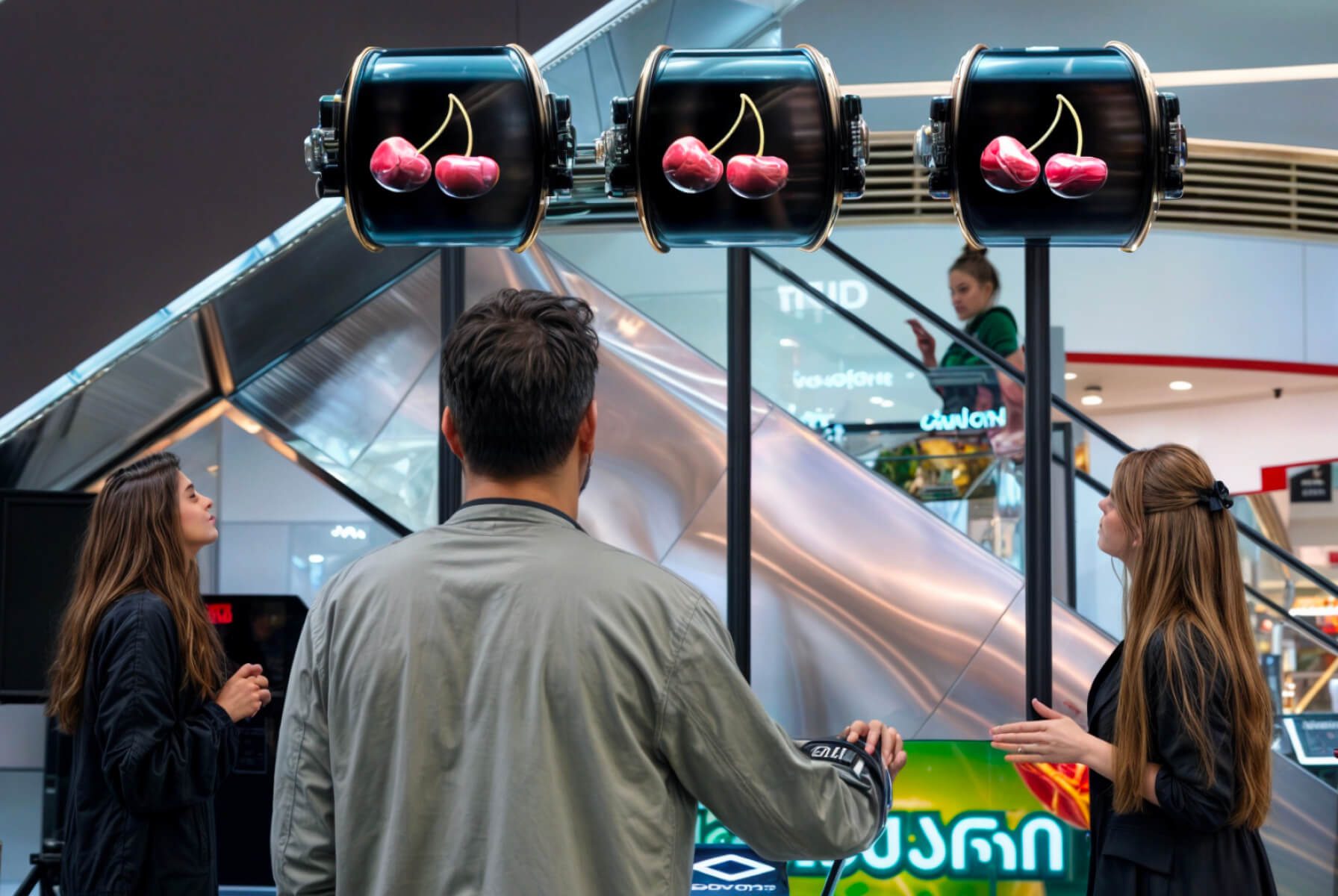
                              The HYPERVSN SmartV Slots is a holographic game of chance designed as an analogue of a traditional slot machine. It is a specialised version of the SmartV Wall that uses three SmartV Displays (Model M or L) as “reels” to display 3D video content that appears as high-resolution holograms floating in mid-air. 

                            27. What are the key benefits of the SmartV Slots solution? 

                              The HYPERVSN SmartV Slots solution provides an interactive experience by combining traditional gaming mechanics with advanced holographic technology. Its key benefits include:

                              ● Interactive gamification: It transforms a standard display into a 3D “game of chance” that acts as a holographic slot machine, significantly increasing audience engagement at events or retail spaces.

                              ● Logic control: Administrators have precise control over the game mechanics through the HYPERVSN App:

                              a) Set a specific percentage for winning events.

                              b) Define how often win events occur.

                              c) Define a maximum number of total wins per day to manage prize inventories.

                              d) Set a mandatory interval between wins to control the pace of the game.

                              ● Tactile user experience: The setup supports physical interaction through a handle or a button installed in a control stand.

                              ● Customisation: Beyond the default objects (lemon, diamond, cherry, and “7”), customers can request custom winning videos tailored to their brand.

                              ● Compatibility: SmartV Slots is compatible with both Model M and Model L Displays and can be installed using various accessories like Wall Mounts, Tripods, or Ceiling mounts.

                              ● Audio integration: If speakers are connected, the system can play winning sound effects alongside the winning video.

                            28. What are the core components of the SmartV Slots setup? 

                              The following equipment and software components are required to set up and use the SmartV Slots solution.

                              1. Hardware:

                              ● 3 SmartV Displays LB

                              ● SmartV Box 6

                              ● SmartV Power 1000

                              2. Accessories:

                              ● Wall mounts (supplied by default)

                              ● Any 3 accessories for SmartV Solo

                              3. Additional equipment:

                              ● Control Unit: The setup is equipped with either a handle or a button to start the game.

                              ● Control Stand: A physical stand used to house the control unit. This can be built using HYPERVSN drawings or custom-designed by the user.

                              ● Optional: Audio facilities.

                              4. Software:

                              ● HYPERVSN App with the embedded SmartV Slots application

                              ● HYPERVSN CMS to activate the SmartV Slots subscription

                            29. Which accessories are compatible with the SmartV Slots solution? 

                              SmartV Slots are compatible with the following accessories:

                              ● Wall mounts (supplied by default)

                              ● SmartV Tripods with or without the SmartV Domes

                              ● SmartV Ceiling Mounts with or without the SmartV Dome

                              ● Any 3 accessories for SmartV Solo

                              ● Metal trusses or other customer-designed constructions

                            30. How to activate the SmartV Slots Software Service subscription in the CMS? 

                              To activate the SmartV Slots Software Service subscription in the CMS, follow these steps: 

                              1. Log in to your HYPERVSN CMS account and navigate to the Devices page. 

                              2. Locate the specific SmartV Box from the devices list that you wish to activate. 

                              3. Click the Activate subscription button located near the serial number of that SmartV Box. 

                              4. In the Activate subscription dialogue, select the SmartV Slots Software Service subscription from the drop-down menu. 

                              5. Click the Activate subscription button to finalise the process. 

                              6. To update the subscription information on your SmartV Box, connect it to the internet.  

                              Note: Your subscription period begins as soon as you activate the subscription in your CMS account. 

                            31. How to prepare for using SmartV Slots? 

                              To prepare for using the HYPERVSN SmartV Slots, follow the steps below.

                              Step 1: Assemble and connect hardware

                              1.1 Depending on your installation needs, assemble the SmartV Tripods, Ceiling mounts or any other accessories suitably for the setup.

                              1.2 Install 3 SmartV Displays LB in the accessories.

                              1.3 Connect SmartV Displays to the SmartV Box 6 using optic cables and to the SmartV Power 1000 using power cables.

                              1.4 Assemble and install the stand for your chosen control unit – either a handle or a button.

                              1.5 Optional: Connect external speakers to the HD AUDIO port of the SmartV Box for sound effects.

                              Step 2: Prepare software

                              2.1 Register a CMS account.

                              2.2 Install the HYPERVSN App (version 3.3.5 or higher) on your smartphone.

                              Step 3: Setup and calibrate SmartV Wall

                              3.1 Activate the SmartV Box.

                              3.2 Configure the SmartV Display layout.

                              3.3 Calibrate the image.

                              Step 4: Activate subscription

                              4.1 Activate the SmartV Slots Software Service subscription in your CMS account.

                              Step 5: Set the game logic

                              5.1 Add the HYPERVSN Slots app to the HYPERVSN App.

                              5.2 Open the HYPERVSN Slots and configure game parameters:

                              a) Set a specific percentage for winning events.

                              b) Define how often win events occur.

                              c) Define a maximum number of total wins per day to manage prize inventories.

                              d) Set a mandatory interval between wins to control the pace of the game.

                              5.3 Start the game.

                            32. What SmartV Slots parameters can be configured? 

                              Users can configure the following game parameters:

                              ● Define the winning probability as a percentage of total games or set a fixed win interval.

                              ● Set the minimum time between wins.

                              ● Set the maximum number of wins allowed for each object.

                              ● Define the maximum number of wins allowed per day for an object.

                            33. What objects can be displayed on the reels? 

                              In the standard setup, four default objects are displayed on the reels:

                              ● Lemon

                              ● Diamond

                              ● Cherry

                              ● 7

                              In addition to the reel’s objects, a “WIN” video can be displayed after a player achieves a winning combination.

                              Customers can also request custom-designed 3D objects tailored to a specific brand or event. These objects are developed by HYPERVSN for an additional fee.

                            34. What is a HYPERVSN SmartV Wall? 

                              A HYPERVSN SmartV Wall is a holographic solution that displays high-resolution 3D visuals floating in mid-air. It is a scalable system composed of multiple SmartV Displays installed on a single surface to reproduce either a single, large-scale image or separate pieces of content.  

                            35. What are the main components of the SmartV Wall? 

                              The hardware and software required for the SmartV Wall installation include:

                              ● SmartV Displays: Devices with rotating LED rays that create floating 3D visuals appearing in mid-air. Available in Model M (567 mm diameter) or Model L (750 mm diameter).

                              ● SmartV Box 6/SmartV Box 12: The control modules that manage content playback and connectivity for SmartV Displays. A SmartV Box 6 supports up to 6 SmartV Displays, while a SmartV Box 12 supports up to 12.

                              ● SmartV Power 1000: A dedicated unit used to supply power to the Displays, with one module required for every 6 SmartV Displays.

                              ● Software suite: Includes the HYPERVSN App for the SmartV Walls with less than 12 Displays, the HYPERVSN Pro App for the Walls with more than 12 SmartV Displays, and the web-based CMS for remote content and device management.

                              ● Mounting accessories: Including Wall Mounts, modular systems such as Wall Chain, and layout-specific solutions such as Prime and Edge, used to secure SmartV Displays in the required configuration.

                            36. What are key features of the SmartV Wall? 

                              Key features of the SmartV Wall include:

                              ● Image merging algorithms: The system uses proprietary calibration, synchronization, and image merging technology to ensure perfect alignment of orientation, rotation, and spatial positioning across SmartV Displays.

                              ● Image enhancement algorithms: The displays feature an sRGB mode for precise colour rendering, with brightness and colour uniformity from the centre to the edges of the image.

                              ● Scalability: The SmartV Wall is highly scalable, ranging from small setups of 1 to 6 SmartV Displays to Multi-Walls consisting of up to 420 Displays managed by multiple SmartV Box 12 units linked in a master-repeater chain.

                              ● Diverse content playback: Beyond standard media files, the SmartV Wall can reproduce real-time video signals from external devices using HDMI or stream content from specific URLs.

                              ● Interactive capabilities: The SmartV Wall supports a wide range of HYPERVSN interactive solutions, including Digital Avatars, 3D Modeller, 3D Library, 3D Slots and automated Lift & Learn scenarios.

                              ● High-performance visuals: SmartV Display provides a peak brightness of up to 3200 nits for clear visibility in ambient light and supports high frame rates of up to 60 FPS for smooth 3D motion.

                              ● Modular mounting options: Modular accessories such as the SmartV Wall Chain allow you to create any Wall configuration in both vertical and horizontal orientations.

                              ● Hardware protection, including:

                              a) Protection of the SmartV Display and SmartV Box from overheating and malfunction.
                              b) An emergency stop feature to protect the SmartV Display from physical impact.
                              c) Comprehensive health monitoring, tracking CPU, FPGA, stator and rotor temperatures, available memory, RAM usage, uptime, and errors.
                              d) An energy-efficient mode to optimise power consumption.

                              ● Software security, including:

                              a) A secure HTTPS connection for encrypted data transmission.
                              b) Encryption of data both in transit and at rest.
                              c) Multi-factor authentication (MFA) and single sign-on (SSO).
                              d) Role-based access control to manage user permissions.
                              e) Infrastructure maintained to high-security standards and compliant with GDPR.

                            37. What are the differences between Overlapped, Adjacent, and Duplicated layouts? 

                              The layout type determines how the SmartV Displays process media content:

                              ● Overlapped: SmartV Displays are installed so that their rays physically overlap. This layout spreads a single piece of content across all connected Displays to create one seamless, large-scale 3D visual.

                              ● Adjacent: Similar to the overlapped layout, the system spreads the initial content across the entire Wall to form one large image, but without overlapping.

                              ● Duplicated: In this mode, each individual Display duplicates and repeats the same content simultaneously.

                            38. What is a Multi-Wall? 

                              A Multi-Wall is a large-scale SmartV Wall configuration that consists of more than 12 SmartV Displays. To manage this volume of hardware, the setup requires at least two SmartV Boxes linked together in a chain using HDMI cables. In this configuration, the first SmartV Box 12 in the chain is designated as the master, while all subsequent SmartV Boxes (which can be SmartV Box 12 or Box 6) are designated as repeaters.  

                            39. What is the maximum number of SmartV Displays supported in a Multi-Wall? 

                              A Multi-Wall can scale up to 35 SmartV Boxes, supporting a total of 420 SmartV Displays. 

                            40. What are the mandatory safety heights and viewing distance requirements for a SmartV Wall? 

                              Technicians must adhere to specific rules when planning a SmartV Wall installation:

                              ● Viewing distances: The minimum viewing distance from the SmartV Wall must be at least 2 metres.

                              ● Viewing angle: The HYPERVSN SmartV Wall should be installed on an even surface at a 90° angle. The viewing angle for HYPERVSN SmartV Wall must not exceed 60°. Optimal image quality is achieved when the viewing angle to the central point of the Wall is less than 30°.

                              ● Mandatory safety height: For public safety, the HYPERVSN SmartV Wall must be installed so that the lower edge of its rotating rays is at least 3.1 metres above floor level, unless it is protected by a physical barrier or protective accessory.

                              ● Mounting integrity: The installation surface or ceiling must be capable of supporting at least four times the weight of the mounted equipment to prevent falling.

                              ● Startup safety: Before switching the device on, ensure that no one is standing within a 0.5 m radius of the Display.

                              ● Operational visibility: Because the rays become invisible while spinning, they pose a danger. Ensure no objects or people can contact them.

                              ● Maintenance safety: Always unplug the power cords and wait for the rays to be completely stationary before performing any technical maintenance.

                              ● Prohibited installation areas:

                              a) Children’s playgrounds or areas where children are left unattended.

                              b) Animal cages or areas accessible to domestic pets and birds.

                              c) Near sources of heat or water.

                              d) Next to flammable objects, such as curtains, that could be blown into the rotating rays.

                            41. What is the optimal viewing distance for the SmartV Wall? 

                              For the best holographic effect, the optimal viewing distance is calculated as 3 times the size of the display area. 

                              For the SmartV Wall measuring 1.7 metres diagonally, the optimal viewing distance would be 5.1 metres. 

                            42. What mounting accessories are available for SmartV Walls? 

                              HYPERVSN offers a range of accessories designed to provide scalability, protection, and versatile installation options for SmartV Walls.

                              Individual Wall Mounts (High and Low): High and low mounts are used on vertical surfaces and are typically alternated in a chessboard pattern to prevent the rays from touching while rotating.

                              SmartV Wall Chain: a modular accessory designed to arrange SmartV Walls in any desired configuration. The Wall Chain modules support both vertical and horizontal layouts.

                              SmartV Prime (Ellipse L3, L6, L9, L12): A premium accessory range that can hold SmartV Displays in the following vertical setups:

                              ● 1×3

                              ● 2×3

                              ● 3×3

                              ● 3×4

                              ● 4×3

                              1×3 setup is used for Life-size Digital Avatars or Holographic Humans.

                              SmartV Edge: An accessory with glass-like protective panels, framed with glowing LED tubes. SmartV Edge is available in the following configurations:

                              ● 1×3

                              ● 2×3

                              ● 2×3 double-sided

                            43. What interactive solutions are compatible with the SmartV Wall? 

                              The HYPERVSN SmartV Wall is compatible with the following HYPERVSN interactive solutions:

                              ● Digital Avatar (Life-size)

                              ● 3D Modeller

                              ● 3D Library

                              ● Live-Stream

                              ● Slots

                              ● Lift & Learn (Automation)

                              The HYPERVSN SmartV Wall is compatible with all HYPERVSN interactive solutions designed for engagement and immersive visual experiences:

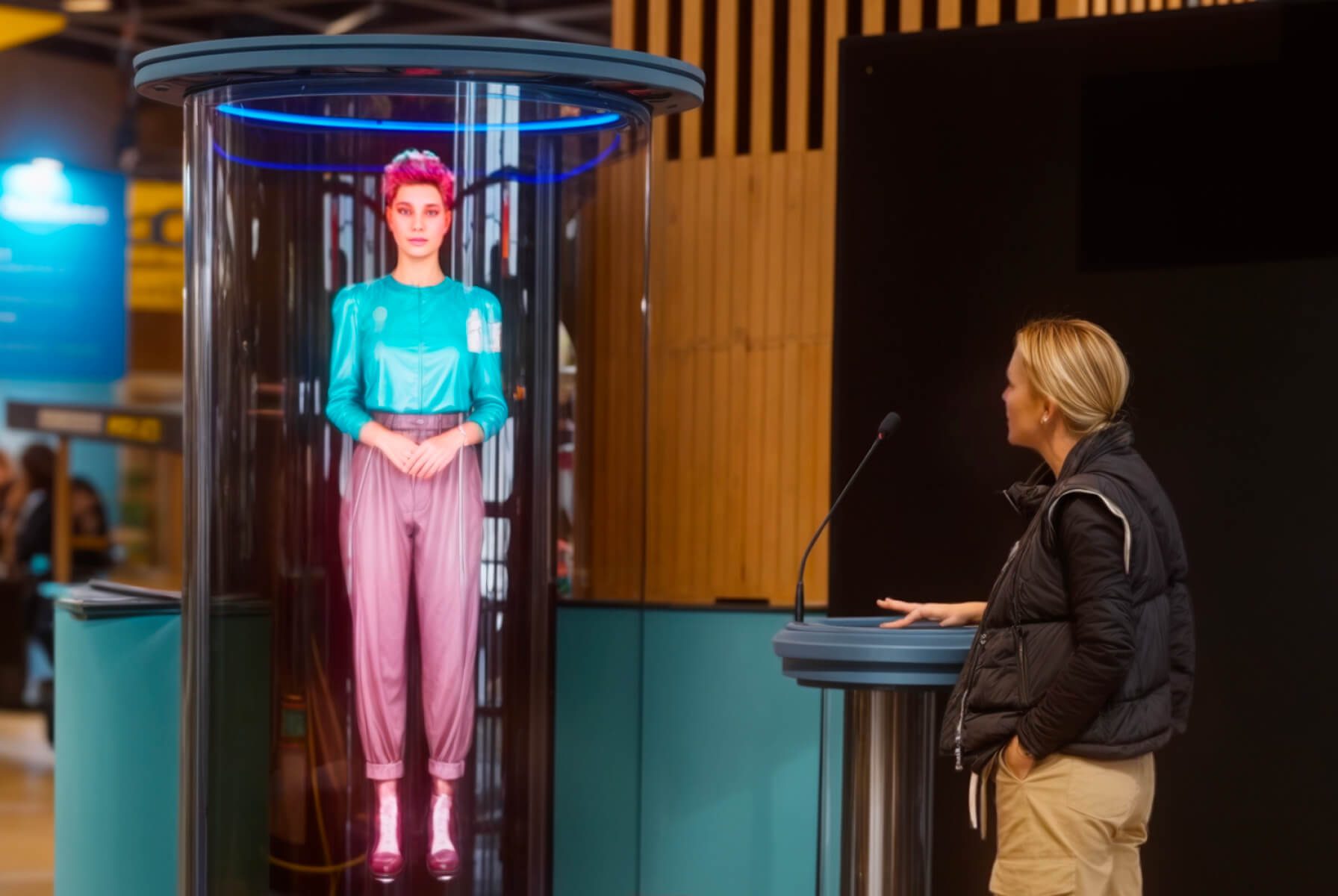
                              HYPERVSN SmartV Digital Avatar is an interactive holographic AI solution featuring a 3D digital human. For a life-size appearance, it is typically deployed using a 1×3 vertical overlapped setup with 3 SmartV Displays, though custom scalable configurations are also supported. Users communicate with the avatar using a microphone and a Speak button on a touchscreen. The avatar understands spoken questions and responds in real-time with natural speech, replicating human facial expressions and movements.

                              HYPERVSN SmartV 3D Modeller is an interactive application that allows users to manipulate 3D models in real-time on a SmartV Wall. Users can rotate, move, and scale models using a touchscreen or a Bluetooth air mouse. It is compatible with overlapped Walls in 3×2, 3×3, 4×3, or 4×4 layouts (consisting of 6, 9, 12, or 16 SmartV Displays).

                              HYPERVSN 3D Library is a Windows desktop application that allows users to navigate playback scenarios on a touchscreen. It is compatible with any overlapped configuration of the SmartV Wall or Multi-Wall.

                              HYPERVSN SmartV Live-Stream captures video of a human in real-time and translates it into a holographic visual. It utilises an overlapped 1×3 layout with 3 SmartV Displays.

                              HYPERVSN SmartV Holographic Human is designed to display high-resolution 3D holographic human visuals. This solution typically uses a 1×3 vertical overlapped setup.

                              HYPERVSN SmartV Slots is a specialised interactive version of the SmartV Wall that functions like a slot machine. It is designed for adjacent type Walls using 3 SmartV Displays.

                              HYPERVSN SmartV Lift & Learn (Automation) is an interactive automation feature that triggers holographic content when a customer interacts with a physical product. Using sensors connected to the SmartV Box, the system detects when a product is picked up or placed back on a shelf. Triggers can include light sensors, RFID antennas and tags, or wired X-Snapper modules. It is compatible with any layout and type of the SmartV Wall or Multi-Wall.

                            44. How to upload content to the SmartV Wall? 

                              Select the way for uploading content to the HYPERVSN SmartV Wall depending on the size of the installation and whether you require local or remote control:  

                              1. Using the HYPERVSN App – the mobile application for managing Walls with less than 12 Displays. 

                              2. Using the HYPERVSN Pro App – the Windows desktop application for Multi-Walls with more than 12 Displays. 

                              3. Using HYPERVSN CMS – web-based application for remote SmartV device management using Media Campaigns. 

                              Media Campaigns are included in the SmartV Pro subscription, which comes with the SmartV Box 6 and SmartV Box 12. 

                              4. Real-time content sources:  

                              ● HDMI mode: Connect an external source (PC, media player) to the HDMI IN port of the SmartV Box. In the app, switch the device mode to HDMI.

                              ● Stream mode: Enter a specific URL in the application settings and switch the device to Stream mode.

                            45. How to perform technical maintenance of the SmartV Wall? 

                              Monthly technical maintenance ensures peak performance and equipment longevity. Monthly procedures involve the following steps: 

                              1. Follow safety instructions: Before performing any maintenance, you must unplug all power cords from their sources. Wait for the rotating rays to come to a complete stop before touching the device. 

                              2. Inspect electrical components: Examine the power cords for any signs of damage, such as cracks, cuts, exposed wires, or frayed casings. If any electrical fault is discovered, you must stop using the modules immediately until the cords are replaced. 

                              3. Perform a visual hardware check: Inspect the SmartV Display, SmartV Box, and Power module for any noticeable dents or components that require replacement.  

                              4. Remove dust: Wipe any collected dust off the SmartV Display body and modules. Do not use a moist rag on the SmartV Displays or rays. Use a very soft bristle brush to gently clean the rays. Never touch the LEDs directly with your fingers. 

                              5. Inspect accessories according to the manual’s instructions.  

                              6. Wipe the accessory with a microfiber cloth. A plexiglass cleaner solution might be used to remove accumulated dust from the accessories with plexiglass surfaces.  

                              7. Perform final verification: Once cleaned and inspected, ensure all fixing screws are securely tightened to prevent components from falling. If any parts require repair or you need to purchase spares, contact your HYPERVSN vendor. 

                            46. What is the SmartV Digital Avatar? 

                              Digital Avatar is an interactive holographic AI solution delivering a 3D digital human that understands spoken-language questions and responds with real-time, lifelike speech. For a truly immersive presence, the avatar replicates human movements, facial expressions, and speech patterns. This solution combines the following elements into a single unified ecosystem:

                              ● Proprietary holographic hardware

                              ● Specialised housing accessories

                              ● UI application

                              ● Speech-to-text service

                              ● Chatbot service

                              ● Text-to-speech service

                              ● Animation module

                              Digital Avatar is available in flexible size configurations to suit various needs:

                              ● Life-size: Presents a full-body figure with realistic proportions, using 3 SmartV Display Model L units in a 1×3 vertical overlapped setup.

                              ● Solo: Shows just the head and shoulders, powered by a single SmartV Display.

                              ● Custom: Tailored to specific dimensions and requirements, using scalable SmartV Display configurations.

                              Digital Avatar is designed for enterprise environments, public spaces, retail, transportation hubs, and other corporate deployments. Digital Avatar offers full customisation – including photorealistic cloning of real people or integration of bespoke LLM models.

                            47. What are the core software components of the Digital Avatar? 

                              HYPERVSN Digital Avatar solution contains the following software components:

                              ● Main control module (UI application)

                              ● Speech-to-text (STT)

                              ● Chatbot service

                              ● Animation module

                              ● Text-to-speech (TTS)

                              As an alternative to utilising discrete STT, Chatbot service, and TTS modules, a single speech-to-speech service may be implemented within the Digital Avatar architecture.

                            48. What size configurations are available for the AI Human? 

                              The HYPERVSN SmartV Digital Avatar (AI Human) is available in the following size configurations:

                              ● Life-size: Presents a full-body figure with realistic proportions using three SmartV Displays (Model L or LB) in a 1×3 vertical overlapped setup.

                              ● Solo: Displays the head and shoulders (typically with a blur effect on the chest area) and is powered by a single SmartV Display.

                              ● Custom: Tailored to specific dimensions and requirements using scalable SmartV configurations, such as Wall L9 or Wall L12.

                            49. What are the core hardware components of the Digital Avatar? 

                              The core hardware components of the HYPERVSN SmartV Digital Avatar consist of the SmartV holographic equipment, control units, and accessories.  

                              Depending on whether the setup is Life-size (full-body) or Solo (head and shoulders), the hardware may differ. 

                              Life-size Digital Avatar consists of the following hardware components: 

                              1. SmartV Displays LB ×3 

                              2. SmartV Box 6 

                              3. SmartV Power 1000 

                              4. PC 

                              5. Touch monitor 

                              6. Microphone 

                              7. Speakers 

                              8. Prime or Edge L3 accessory with Control Stand 

                              Solo Digital Avatar consists of the following hardware components: 

                              1. SmartV Display M/LB 

                              2. SmartV Box 1 

                              3. PC 

                              4. Touch monitor 

                              5. Microphone 

                              6. Speakers 

                              7. Solo Station or SmartV Solo accessory with Control Stand  

                            50. Which accessories are compatible with the Digital Avatar solution? 

                              Compatible accessories for the HYPERVSN SmartV Digital Avatar are categorised based on whether the solution is a Life-size (full-body) or Solo (head and shoulders) configuration.

                              Life-size setup is compatible with the following accessory options:

                              ● Prime – a setup consisting of the Ellipse L3 accessory and Stand for Ellipse.

                              ● Edge L3 with Control Stand – a setup consisting of the Edge L3 accessory and Control Stand to house PC, microphone, speakers, and touch monitor.

                              ● Scalable Wall setups are available for custom configurations. The solution can be integrated with Wall L9 or Wall L12 combined with a Control Stand.

                              Solo setup is compatible with the following accessory options:

                              ● Solo Station – an accessory that integrates the SmartV Crystal M and the Control Stand into a single unit.

                              ● Any SmartV Solo accessory (M or L size) with Control Stand.

                              The Digital Avatar solution can be enhanced with the following add-ons:

                              ● “Talk to me” sign – a physical sign to encourage user engagement.

                              ● Trolley guards – protective barriers designed to prevent physical damage to the Prime accessory.

                              ● Anti-scratch film – a protective film for plastic panels.

                              ● Prime L3 soundproofing.

                              ● External hardware integration.

                            51. What are the key benefits of the Digital Avatar? 

                              The key benefits and feature highlights of the Digital Avatar solution are the following:

                              ● Real-time conversational AI: The system offers low-latency interaction with a response time less than 4.5 seconds from question to answer.

                              ● Global multilingual support: Native communication capabilities in over 50 world languages.

                              ● Local pronunciation control: A configurable Word Library for correcting the pronunciation of specific brand names, locations, or specialised terminology, ensuring communication accuracy.

                              ● Bespoke persona tailoring: Complete control over the avatar’s role, tone of voice, and persona traits through custom prompt engineering.

                              ● Photorealistic digital twins: Advanced capability to integrate photorealistic clones of real individuals.

                              ● Customisable architecture: The platform allows you to connect various speech recognition, language models, or speech synthesis providers rather than being locked into a single service.

                              ● Multi-avatar functionality: This feature allows users to engage with different digital personas within a single installation.

                              ● Activity analytics: Anonymous Log Reports track user queries and session data, helping organisations identify real-time market trends and improve service offerings.

                              ● Enterprise-grade security: Privacy features including semi-offline deployment options.

                              ● Enterprise ecosystem: Seamless integration of proprietary hardware, real-time rendering software, and AI modules.

                              ● End-to-end solution delivery model: HYPERVSN provides a complete enterprise service covering requirements gathering, prompt engineering, behaviour design, implementation, and 24/7 technical support.

                            52. What digital characters are available for the AI Human solution? 

                              HYPERVSN offers the following character options for the AI Human (Digital Avatar):

                              ● Standard digital characters from the HYPERVSN Library.

                              ● Custom digital characters, such as a photorealistic digital twin, reference-based avatar, or digital mascot.

                            53. What multilingual support is available for the Digital Avatar? 

                              The HYPERVSN SmartV Digital Avatar provides multilingual support in over 50 languages. By default, the solution uses OpenAI’s service for speech recognition, which supports more than 50 languages with reliable transcription accuracy. Recognition is particularly strong in languages including English, French, German, Spanish, Italian, Portuguese, Russian, Chinese, Japanese, and Dutch.

                              The following multilingual support options are also available:

                              ● Default options: Customers can choose between English-only recognition or a multilingual setting that recognises different languages.

                              ● English accents: For English, specific US or UK accents can be configured.

                              ● Customisation: Clients can request the addition of more languages or accents by connecting alternative STT services.

                            54. What are the available combinations for speaking and answering? 

                              The system provides the following combinations for how the avatar interacts with multilingual users by default:

                              ● Speak any language, answer in English: The avatar recognises any of the supported languages but responds in English.

                              ● Speak any language, answer in detected language: The avatar responds in the same language detected during the user’s query.

                              ● Bilingual mode: The avatar can be set to speak and answer in both English and a second language, such as French.

                              ● Choose language on UI: The user can select the response language directly from the touchscreen interface.

                            55. Can I customise the English accent used by the Digital Avatar? 

                              Yes, you can customise the English accent used by the Digital Avatar. By default, you can choose between a US or UK accent for speech recognition. Additionally, other specific accents can be added upon request through custom STT (Speech-to-Text) service integrations. 

                            56. Is it possible to change the language of the touchscreen user interface (UI)? 

                              Yes, it is possible to change the language of the touchscreen user interface (UI) for the Digital Avatar solution. While the standard UI application is in English, changing the UI language is an available customisation feature provided upon request.  

                            57. What is the multi-avatar functionality? 

                              The multi-avatar functionality allows users to select and engage with different digital personas within a single installation and UI application. Characters can be switched in the UI application. Each avatar can have its own unique language, voice, behaviour (prompts), and gestures. 

                            58. What customisation options are included by default? 

                              The following customisation options for the Digital Avatar are included at no additional cost:

                              ● Select a character from the library.

                              ● Select an accent: US or UK.

                              ● Customise the avatar’s role, tone of voice, persona traits, welcome speech, and topics to cover.

                              ● Select gestures from the gestures catalogue.

                              ● Select multilingual support from the available languages.

                              ● Select a voice from the default library.

                            59. What customisation options are available at an additional cost? 

                              The following customisation options for the Digital Avatar are available at an additional cost:

                              ● Customise the UI layout, colours, buttons, and page content.

                              ● Integrate company logos or branding elements into the touchscreen interface.

                              ● Change the user interface language to a non-English option.

                              ● Connect alternative Speech-to-Text (STT) or chatbot services.

                              ● Add additional languages or specific English accents beyond the default settings.

                              ● Integrate client-created characters.

                              ● Create a photorealistic digital twin or a reference-based avatar/mascot.

                              ● Connect alternative Text-to-Speech (TTS) providers.

                              ● Select high-realism ElevenLabs voices or accurate voice clones.

                              ● Implement multi-avatar functionality or a fully offline solution.

                              ● Integrate additional hardware, such as external screens, sensors, or webcams.

                              ● Access anonymous Activity Log reports for user interaction analytics.

                              ● Add unique body gestures or pre-record animations in sign language.

                              ● Design a custom platform with brand-specific colours.

                            60. What persona elements can be customised by default in the Digital Avatar (for example, role, tone, and traits)? 

                              To create an engaging and on-brand avatar, the following behaviour can be customised:

                              ● Role: sales representative, brand host, support assistant, brand ambassador.

                              ● Welcome speech: preferred message and how often it should be played while DA is in idle state.

                              ● Human touches: name, age, interests, favourite phrases, energy level.

                              ● Tone of voice: formal, friendly, playful.

                              ● Language style: quirky, concise, storytelling.

                              ● Persona traits: helpful, witty, calm, ambitious, energetic, sophisticated, patient.

                              ● Topics to cover: what the avatar should talk about.

                              ● Specific facts or information about the company/products: that the avatar should be able to communicate to visitors.

                              ● User interaction tips: examples of dialogues or common scenarios with typical questions or concerns users may have.

                            61. What is included in the Digital Avatar subscription? 

                              The inherent capabilities of the standard subscription include:

                              ● Infrastructure access: Access to the AI Human solution’s infrastructure with one Digital Avatar character for one location.

                              ● Unlimited external services: Unlimited speech-to-text (STT), text-to-speech (TTS), and large language model (LLM) processing – no per-query fees.

                              ● Continuous development and infrastructure support: The HYPERVSN Digital Avatar platform undergoes constant refinement, with regular enhancements.

                              ● 24/7 technical support with remote device diagnostics by HYPERVSN specialists using a secure tunnel connection.

                            62. How to activate a Digital Avatar subscription in the CMS? 

                              To activate a Digital Avatar subscription in the CMS, follow these steps:

                              1. Log in to your HYPERVSN CMS account and navigate to the Devices page.

                              2. Locate the specific SmartV Box from the devices list that you wish to activate.

                              3. Click the Activate subscription button located near the serial number of that SmartV Box.

                              4. In the Activate subscription dialogue, select the SmartV Digital Avatar subscription from the drop-down menu.

                              5. Click the Activate subscription button to finalise the process.

                              6. To update the subscription information on your SmartV Box, connect it to the internet.

                              Note: Your subscription period begins as soon as you activate the subscription in your CMS account.

                            63. What analytics are available for the Digital Avatar solution? 

                              The HYPERVSN SmartV Digital Avatar solution provides activity analytics through anonymous Log Reports, which are available as an additional service.

                              These reports summarise the actions performed with the Digital Avatar over a specific period and include the following details:

                              ● Interaction tracking: Records the specific date and time of engagement, along with session and request numbers.

                              ● Query and response logs: Tracks the exact questions asked by customers and the corresponding answers provided by the avatar.

                              The reports provide data to help organisations make informed decisions, improve strategic planning, and refine their service offerings.

                              All data contained within these reports is anonymous and does not include any personal information.

                            64. What is the HYPERVSN SmartV Solo solution? 

                              The HYPERVSN SmartV Solo is a standalone holographic display solution composed of a single SmartV Display and a SmartV Box 1 control module. It is engineered to render high-definition 2D and 3D content that appears to float in mid-air, featuring peak brightness of up to 3200 nits and compatibility with various interactive software and protective accessories. 

                            65. What are the core SmartV Solo components? 

                              The SmartV Solo solution is a unified ecosystem that combines proprietary hardware with a sophisticated software suite:

                              ● SmartV Display: A device featuring spinning rays (Model M or L) that create the visual surface for 3D content.

                              ● SmartV Box 1: The primary control module used to manage content and connectivity for a single display.

                              ● Software suite: Includes the HYPERVSN App for mobile control, the web-based CMS (Content Management System), and the 3D Studio for content creation.

                            66. What are key features of the SmartV Solo? 

                              SmartV Solo has the following key features:

                              ● Brightness: Features a peak brightness of 3200 cd/m², ensuring visuals remain visible even in bright ambient light conditions.

                              ● Visual quality: Delivers images with a resolution of up to 1080×1080 (Model M) or 1020×1020 (Model L, LB rays) and a contrast ratio of ≥ 2,000,000:1.

                              ● Versatile operating modes: Operates in Player mode (standalone playback), HDMI mode (external PC connection), or Stream mode (real-time RTSP streaming).

                              ● Interactive compatibility: Fully compatible with HYPERVSN interactive solutions, including the Digital Avatar, 3D Modeller, 3D Catalogue, and Lift & Learn playback automation feature.

                              ● Hardware protection, including:

                              a) Protection of SmartV Display and SmartV Box from overheating and malfunction.

                              b) Emergency stop feature to protect the SmartV Display from physical impact.

                              c) Comprehensive health monitoring tracking CPU, FPGA, stator and rotor temperatures, free memory, RAM, uptime, and errors.

                              d) Energy-efficient mode to optimize power consumption.

                              ● Software security, including:

                              a) Secure HTTPS connection for encrypted data transmission.

                              b) Encryption of data both in transit and at rest.

                              c) Multi-factor authentication (MFA) and SSO.

                              d) Role-based access control to manage user permissions.

                              e) Infrastructure maintained with high-security standards, compliant with GDPR.

                              ● Flexible mounting options: While SmartV Solo includes a standard wall mount, it is compatible with various accessories such as the SmartV Plex Box, Tripod, Globe L, Dome Ultra, Solo Station.

                              ● Smart management: Managed using the HYPERVSN mobile app or CMS for content uploads, playlist management, scheduling, and real-time hardware health monitoring (CPU, RAM, and temperature).

                              ● Viewing experience: Provides a wide 178° viewing angle (horizontal and vertical) and supports smooth motion with frame rates up to 60 FPS.

                              ● Reliability: SmartV Solo is built for long-term use with a Mean Time Between Failures (MTBF) of 200,000 hours for the SmartV Box 1 and 150,000 hours for the SmartV Display.

                            67. What are the differences between Model M and Model L Displays? 

                              The HYPERVSN SmartV ecosystem features two primary display models, Model M and Model L, which differ in physical size and performance benchmarks.

                              The most visible difference between the two models is the diameter of the holographic image they produce:

                              ● Model M: Features a diameter of 567 mm for a more compact visual footprint.

                              ● Model L: Features a larger diameter of 750 mm, suitable for larger solo displays or massive wall configurations.

                              ● Common depth: Both models share a uniform display depth of 118 mm.

                              The models offer different optical specifications tailored to various lighting conditions:

                              ● Brightness: Model M produces 1200 cd/m², whereas Model L is significantly brighter, offering 3000 cd/m² (L-type rays) or 3200 cd/m² (LB-type rays) for high-visibility environments.

                              ● Resolution: Model M has an input resolution of 1080×1080. Model L varies by ray type, offering 1000×1000 with L rays or 1020×1020 with LB rays.

                              ● Pixel pitch: Model M features effective pixel pitch of 0.65 mm, while Model L ranges from 0.98 mm (LB rays) to 1.11 mm (L rays).

                              ● LED count: Model M contains more LEDs per ray (216) than Model L (168–191), resulting in a higher total LED count of 864 for the smaller model compared to 672–764 for the larger one.

                            68. What are the installation rules for SmartV Solo?  

                              Technicians must adhere to specific rules when planning a SmartV installation:

                              ● Viewing distances: The recommended installation height for optimal eye-level viewing is 1.7 metres (when used with a protective enclosure), with a viewing angle between 45°–60°.

                              ● Mandatory safety: For public safety, a HYPERVSN SmartV Solo must be installed so that the lower edge of its rotating rays is at least 3.1 metres above floor level, unless it is protected by a physical barrier or an enclosure like the SmartV Dome, Plex Box, or other accessory.

                              ● Mounting integrity: The installation surface or ceiling must be capable of supporting at least four times the weight of the mounted equipment to prevent falling.

                              ● Accessories: Accessories are model-specific and may require different space. For example, the SmartV Dome, Plex Box, Tripod, Ceiling mount, and Dome have 2 sizes for Model M and L, while Globe is designed for Model L only and Solo Station is designed for model M only.

                              ● Startup Safety: Before switching the device on, ensure that no one is standing within a 0.5 m radius of the display.

                              ● Operational Visibility: Because the rays become invisible while spinning, they pose a danger if approached from the rear when they exceed the installation surface; ensure no objects or people can contact them from the back.

                              ● Maintenance Safety: Always unplug the power cords and wait for the rays to be completely stationary before performing any technical maintenance.

                              ● Prohibited installation areas:

                              a) Children’s playgrounds or areas where children are left unattended.

                              b) Animal cages or areas accessible to domestic pets and birds.

                              c) Near sources of heat or water.

                              d) Next to flammable objects, such as curtains, that could be blown into the rotating rays.

                            69. What accessories are compatible with the SmartV Solo? 

                              The HYPERVSN SmartV Solo is compatible with a wide range of mounting, protective, and interactive accessories designed to suit various environments.

                              These accessories allow the Solo display to be positioned securely on floors, ceilings, or walls:

                              Default wall mount: Included with every SmartV Display for standard vertical installations.

                              ● SmartV Tripod: A portable, height-adjustable floor stand compatible with both Model M and L displays.

                              ● SmartV Ceiling Mount: A telescoping mount for suspended installations, compatible with both Model M and L.

                              ● SmartV Dome (M, L, and Ultra): Transparent hemispheres that provide physical protection. Dome M is for Model M displays; Dome L and Dome Ultra are designed for Model L.

                              ● SmartV Globe L: A premium pedestal-based spherical housing designed specifically for the Model L display.

                              ● SmartV Plex Box (M and L): A rectangular transparent accessory from plastic for protected solo setups.

                              For solutions like the Digital Avatar or 3D Catalogue, these stations provide a “ready-to-use” housing for all hardware components:

                              ● Solo Station: Integrates a SmartV Crystal M (to hold a Display M) with a Control Stand that houses a PC, touch monitor, microphone, and speakers.

                              ● Control Stand: A standalone podium that can be used alongside other mounting accessories to hold the following components: tablet, mic, speakers, and PC.

                            70. What are the environmental operating and storage conditions of the SmartV Solo?  

                              To maintain device health and prevent moisture condensation, the following environment ranges must be followed:

                              ● Operating temperature: From 0°C to +35°C.

                              ● Operating humidity: Up to 75% relative humidity.

                              ● Storage temperature: From -10°C to +50°C.

                              ● Storage humidity: Less than 85%.

                            71. What is the power consumption of the SmartV Solo?  

                              SmartV Display (M and L)

                              ● Input voltage: 48 V DC.

                              ● Rated current: 3.33 A.

                              ● Average power: 40 W (Model M) to 50 W (Model L).

                              ● Peak power: 160 W (Maximum consumption during startup or high-intensity visuals).

                              SmartV Box 1

                              ● Rated voltage: 5 V DC.

                              ● Rated current: 2.4 A.

                              ● Power supply: 15 W.

                            72. What are the operational noise levels of the SmartV Solo?  

                              Noise figures are measured at a distance of 1 metre from the spinning display:

                              ● Model M: 45 dB.

                              ● Model L: 53–55 dB.

                            73. What are the available SmartV operating modes (Player, HDMI, Stream, and Cloud)? 

                              The HYPERVSN SmartV devices have the following operating modes: Player, Cloud, HDMI, and Stream. These modes determine how content is delivered to the SmartV Displays. Selecting the appropriate mode is necessary for standard playback, scheduled media campaigns, live content or integrating interactive solutions. 

                              Player: In Player mode, the SmartV device reproduces media content and playlists uploaded directly from the HYPERVSN App or Pro App. This mode is designed for local playback. 

                              Cloud: Cloud mode connects the SmartV Box to your HYPERVSN Cloud account for remote playback management using media campaigns. Media Campaign is set of files that play according to a pre-defined schedule. In this mode, the device can be controlled remotely, and media can be transferred wirelessly from the CMS dashboard. Cloud mode is available under the SmartV Pro subscription and can be purchased separately for the SmartV Box 1. 

                              HDMI: HDMI mode allows the SmartV device to display content from external source devices, such as PCs, laptops, or media players, connected using an HDMI cable. This mode is used for interactive HYPERVSN solutions, including the Digital Avatar, 3D Modeller, and Live-Stream. It requires the SmartV Box to be set to a specific recommended resolution to ensure optimal image quality. 

                              Stream: In Stream mode, the SmartV device reproduces live content from a specified URL. The system supports the RTSP protocol with the h264 codec, allowing media to be streamed from external network links. 

                            74. How to perform monthly technical maintenance? 

                              Monthly technical maintenance ensures peak performance and equipment longevity. Monthly procedure involves the following steps: 

                              1. Follow safety instructions: Before performing any maintenance, you must unplug all power cords from their sources. Wait for the rotating rays to come to a complete stop before touching the device.

                              2. Inspect electrical components: Examine the power cords for any signs of damage, such as cracks, cuts, exposed wires, or frayed casings. If any electrical fault is discovered, you must stop using the modules immediately until the cords are replaced.

                              3. Perform visual hardware check: Inspect the SmartV Display, SmartV Box, and Power module for any noticeable dents or components that require replacement. 

                              4. Remove dust: Wipe any collected dust off the SmartV Display body and modules. Do not use a moist rag on the SmartV Displays or rays. Use a very soft bristle brush to gently clean the rays. Never touch the LEDs directly with your fingers.

                              5. Inspect accessories according to the manual’s instructions. 

                              6. Wipe the accessory with microfiber cloth. A plexiglass cleaner solution might be used to remove accumulated dust from the accessories with plexiglass surfaces. 

                              7. Perform final verification: Once cleaned and inspected, ensure all fixing screws are securely tightened to prevent components from falling. If any parts require repair, or you need to purchase spares, contact your HYPERVSN vendor.

                            75. What is the HYPERVSN CMS? 

                              The HYPERVSN CMS (Content Management System) is a web-based platform and cloud-content service used to remotely manage HYPERVSN SmartV devices, media content, and subscriptions. It serves as a central hub for creating scheduled media campaigns, creating content using 3D Studio, monitoring device statuses, and performing remote firmware updates. Access is granted using a personal email invitation, and the same credentials are used to log into the HYPERVSN App and Pro App. 

                            76. What remote device management is available from HYPERVSN CMS?  

                              The CMS provides a comprehensive overview of your SmartV devices through the Devices page. From this interface, users can:

                              ● See real-time information for all SmartV modules, including serial numbers and online/offline statuses.

                              ● Remotely select operating modes (Player, Cloud CMS, HDMI, or Stream).

                              ● Trigger remote software and firmware updates for SmartV modules to ensure they have the latest features and security patches.

                            77. What tools are available in the HYPERVSN CMS for managing and creating 3D assets? 

                              The CMS functions as a cloud-based storage and creation suite for your 3D assets:

                              ● Media Library: A central repository where you can upload and store media files (up to 1GB per file) for distribution to your devices.

                              ● 3D Studio: A proprietary, user-friendly tool available on the CMS dashboard that allows you to create 3D content, including moving text, visual effects, and holographic objects, without prior design experience.

                              ● Design Lab: An integrated service where users can order custom media content directly from HYPERVSN specialists.

                            78. What is HYPERVSN 3D Studio and how is it accessed? 

                              3D Studio is a proprietary cloud-based application designed for creating 3D holographic content compatible with HYPERVSN devices. It is accessible directly through the HYPERVSN CMS dashboard and requires no prior design experience or technical expertise.  

                            79. Which HYPERVSN device layouts are supported by 3D Studio? 

                              Users can create content tailored for specific hardware configurations, including: 

                              1×1 Solo. 

                              3×2 Wall. 

                              3×3 Wall. 

                              4×3 Wall 

                            80. What are the technical requirements for 3D models imported into 3D Studio? 

                              To ensure successful rendering, 3D models must meet these specifications: 

                              Formats: .obj (with .mtl) or .gltf (with .bin). 

                              Model Size: Maximum 30 MB. 

                              Texture Size: Maximum 10 MB. 

                              Complexity: Vertex count up to 200,000 and a maximum of 30 materials. 

                              Note: While .glb is supported, it does not support animations within 3D Studio. 

                            81. What is the difference between the HYPERVSN App and Pro App? 

                              The HYPERVSN ecosystem has two applications for SmartV devices control: the mobile HYPERVSN App and the desktop HYPERVSN Pro App.  

                              HYPERVSN App: A mobile application available for Android and iOS devices. It is the preferred tool for managing SmartV Solo units and standard SmartV Walls containing up to 12 displays. 

                              HYPERVSN Pro App: A desktop application installed on a Windows PC using the Microsoft Store. It is specifically designed and mandatory for controlling Multi-Walls featuring more than 12 SmartV Displays. 

                              Both applications allow users to perform the essential operations required to run a holographic display system: 

                              ● Preparation: Both tools handle device activation, physical layout setup, and image calibration.

                              ● Content management: Users can download media from their CMS Cloud, create and manage playlists, and control real-time media playback.

                              ● Device control: Both apps allow for the adjustment of operational settings such as brightness, RPM, network configurations, and power schedules.

                              ● Maintenance: Both applications provide tools to monitor module health and trigger software or firmware updates.

                              Beyond their basic operations, each application offers unique capabilities:

                              ● Multi-factor Authentication (MFA): MFA is a security feature that can be enabled for the HYPERVSN App to provide an extra layer of protection during login.

                              ● Advanced Capture (Hypercamera): The mobile HYPERVSN App includes a specialized Hypercamera feature designed to capture high-quality video of the spinning holographic displays.

                            82. How to get access to a CMS account? 

                              The HYPERVSN CMS is an invitation-only system, your initial access must be triggered by an official email sent from the HYPERVSN platform. The HYPERVSN product purchase triggers the invitation. If an invitation has not been received, users should contact the HYPERVSN Tech Support team. 

                              To activate your CMS account using email invitation, follow the steps: 

                              1. Check your inbox for a message with the subject “Welcome to HYPERVSN!” sent from the official system. If you do not see it in your inbox, check your spam or junk folder.

                              2. Open the email and click the Set Password button. This link will redirect you to the secure account creation page on the HYPERVSN CMS website.

                              3. Type in a secure password and re-enter it in the Confirm Password field.

                              4. Open and read the Privacy Notice, then check the box to confirm you have read it.

                              5. Click the Log In button to finalize your activation. You can now access the CMS Dashboard using the email and password you just configured.

                              Note: The email and password you set for your CMS account are the same credentials you will use to log into the HYPERVSN mobile App and the HYPERVSN Pro App. 

                            83. What should I do if I purchased a HYPERVSN system but have not received my CMS activation email? 

                              Upon the purchase of a HYPERVSN system, you should receive a personal email invitation containing the credentials required to access your personal CMS account. If this email has not arrived, please take the following actions:

                              ● Check with your organization to ensure the correct email address was provided during the ordering process.

                              ● Reach out to your authorized HYPERVSN dealer or contact the HYPERVSN Technical Support team directly at [email protected] to request that a new invitation be sent to you.

                            84. How to connect the SmartV Box to a network (LAN vs. Wi-Fi)? 

                              The HYPERVSN SmartV Box can be connected to a network using a wired LAN (Ethernet) or wireless Wi-Fi (2.4GHz). A wired LAN connection is the primary and recommended method due to its higher stability and is required during initial activation. Wi-Fi allows for cable-free control but requires the SmartV Box and the phone to be on the same local network. 

                              Connecting using LAN (Ethernet) 

                              For wired connection of the SmartV Box follow the steps:

                              1. Connect an Ethernet cable from your router or network switch to the LAN port on the SmartV Box.

                              2. Connect your mobile phone or laptop to the same router’s Wi-Fi network.

                              3. Run the HYPERVSN App, log in, and tap Scan Network to find the Box.

                              4. Once detected, the serial number will appear with a “Not activated” status; select it and tap Activate.

                              5. Wait for the success message and tap Continue to proceed to layout setup and calibration.

                              Connecting using Wi-Fi

                              1. In the App, tap Add SmartV Box to Wi-Fi.

                              2. Press and hold the “V” button on the SmartV Box for 5–10 seconds until the Wi-Fi indicator blinks.

                              3. Tap Confirm in the app, select your Box’s serial number, and follow the onscreen instructions to select a network and enter the password.

                            85. What are the network and router requirements? 

                              To ensure compatibility, your network infrastructure must meet these specifications:

                              ● Wi-Fi Frequency: 2.4GHz is mandatory; 5GHz is not supported.

                              ● Router Mode: Must support 802.11 b/g/n.

                              ● Security: Standard SSID and password connection is recommended; avoid networks with additional login/captive portal screens.

                              ● Bandwidth: A minimum speed of 10 Mbit/s is required.

                            86. How to improve wireless stability? 

                              If you experience connectivity issues using Wi-Fi, consider the following: 

                              1. Reposition the router:  

                              ● Place your router closer to the SmartV Box.  

                              ● Position the router in a more elevated location, free from obstructions like walls or large furniture pieces.  

                              2. Use Wi-Fi extenders:  

                              ● Install Wi-Fi extenders to boost the signal throughout your SmartV Box location.  

                              3. Reduce interference:  

                              ● Avoid placing the router near other electronic or wireless devices that may cause interference. 

                              ● When possible, use wired connections for other devices connected to the router, to free up wireless bandwidth.  

                              4. Update your SmartV devices’ firmware and software:   

                              ● Ensure all the SmartV devices have the latest software and firmware updates. Update them if necessary.  

                              5. Optimize device number:  

                              ● Limit the number of devices connected to your network. Turn off the devices not in use to reduce network load.  

                              6. Upgrade your router:  

                              ● Check for and install firmware updates for your router.  

                              ● Consider purchasing a newer router with better speed capability. 

                            87. How to update the SmartV Box firmware? 

                              Firmware updates for the HYPERVSN SmartV Box can be performed using the web-based CMS or the mobile HYPERVSN App. To ensure a successful update, the SmartV Box must be powered on and have a stable internet connection.  

                              If an update is available for your hardware, the system will notify you through the following indicators. 

                              ● In the CMS: An Update button appears next to the serial number of your SmartV Box in the Devices list. The SmartV Pro for the SmartV Box 1 is required for remote device management. 

                              ● In the HYPERVSN App: A red dot appears in front of the Update menu on the Device tab. 

                              ● Manual check: You can also check updates manually by navigating to Device → Update → Check for Updates in the HYPERVSN App. 

                            88. How to upload content to the SmartV Solo? 

                              Users can upload and manage media content for the HYPERVSN SmartV Solo through HYPERVSN App or HYPERVSN CMS. 

                              HYPERVSN App 

                              Users can upload media content on the SmartV devices through HYPERVSN App using an Android or iOS smartphone. Users download media from their CMS account (the “Cloud”) or their phone’s gallery into the App Library. From there, they can create playlists and upload them directly to the SmartV device. 

                              A Wi-Fi connection between the phone and the SmartV Box is required to perform the upload. 

                              Requirements: media files up to 1Gb and of any format. 

                              HYPERVSN CMS  

                              Users can upload media content to the CMS account and then schedule a media campaign. 

                              ● Media Library: Users can upload video files from a PC directly into their web-based CMS Media Library. These files can then be accessed using the HYPERVSN App for upload to the device. 

                              Requirements: mp4 file format, duration up to 10 minutes.  

                              ● Media Campaigns: For automated scheduling, users can create “Media Campaigns” in the CMS. These are sets of media files scheduled to play at specific times. The content is transferred wirelessly using the internet from the CMS to the SmartV Box. 

                              Note: Media Campaigns are available under the SmartV Pro subscription and can be purchased separately for the SmartV Box 1. 

                            89. What is a Media Campaign? 

                              A media campaign is a remote management feature that allows users to select a set of media files and schedule them to play on HYPERVSN SmartV devices at specific times. Managed using the web-based CMS, campaigns enable automated playback (24/7 or custom intervals), remote content distribution, and the generation of performance analytics using detailed reports. 

                              The CMS provides a Reports tab to evaluate campaign success. These reports track: 

                              ● How many times each media file was played. 

                              ● How many times each media file was played. 

                              Media campaigns are included with SmartV Pro subscriptions (standard for Box 6 and 12; optional for Box 1). 

                            90. What interactive solutions are compatible with SmartV Solo? 

                              The HYPERVSN SmartV Solo is compatible with the following HYPERVSN interactive solutions:

                              ● 3D Catalogue 

                              ● Digital Avatar (Solo version) 

                              ● 3D Modeller 

                              ● Lift & Learn (Automation) 

                              3D Catalogue is a Windows-based application designed to control content playback on a SmartV Solo using a touchscreen. This solution requires a PC and a touchscreen, typically arranged in a portrait orientation. 

                              Solo Digital Avatar is an interactive AI digital human that can appears on a single SmartV Display. Unlike the life-size version, the Solo Avatar typically shows only the head and shoulders of the character. Users communicate with the avatar using a microphone and a Speak button on a touchscreen. The avatar understands spoken questions and responds in real-time with natural speech, replicating human facial expressions and movements. 

                              The 3D Modeller is an interactive application that allows users to manipulate 3D models in real-time on a holographic display. Users can rotate, move, and scale models using a touchscreen or a Bluetooth air mouse.  

                              Lift & Learn is an interactive automation feature that triggers holographic content when a customer interacts with a physical product. Using sensors connected to the SmartV Box, the system detects when a product is picked up or placed back on a shelf.  Triggers can include light sensors, RFID antennas and tags, or wired X-Snapper modules. 

                            91. Are HYPERVSN holographic displays safe for individuals with photosensitive epilepsy or migraines? 

                              HYPERVSN is committed to device safety and has engineered its holographic displays to produce stable, high-quality visuals that minimize common visual hazards associated with digital screens. 

                              The primary concern for individuals with photosensitive epilepsy is image flickering. HYPERVSN SmartV displays use high-precision encoders and advanced rotational stabilization algorithms to ensure the image remains stable. This technology is designed to eliminate flicker and jitter, providing smooth, consistent visuals that improve overall viewing comfort 

                            Can’t find your answer?

                            4 Item in cart

                            HYPERVSN 3D Catalog

                            USD 1,200

                            Qty

                            Remove Item

                            HYPERVSN 3D Catalog

                            USD 1,200

                            Qty

                            Remove Item

                            HYPERVSN 3D Catalog

                            USD 1,200

                            Qty

                            Remove Item

                            Cart Subtotal:

                            USD 3,600