






























How to prepare for using 3D Modeller? 

To prepare for using the HYPERVSN SmartV 3D Modeller, follow the steps below.

Step 1: Assemble hardware and accessories

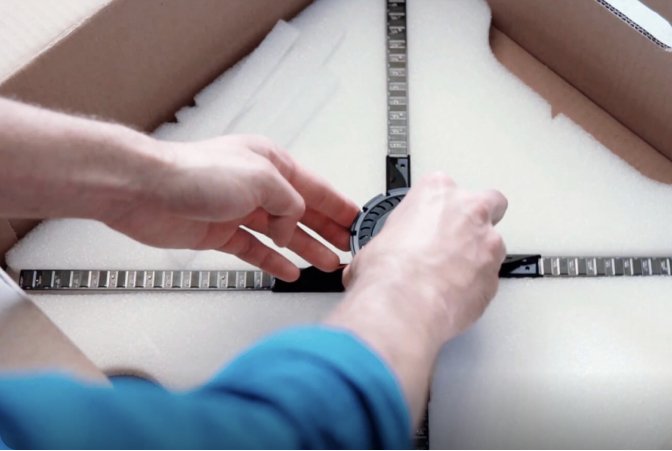
1.1 Install the SmartV Displays into their compatible accessories.

1.2 Connect the SmartV Displays to the SmartV Box (1, 6, or 12) using optic cables and to the Power module using power cables.

Step 2: Connect additional equipment

2.1 Connect a PC to the HDMI IN port of the SmartV Box using an 8K Ultra High Speed HDMI cable.

2.2 Connect the chosen interaction device to the PC:

● To connect a touchscreen, use HDMI and USB cables.

● To connect an air mouse, use Bluetooth.

2.3 Optional: You may also connect speakers to the SmartV Box for audio.

Step 3: Activate and set up software

3.1 Register your HYPERVSN CMS account and install the HYPERVSN App on your mobile phone.

3.2 Log in to the HYPERVSN App to activate your SmartV Box and perform SmartV Display setup and calibration.

3.3 Ensure the SmartV box is in HDMI mode.

3.4 In your Windows settings, set the SmartV hardware as the second screen.

3.5 In the HYPERVSN App, on the Device tab, select General > Show Advanced, and adjust the following settings:

● Ensure FPS is set to 60.

● Ensure the HDMI Autoscale toggle is off.

Edge effects are set to Fit.

3.6 In the HYPERVSN CMS, navigate to the Devices page and activate your SmartV 3D Modeller subscription.

Step 4: Install and run the application

4.1 Install the HYPERVSN SmartV 3D Modeller application from the Microsoft Store.

4.2 Launch the app and log in using your CMS credentials. Select the specific SmartV Box you intend to control from the provided list.

Step 5: Configure the interaction scenario

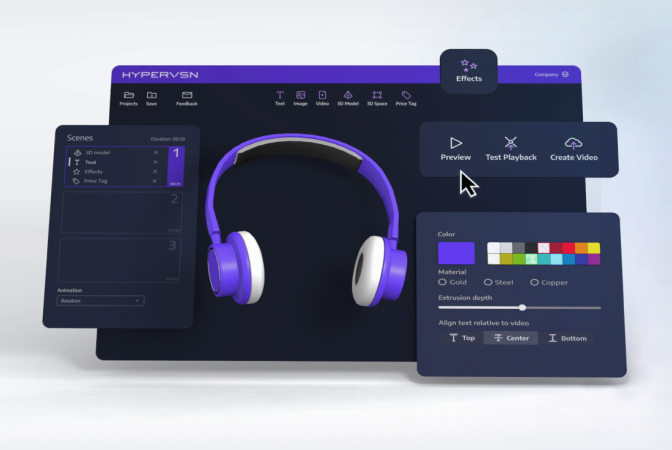
5.1 Once the 3D Modeller is running, press Ctrl + S on your keyboard to open the Settings interface and configure the following:

● Select operating mode: Choose Demo to use the default content or Custom to apply your own content.

● Select the default content or upload custom 3D models.

● Set the frequency for switching between models and reorder the sequence in which they appear.

● Select specific animations for selected models to define how they behave during playback.

Related Questions

Can’t find your answer?

4 Item in cart

HYPERVSN 3D Catalog

USD 1,200

Qty

Remove Item

HYPERVSN 3D Catalog

USD 1,200

Qty

Remove Item

HYPERVSN 3D Catalog

USD 1,200

Qty

Remove Item

Cart Subtotal:

USD 3,600