























Knowledge Base

HYPERVSN SmartV Solo

  • What is the HYPERVSN SmartV Solo solution? 

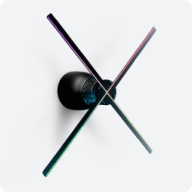
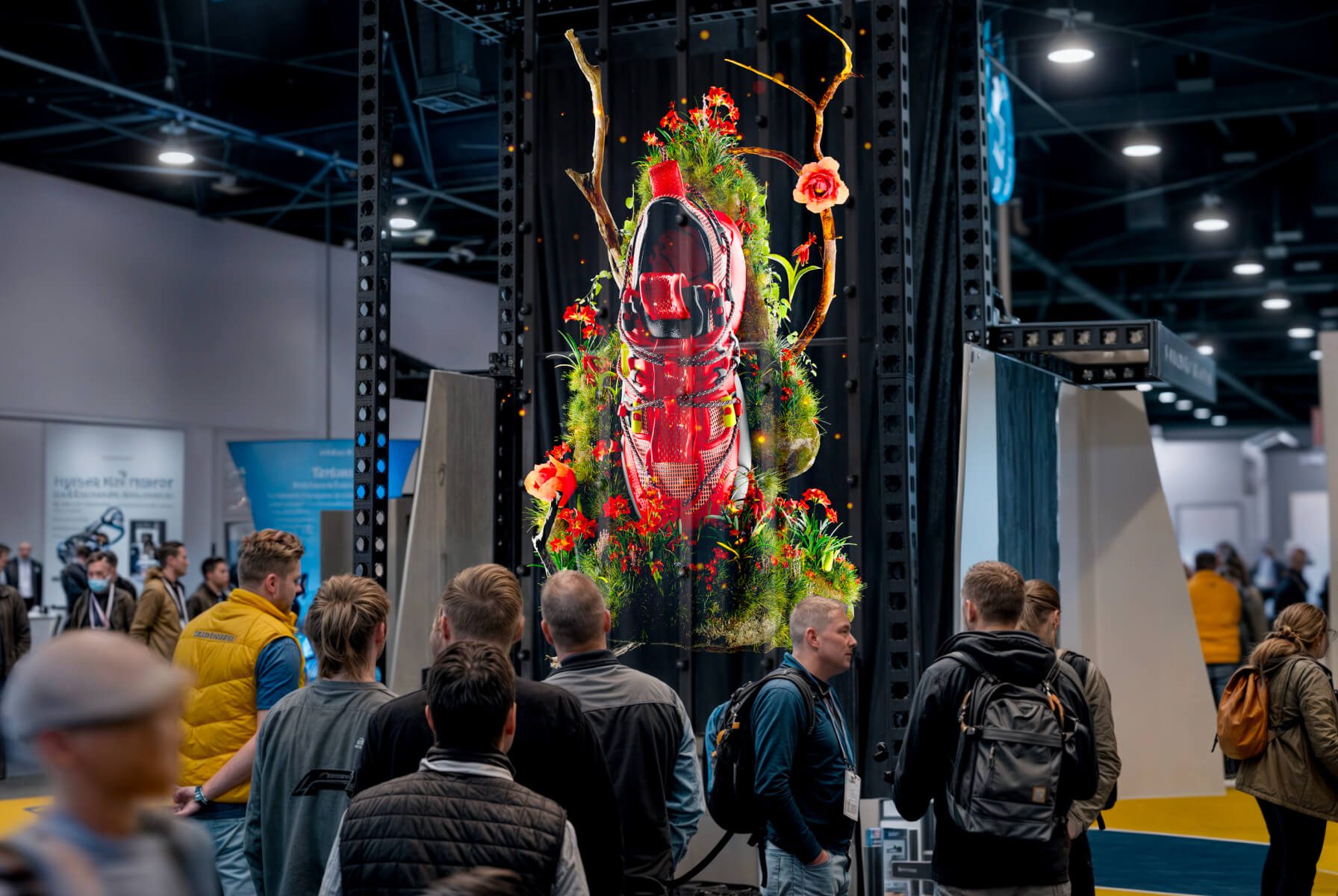
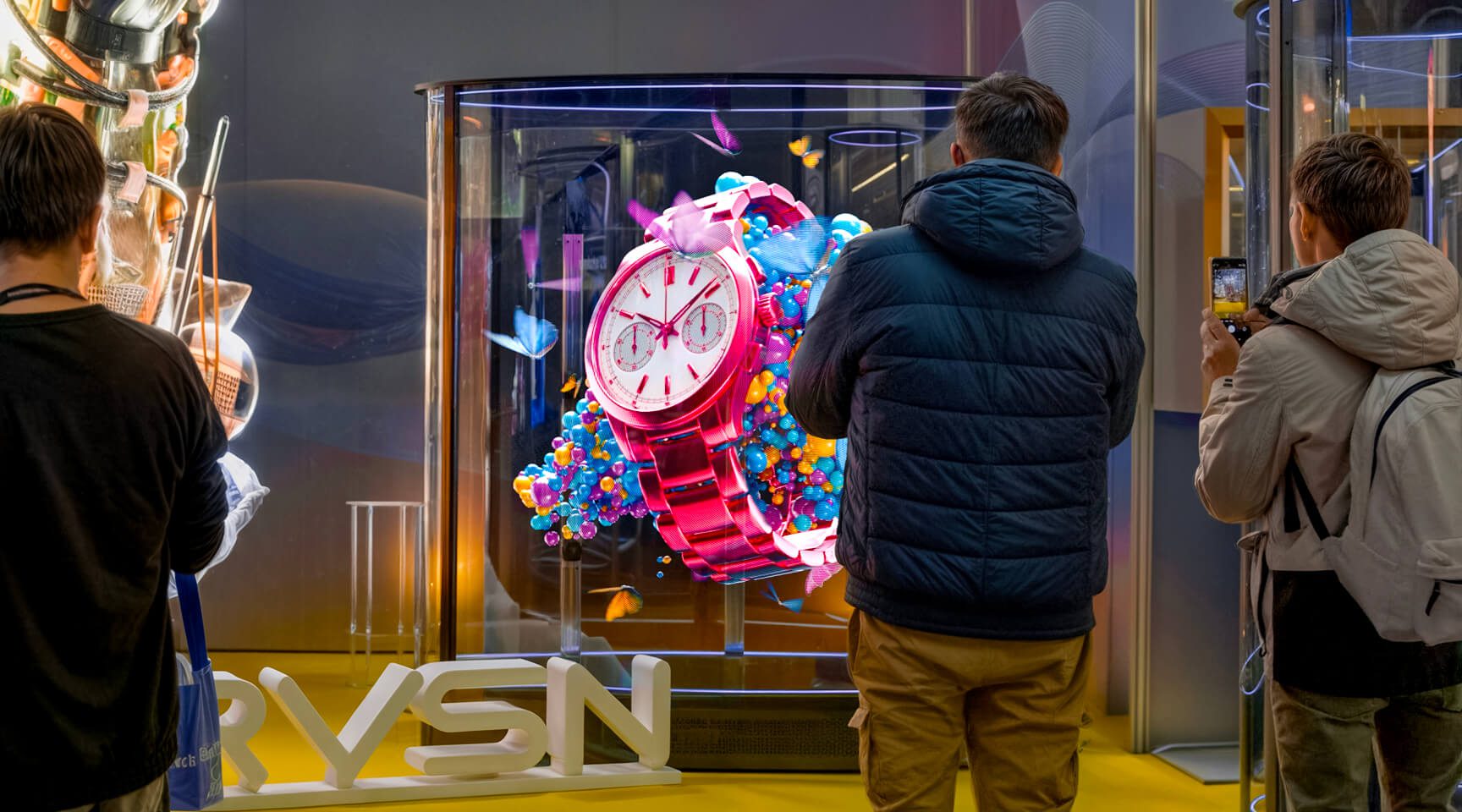
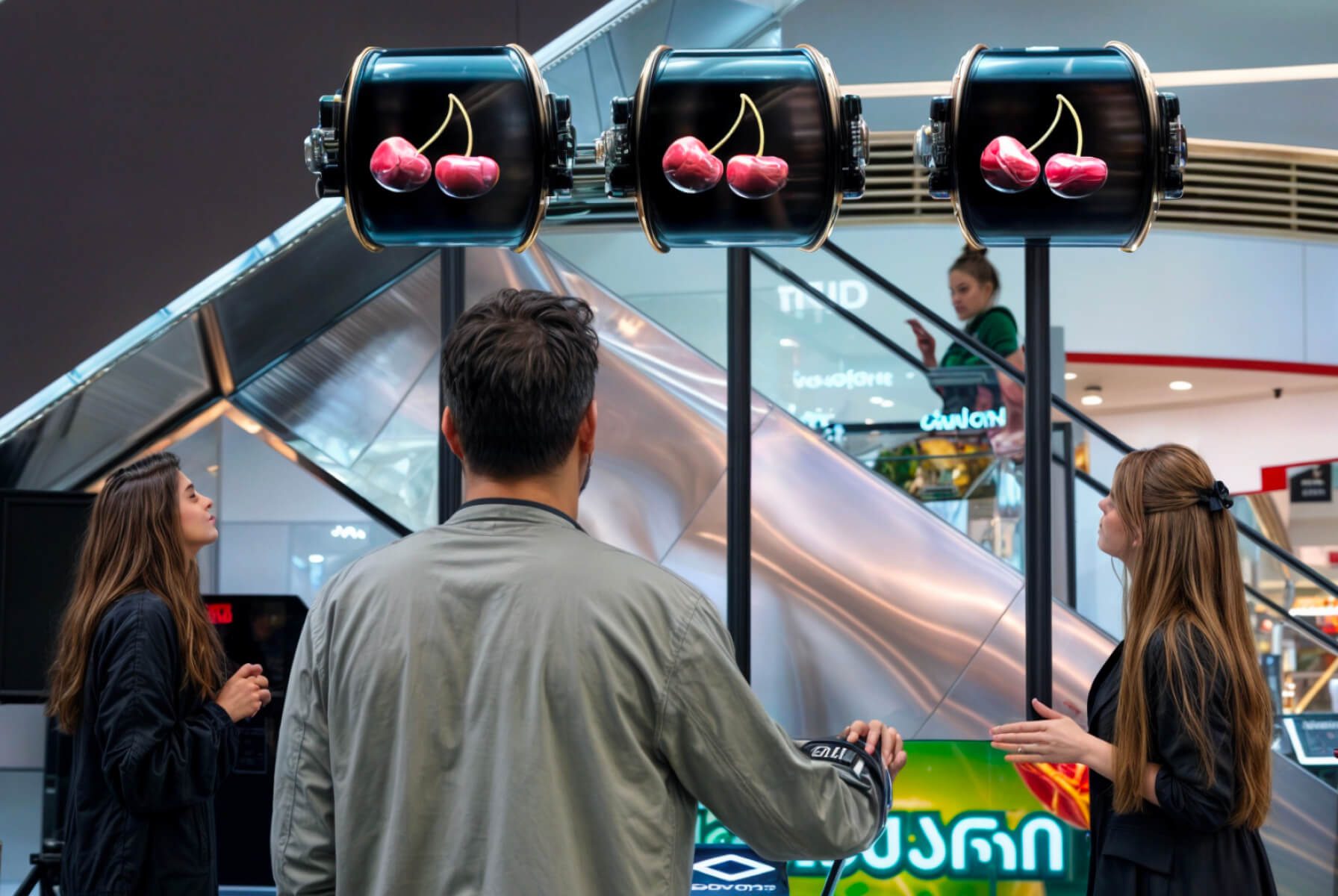
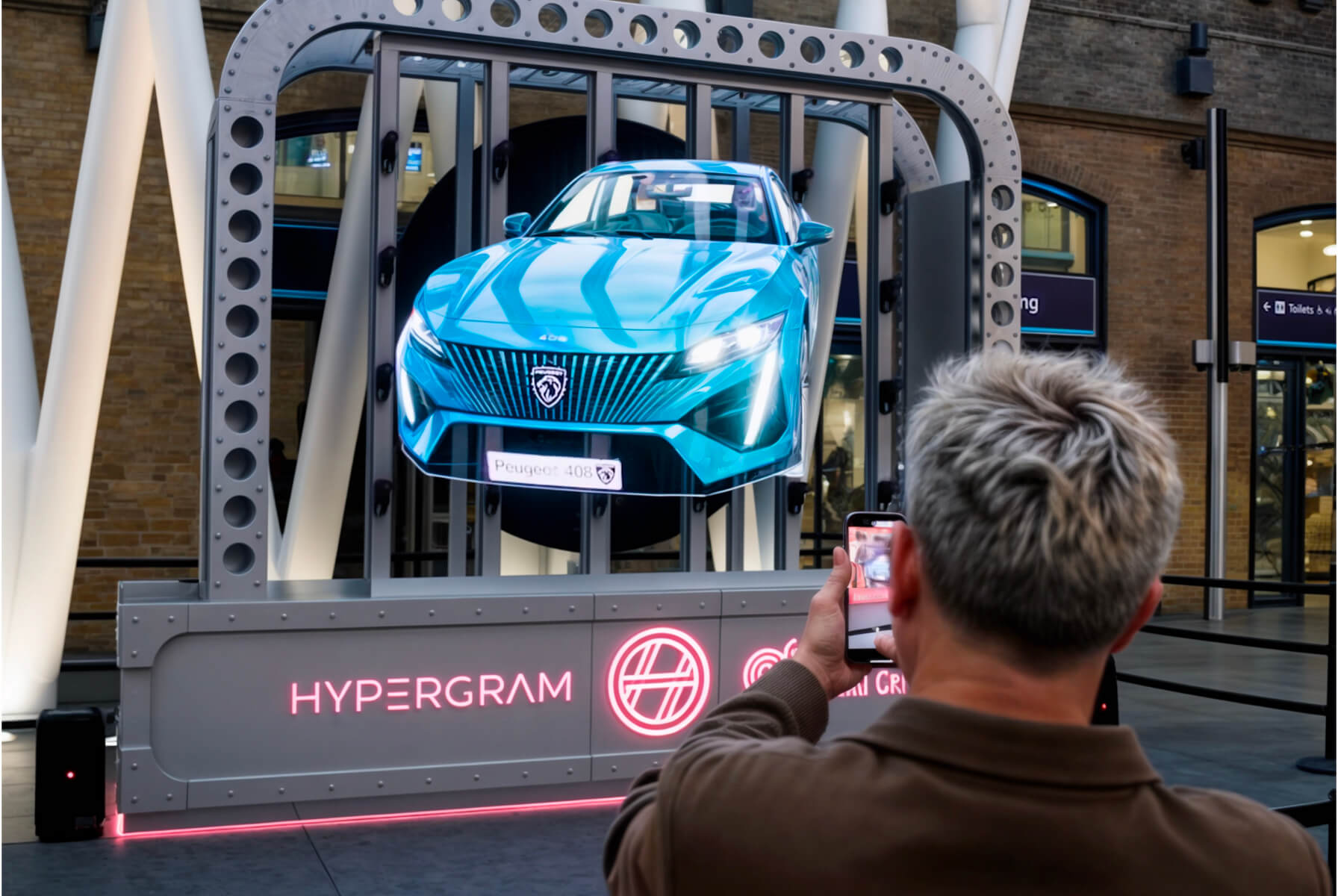
    The HYPERVSN SmartV Solo is a standalone holographic display solution composed of a single SmartV Display and a SmartV Box 1 control module. It is engineered to render high-definition 2D and 3D content that appears to float in mid-air, featuring peak brightness of up to 3200 nits and compatibility with various interactive software and protective accessories. 

  • What are the core SmartV Solo components? 

    The SmartV Solo solution is a unified ecosystem that combines proprietary hardware with a sophisticated software suite:

    ● SmartV Display: A device featuring spinning rays (Model M or L) that create the visual surface for 3D content.

    ● SmartV Box 1: The primary control module used to manage content and connectivity for a single display.

    ● Software suite: Includes the HYPERVSN App for mobile control, the web-based CMS (Content Management System), and the 3D Studio for content creation.

  • What are key features of the SmartV Solo? 

    SmartV Solo has the following key features:

    ● Brightness: Features a peak brightness of 3200 cd/m², ensuring visuals remain visible even in bright ambient light conditions.

    ● Visual quality: Delivers images with a resolution of up to 1080×1080 (Model M) or 1020×1020 (Model L, LB rays) and a contrast ratio of ≥ 2,000,000:1.

    ● Versatile operating modes: Operates in Player mode (standalone playback), HDMI mode (external PC connection), or Stream mode (real-time RTSP streaming).

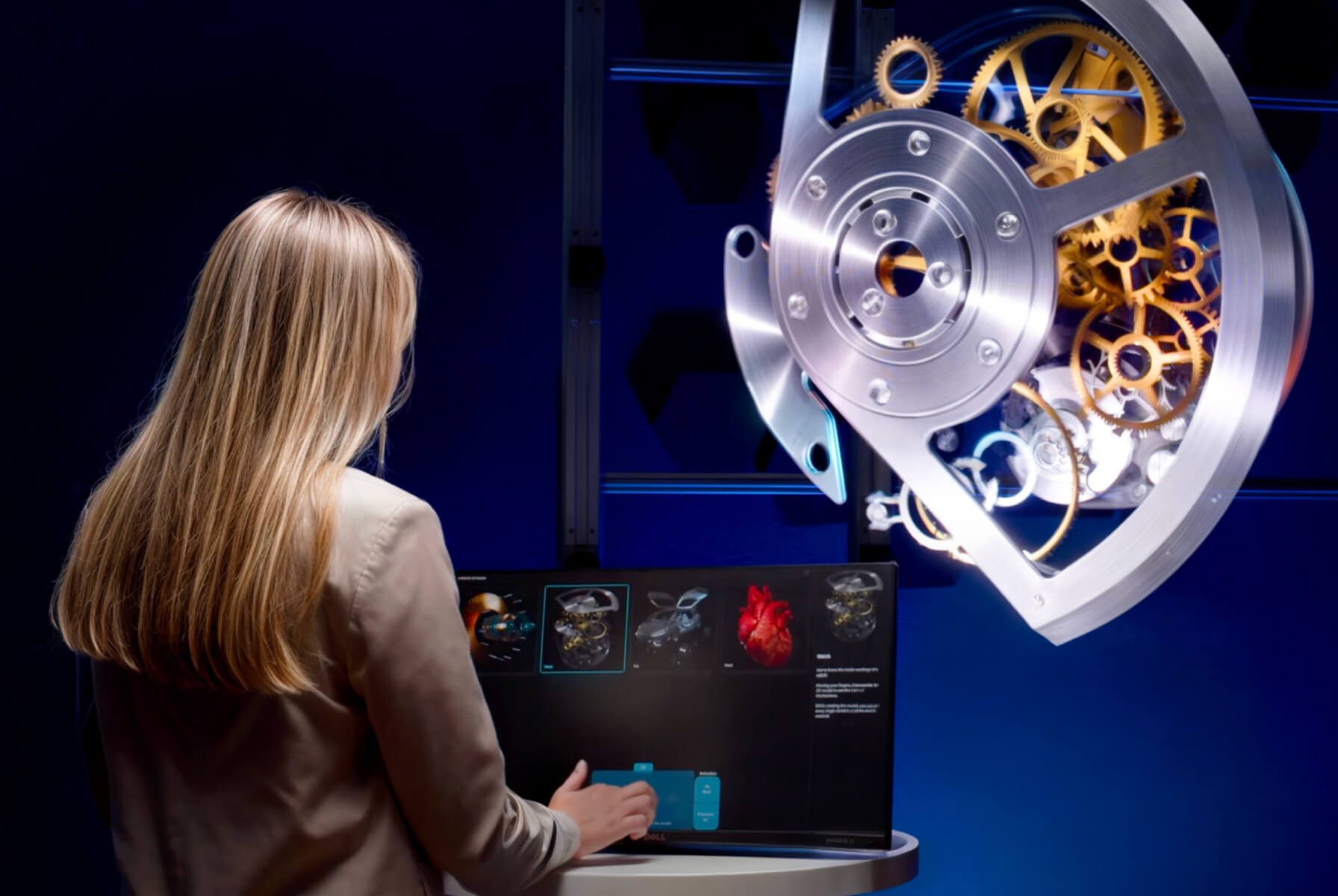
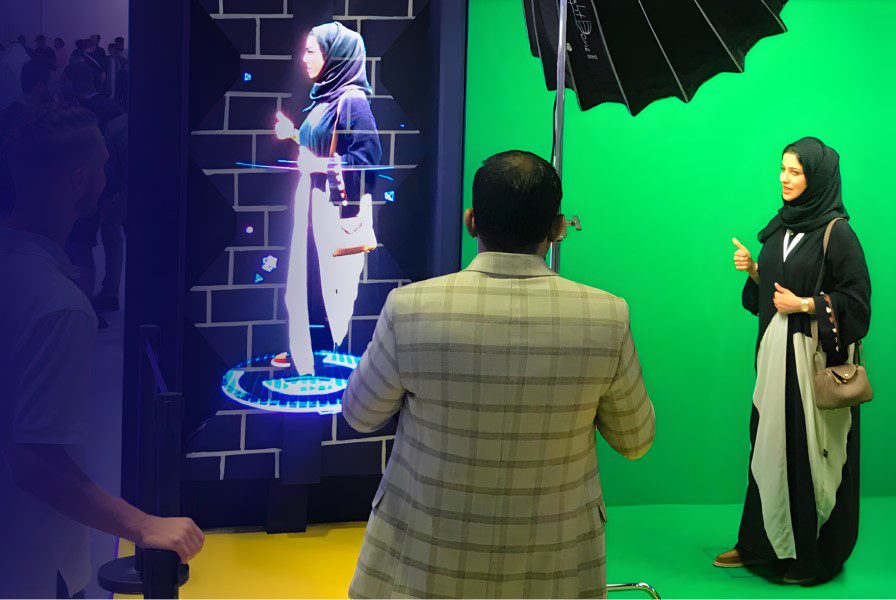
    ● Interactive compatibility: Fully compatible with HYPERVSN interactive solutions, including the Digital Avatar, 3D Modeller, 3D Catalogue, and Lift & Learn playback automation feature.

    ● Hardware protection, including:

    a) Protection of SmartV Display and SmartV Box from overheating and malfunction.

    b) Emergency stop feature to protect the SmartV Display from physical impact.

    c) Comprehensive health monitoring tracking CPU, FPGA, stator and rotor temperatures, free memory, RAM, uptime, and errors.

    d) Energy-efficient mode to optimize power consumption.

    ● Software security, including:

    a) Secure HTTPS connection for encrypted data transmission.

    b) Encryption of data both in transit and at rest.

    c) Multi-factor authentication (MFA) and SSO.

    d) Role-based access control to manage user permissions.

    e) Infrastructure maintained with high-security standards, compliant with GDPR.

    ● Flexible mounting options: While SmartV Solo includes a standard wall mount, it is compatible with various accessories such as the SmartV Plex Box, Tripod, Globe L, Dome Ultra, Solo Station.

    ● Smart management: Managed using the HYPERVSN mobile app or CMS for content uploads, playlist management, scheduling, and real-time hardware health monitoring (CPU, RAM, and temperature).

    ● Viewing experience: Provides a wide 178° viewing angle (horizontal and vertical) and supports smooth motion with frame rates up to 60 FPS.

    ● Reliability: SmartV Solo is built for long-term use with a Mean Time Between Failures (MTBF) of 200,000 hours for the SmartV Box 1 and 150,000 hours for the SmartV Display.

  • What are the differences between Model M and Model L Displays? 

    The HYPERVSN SmartV ecosystem features two primary display models, Model M and Model L, which differ in physical size and performance benchmarks.

    The most visible difference between the two models is the diameter of the holographic image they produce:

    ● Model M: Features a diameter of 567 mm for a more compact visual footprint.

    ● Model L: Features a larger diameter of 750 mm, suitable for larger solo displays or massive wall configurations.

    ● Common depth: Both models share a uniform display depth of 118 mm.

    The models offer different optical specifications tailored to various lighting conditions:

    ● Brightness: Model M produces 1200 cd/m², whereas Model L is significantly brighter, offering 3000 cd/m² (L-type rays) or 3200 cd/m² (LB-type rays) for high-visibility environments.

    ● Resolution: Model M has an input resolution of 1080×1080. Model L varies by ray type, offering 1000×1000 with L rays or 1020×1020 with LB rays.

    ● Pixel pitch: Model M features effective pixel pitch of 0.65 mm, while Model L ranges from 0.98 mm (LB rays) to 1.11 mm (L rays).

    ● LED count: Model M contains more LEDs per ray (216) than Model L (168–191), resulting in a higher total LED count of 864 for the smaller model compared to 672–764 for the larger one.

  • What are the installation rules for SmartV Solo?  

    Technicians must adhere to specific rules when planning a SmartV installation:

    ● Viewing distances: The recommended installation height for optimal eye-level viewing is 1.7 metres (when used with a protective enclosure), with a viewing angle between 45°–60°.

    ● Mandatory safety: For public safety, a HYPERVSN SmartV Solo must be installed so that the lower edge of its rotating rays is at least 3.1 metres above floor level, unless it is protected by a physical barrier or an enclosure like the SmartV Dome, Plex Box, or other accessory.

    ● Mounting integrity: The installation surface or ceiling must be capable of supporting at least four times the weight of the mounted equipment to prevent falling.

    ● Accessories: Accessories are model-specific and may require different space. For example, the SmartV Dome, Plex Box, Tripod, Ceiling mount, and Dome have 2 sizes for Model M and L, while Globe is designed for Model L only and Solo Station is designed for model M only.

    ● Startup Safety: Before switching the device on, ensure that no one is standing within a 0.5 m radius of the display.

    ● Operational Visibility: Because the rays become invisible while spinning, they pose a danger if approached from the rear when they exceed the installation surface; ensure no objects or people can contact them from the back.

    ● Maintenance Safety: Always unplug the power cords and wait for the rays to be completely stationary before performing any technical maintenance.

    ● Prohibited installation areas:

    a) Children’s playgrounds or areas where children are left unattended.

    b) Animal cages or areas accessible to domestic pets and birds.

    c) Near sources of heat or water.

    d) Next to flammable objects, such as curtains, that could be blown into the rotating rays.

  • What accessories are compatible with the SmartV Solo? 

    The HYPERVSN SmartV Solo is compatible with a wide range of mounting, protective, and interactive accessories designed to suit various environments.

    These accessories allow the Solo display to be positioned securely on floors, ceilings, or walls:

    Default wall mount: Included with every SmartV Display for standard vertical installations.

    ● SmartV Tripod: A portable, height-adjustable floor stand compatible with both Model M and L displays.

    ● SmartV Ceiling Mount: A telescoping mount for suspended installations, compatible with both Model M and L.

    ● SmartV Dome (M, L, and Ultra): Transparent hemispheres that provide physical protection. Dome M is for Model M displays; Dome L and Dome Ultra are designed for Model L.

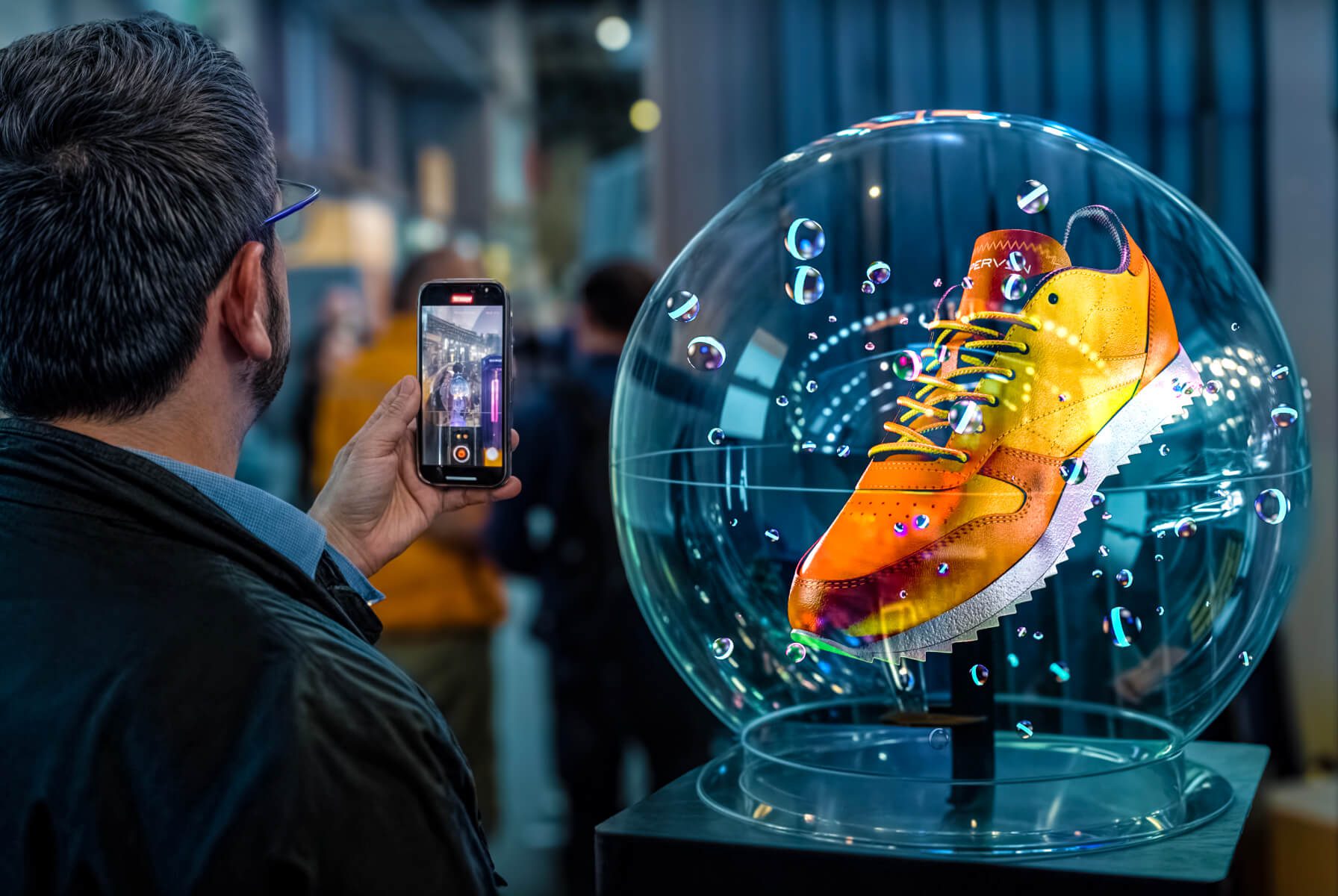
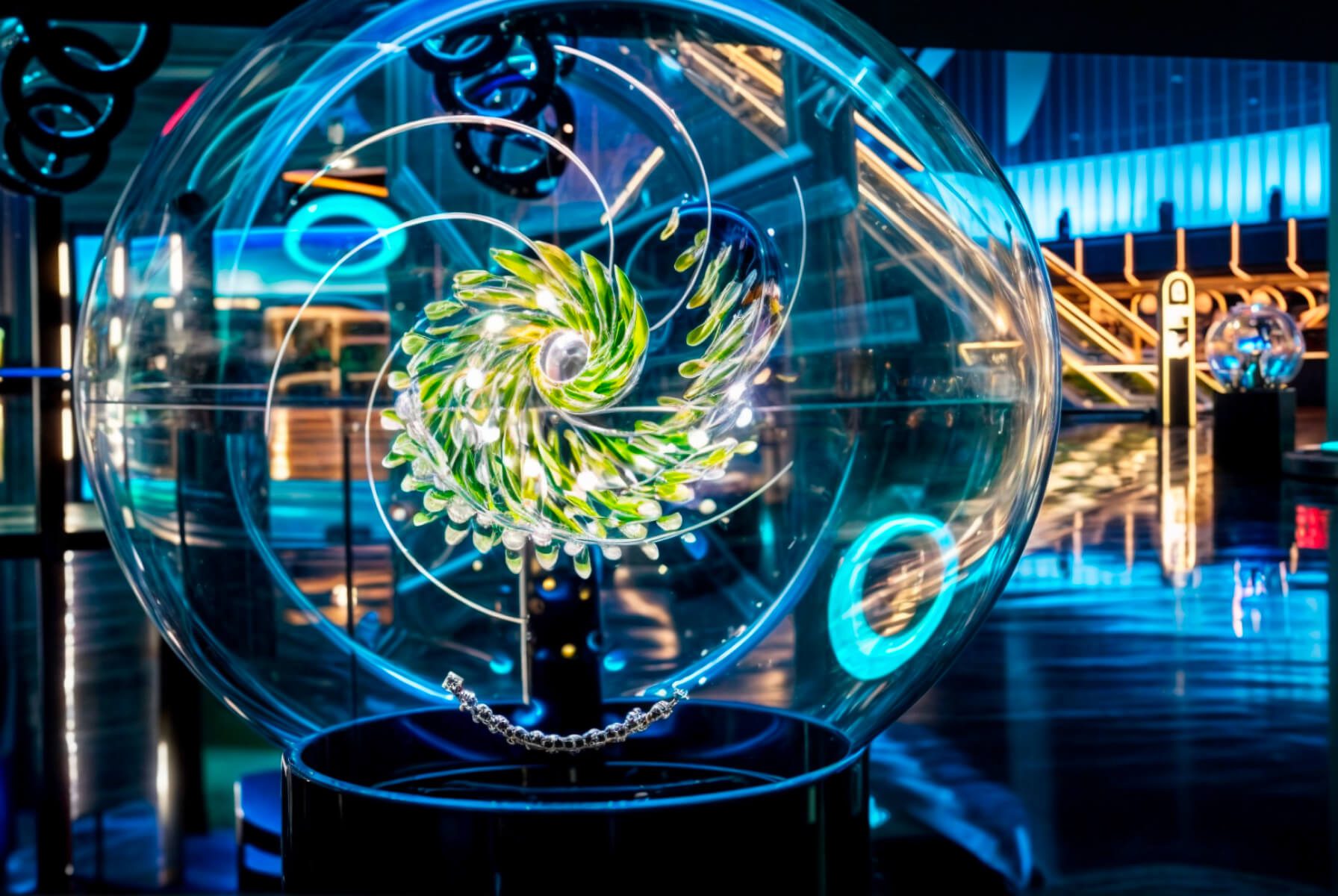
    ● SmartV Globe L: A premium pedestal-based spherical housing designed specifically for the Model L display.

    ● SmartV Plex Box (M and L): A rectangular transparent accessory from plastic for protected solo setups.

    For solutions like the Digital Avatar or 3D Catalogue, these stations provide a “ready-to-use” housing for all hardware components:

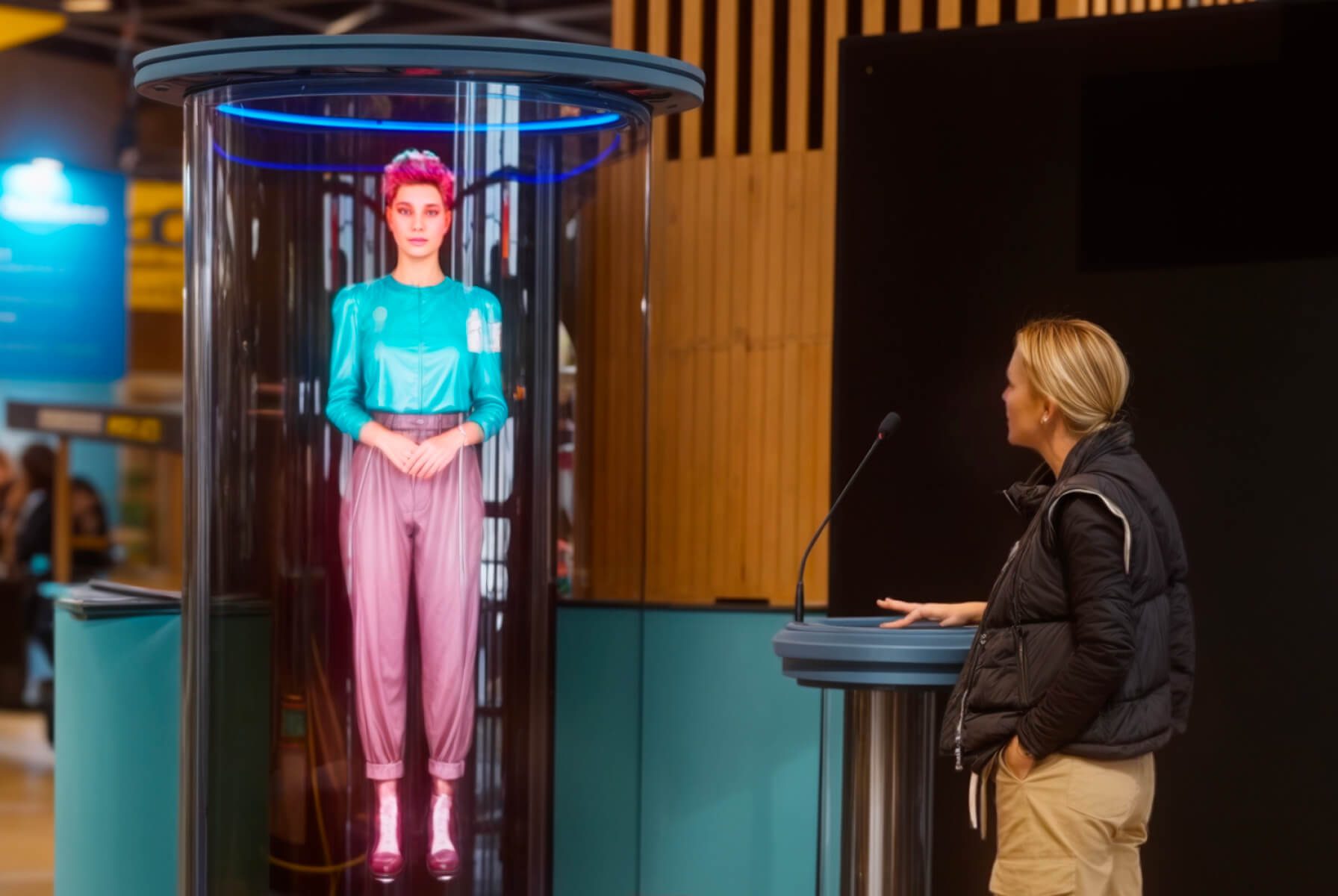
    ● Solo Station: Integrates a SmartV Crystal M (to hold a Display M) with a Control Stand that houses a PC, touch monitor, microphone, and speakers.

    ● Control Stand: A standalone podium that can be used alongside other mounting accessories to hold the following components: tablet, mic, speakers, and PC.

  • What are the environmental operating and storage conditions of the SmartV Solo?  

    To maintain device health and prevent moisture condensation, the following environment ranges must be followed:

    ● Operating temperature: From 0°C to +35°C.

    ● Operating humidity: Up to 75% relative humidity.

    ● Storage temperature: From -10°C to +50°C.

    ● Storage humidity: Less than 85%.

  • What is the power consumption of the SmartV Solo?  

    SmartV Display (M and L)

    ● Input voltage: 48 V DC.

    ● Rated current: 3.33 A.

    ● Average power: 40 W (Model M) to 50 W (Model L).

    ● Peak power: 160 W (Maximum consumption during startup or high-intensity visuals).

    SmartV Box 1

    ● Rated voltage: 5 V DC.

    ● Rated current: 2.4 A.

    ● Power supply: 15 W.

  • What are the operational noise levels of the SmartV Solo?  

    Noise figures are measured at a distance of 1 metre from the spinning display:

    ● Model M: 45 dB.

    ● Model L: 53–55 dB.

  • What are the available SmartV operating modes (Player, HDMI, Stream, and Cloud)? 

    The HYPERVSN SmartV devices have the following operating modes: Player, Cloud, HDMI, and Stream. These modes determine how content is delivered to the SmartV Displays. Selecting the appropriate mode is necessary for standard playback, scheduled media campaigns, live content or integrating interactive solutions. 

    Player: In Player mode, the SmartV device reproduces media content and playlists uploaded directly from the HYPERVSN App or Pro App. This mode is designed for local playback. 

    Cloud: Cloud mode connects the SmartV Box to your HYPERVSN Cloud account for remote playback management using media campaigns. Media Campaign is set of files that play according to a pre-defined schedule. In this mode, the device can be controlled remotely, and media can be transferred wirelessly from the CMS dashboard. Cloud mode is available under the SmartV Pro subscription and can be purchased separately for the SmartV Box 1. 

    HDMI: HDMI mode allows the SmartV device to display content from external source devices, such as PCs, laptops, or media players, connected using an HDMI cable. This mode is used for interactive HYPERVSN solutions, including the Digital Avatar, 3D Modeller, and Live-Stream. It requires the SmartV Box to be set to a specific recommended resolution to ensure optimal image quality. 

    Stream: In Stream mode, the SmartV device reproduces live content from a specified URL. The system supports the RTSP protocol with the h264 codec, allowing media to be streamed from external network links. 

  • How to perform monthly technical maintenance? 

    Monthly technical maintenance ensures peak performance and equipment longevity. Monthly procedure involves the following steps: 

    1. Follow safety instructions: Before performing any maintenance, you must unplug all power cords from their sources. Wait for the rotating rays to come to a complete stop before touching the device.

    2. Inspect electrical components: Examine the power cords for any signs of damage, such as cracks, cuts, exposed wires, or frayed casings. If any electrical fault is discovered, you must stop using the modules immediately until the cords are replaced.

    3. Perform visual hardware check: Inspect the SmartV Display, SmartV Box, and Power module for any noticeable dents or components that require replacement. 

    4. Remove dust: Wipe any collected dust off the SmartV Display body and modules. Do not use a moist rag on the SmartV Displays or rays. Use a very soft bristle brush to gently clean the rays. Never touch the LEDs directly with your fingers.

    5. Inspect accessories according to the manual’s instructions. 

    6. Wipe the accessory with microfiber cloth. A plexiglass cleaner solution might be used to remove accumulated dust from the accessories with plexiglass surfaces. 

    7. Perform final verification: Once cleaned and inspected, ensure all fixing screws are securely tightened to prevent components from falling. If any parts require repair, or you need to purchase spares, contact your HYPERVSN vendor.

  • What is the HYPERVSN CMS? 

    The HYPERVSN CMS (Content Management System) is a web-based platform and cloud-content service used to remotely manage HYPERVSN SmartV devices, media content, and subscriptions. It serves as a central hub for creating scheduled media campaigns, creating content using 3D Studio, monitoring device statuses, and performing remote firmware updates. Access is granted using a personal email invitation, and the same credentials are used to log into the HYPERVSN App and Pro App. 

  • What remote device management is available from HYPERVSN CMS?  

    The CMS provides a comprehensive overview of your SmartV devices through the Devices page. From this interface, users can:

    ● See real-time information for all SmartV modules, including serial numbers and online/offline statuses.

    ● Remotely select operating modes (Player, Cloud CMS, HDMI, or Stream).

    ● Trigger remote software and firmware updates for SmartV modules to ensure they have the latest features and security patches.

  • What tools are available in the HYPERVSN CMS for managing and creating 3D assets? 

    The CMS functions as a cloud-based storage and creation suite for your 3D assets:

    ● Media Library: A central repository where you can upload and store media files (up to 1GB per file) for distribution to your devices.

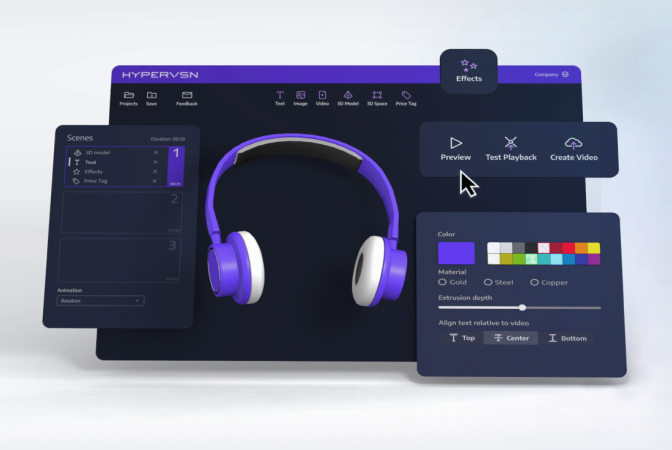
    ● 3D Studio: A proprietary, user-friendly tool available on the CMS dashboard that allows you to create 3D content, including moving text, visual effects, and holographic objects, without prior design experience.

    ● Design Lab: An integrated service where users can order custom media content directly from HYPERVSN specialists.

  • What is HYPERVSN 3D Studio and how is it accessed? 

    3D Studio is a proprietary cloud-based application designed for creating 3D holographic content compatible with HYPERVSN devices. It is accessible directly through the HYPERVSN CMS dashboard and requires no prior design experience or technical expertise.  

  • Which HYPERVSN device layouts are supported by 3D Studio? 

    Users can create content tailored for specific hardware configurations, including: 

    1×1 Solo. 

    3×2 Wall. 

    3×3 Wall. 

    4×3 Wall 

  • What are the technical requirements for 3D models imported into 3D Studio? 

    To ensure successful rendering, 3D models must meet these specifications: 

    Formats: .obj (with .mtl) or .gltf (with .bin). 

    Model Size: Maximum 30 MB. 

    Texture Size: Maximum 10 MB. 

    Complexity: Vertex count up to 200,000 and a maximum of 30 materials. 

    Note: While .glb is supported, it does not support animations within 3D Studio. 

  • What is the difference between the HYPERVSN App and Pro App? 

    The HYPERVSN ecosystem has two applications for SmartV devices control: the mobile HYPERVSN App and the desktop HYPERVSN Pro App.  

    HYPERVSN App: A mobile application available for Android and iOS devices. It is the preferred tool for managing SmartV Solo units and standard SmartV Walls containing up to 12 displays. 

    HYPERVSN Pro App: A desktop application installed on a Windows PC using the Microsoft Store. It is specifically designed and mandatory for controlling Multi-Walls featuring more than 12 SmartV Displays. 

    Both applications allow users to perform the essential operations required to run a holographic display system: 

    ● Preparation: Both tools handle device activation, physical layout setup, and image calibration.

    ● Content management: Users can download media from their CMS Cloud, create and manage playlists, and control real-time media playback.

    ● Device control: Both apps allow for the adjustment of operational settings such as brightness, RPM, network configurations, and power schedules.

    ● Maintenance: Both applications provide tools to monitor module health and trigger software or firmware updates.

    Beyond their basic operations, each application offers unique capabilities:

    ● Multi-factor Authentication (MFA): MFA is a security feature that can be enabled for the HYPERVSN App to provide an extra layer of protection during login.

    ● Advanced Capture (Hypercamera): The mobile HYPERVSN App includes a specialized Hypercamera feature designed to capture high-quality video of the spinning holographic displays.

  • How to get access to a CMS account? 

    The HYPERVSN CMS is an invitation-only system, your initial access must be triggered by an official email sent from the HYPERVSN platform. The HYPERVSN product purchase triggers the invitation. If an invitation has not been received, users should contact the HYPERVSN Tech Support team. 

    To activate your CMS account using email invitation, follow the steps: 

    1. Check your inbox for a message with the subject “Welcome to HYPERVSN!” sent from the official system. If you do not see it in your inbox, check your spam or junk folder.

    2. Open the email and click the Set Password button. This link will redirect you to the secure account creation page on the HYPERVSN CMS website.

    3. Type in a secure password and re-enter it in the Confirm Password field.

    4. Open and read the Privacy Notice, then check the box to confirm you have read it.

    5. Click the Log In button to finalize your activation. You can now access the CMS Dashboard using the email and password you just configured.

    Note: The email and password you set for your CMS account are the same credentials you will use to log into the HYPERVSN mobile App and the HYPERVSN Pro App. 

  • What should I do if I purchased a HYPERVSN system but have not received my CMS activation email? 

    Upon the purchase of a HYPERVSN system, you should receive a personal email invitation containing the credentials required to access your personal CMS account. If this email has not arrived, please take the following actions:

    ● Check with your organization to ensure the correct email address was provided during the ordering process.

    ● Reach out to your authorized HYPERVSN dealer or contact the HYPERVSN Technical Support team directly at [email protected] to request that a new invitation be sent to you.

  • How to connect the SmartV Box to a network (LAN vs. Wi-Fi)? 

    The HYPERVSN SmartV Box can be connected to a network using a wired LAN (Ethernet) or wireless Wi-Fi (2.4GHz). A wired LAN connection is the primary and recommended method due to its higher stability and is required during initial activation. Wi-Fi allows for cable-free control but requires the SmartV Box and the phone to be on the same local network. 

    Connecting using LAN (Ethernet) 

    For wired connection of the SmartV Box follow the steps:

    1. Connect an Ethernet cable from your router or network switch to the LAN port on the SmartV Box.

    2. Connect your mobile phone or laptop to the same router’s Wi-Fi network.

    3. Run the HYPERVSN App, log in, and tap Scan Network to find the Box.

    4. Once detected, the serial number will appear with a “Not activated” status; select it and tap Activate.

    5. Wait for the success message and tap Continue to proceed to layout setup and calibration.

    Connecting using Wi-Fi

    1. In the App, tap Add SmartV Box to Wi-Fi.

    2. Press and hold the “V” button on the SmartV Box for 5–10 seconds until the Wi-Fi indicator blinks.

    3. Tap Confirm in the app, select your Box’s serial number, and follow the onscreen instructions to select a network and enter the password.

  • What are the network and router requirements? 

    To ensure compatibility, your network infrastructure must meet these specifications:

    ● Wi-Fi Frequency: 2.4GHz is mandatory; 5GHz is not supported.

    ● Router Mode: Must support 802.11 b/g/n.

    ● Security: Standard SSID and password connection is recommended; avoid networks with additional login/captive portal screens.

    ● Bandwidth: A minimum speed of 10 Mbit/s is required.

  • How to improve wireless stability? 

    If you experience connectivity issues using Wi-Fi, consider the following: 

    1. Reposition the router:  

    ● Place your router closer to the SmartV Box.  

    ● Position the router in a more elevated location, free from obstructions like walls or large furniture pieces.  

    2. Use Wi-Fi extenders:  

    ● Install Wi-Fi extenders to boost the signal throughout your SmartV Box location.  

    3. Reduce interference:  

    ● Avoid placing the router near other electronic or wireless devices that may cause interference. 

    ● When possible, use wired connections for other devices connected to the router, to free up wireless bandwidth.  

    4. Update your SmartV devices’ firmware and software:   

    ● Ensure all the SmartV devices have the latest software and firmware updates. Update them if necessary.  

    5. Optimize device number:  

    ● Limit the number of devices connected to your network. Turn off the devices not in use to reduce network load.  

    6. Upgrade your router:  

    ● Check for and install firmware updates for your router.  

    ● Consider purchasing a newer router with better speed capability. 

  • How to update the SmartV Box firmware? 

    Firmware updates for the HYPERVSN SmartV Box can be performed using the web-based CMS or the mobile HYPERVSN App. To ensure a successful update, the SmartV Box must be powered on and have a stable internet connection.  

    If an update is available for your hardware, the system will notify you through the following indicators. 

    ● In the CMS: An Update button appears next to the serial number of your SmartV Box in the Devices list. The SmartV Pro for the SmartV Box 1 is required for remote device management. 

    ● In the HYPERVSN App: A red dot appears in front of the Update menu on the Device tab. 

    ● Manual check: You can also check updates manually by navigating to Device → Update → Check for Updates in the HYPERVSN App. 

  • How to upload content to the SmartV Solo? 

    Users can upload and manage media content for the HYPERVSN SmartV Solo through HYPERVSN App or HYPERVSN CMS. 

    HYPERVSN App 

    Users can upload media content on the SmartV devices through HYPERVSN App using an Android or iOS smartphone. Users download media from their CMS account (the “Cloud”) or their phone’s gallery into the App Library. From there, they can create playlists and upload them directly to the SmartV device. 

    A Wi-Fi connection between the phone and the SmartV Box is required to perform the upload. 

    Requirements: media files up to 1Gb and of any format. 

    HYPERVSN CMS  

    Users can upload media content to the CMS account and then schedule a media campaign. 

    ● Media Library: Users can upload video files from a PC directly into their web-based CMS Media Library. These files can then be accessed using the HYPERVSN App for upload to the device. 

    Requirements: mp4 file format, duration up to 10 minutes.  

    ● Media Campaigns: For automated scheduling, users can create “Media Campaigns” in the CMS. These are sets of media files scheduled to play at specific times. The content is transferred wirelessly using the internet from the CMS to the SmartV Box. 

    Note: Media Campaigns are available under the SmartV Pro subscription and can be purchased separately for the SmartV Box 1. 

  • What is a Media Campaign? 

    A media campaign is a remote management feature that allows users to select a set of media files and schedule them to play on HYPERVSN SmartV devices at specific times. Managed using the web-based CMS, campaigns enable automated playback (24/7 or custom intervals), remote content distribution, and the generation of performance analytics using detailed reports. 

    The CMS provides a Reports tab to evaluate campaign success. These reports track: 

    ● How many times each media file was played. 

    ● How many times each media file was played. 

    Media campaigns are included with SmartV Pro subscriptions (standard for Box 6 and 12; optional for Box 1). 

  • What interactive solutions are compatible with SmartV Solo? 

    The HYPERVSN SmartV Solo is compatible with the following HYPERVSN interactive solutions:

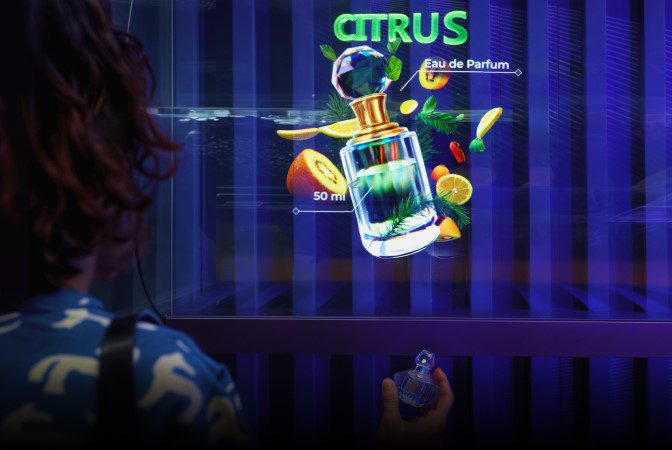
    ● 3D Catalogue 

    ● Digital Avatar (Solo version) 

    ● 3D Modeller 

    ● Lift & Learn (Automation) 

    3D Catalogue is a Windows-based application designed to control content playback on a SmartV Solo using a touchscreen. This solution requires a PC and a touchscreen, typically arranged in a portrait orientation. 

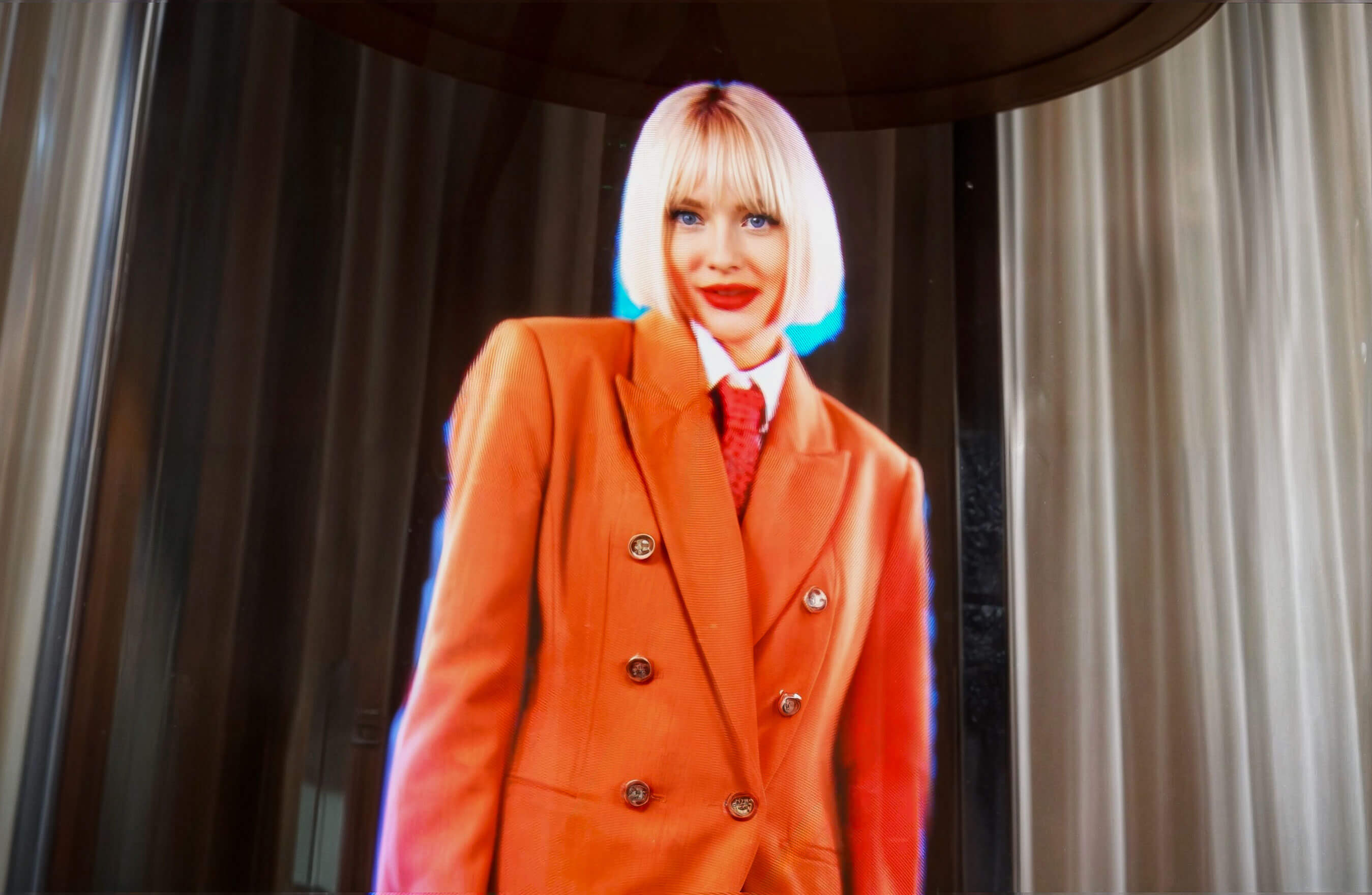
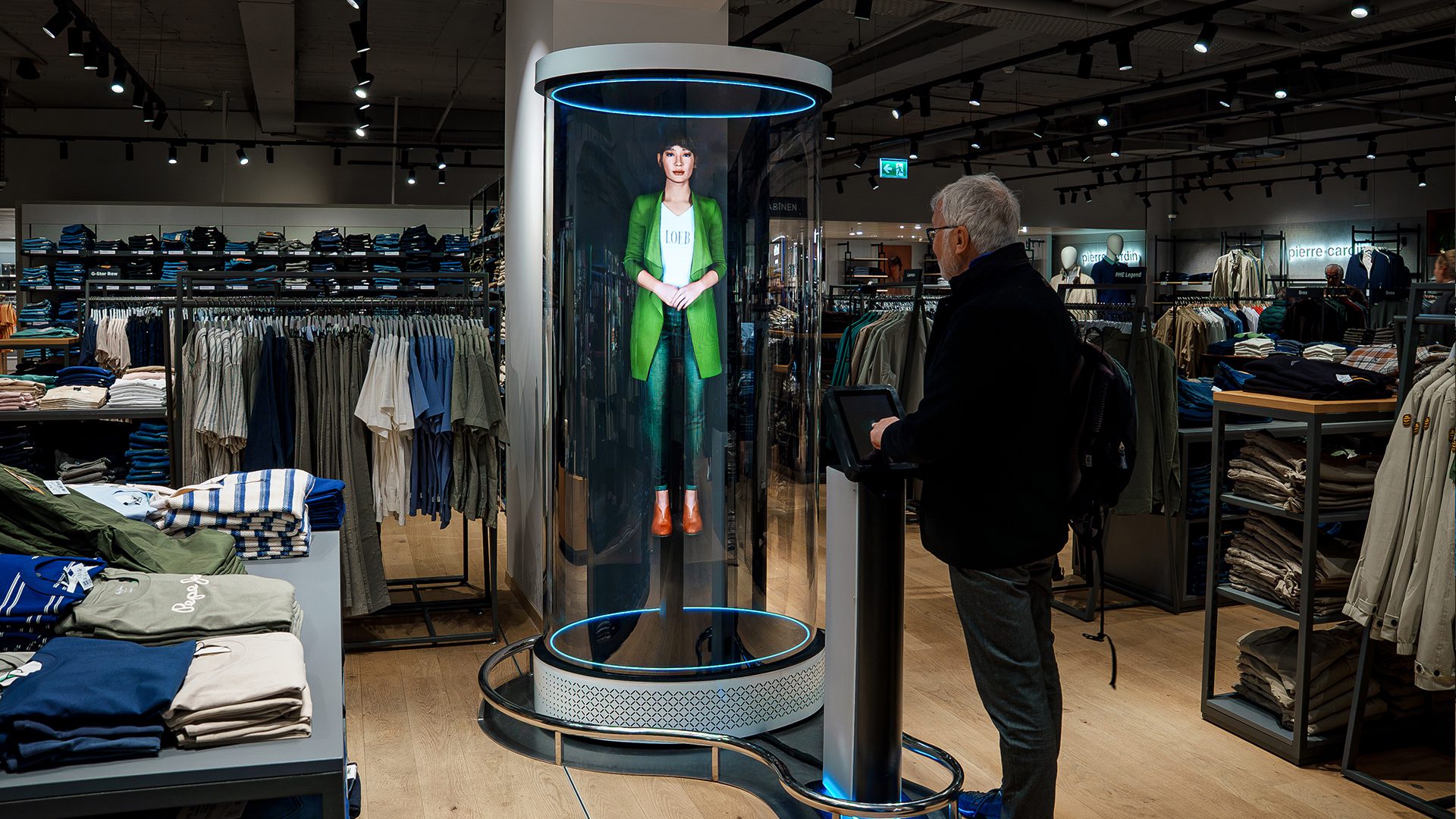
    Solo Digital Avatar is an interactive AI digital human that can appears on a single SmartV Display. Unlike the life-size version, the Solo Avatar typically shows only the head and shoulders of the character. Users communicate with the avatar using a microphone and a Speak button on a touchscreen. The avatar understands spoken questions and responds in real-time with natural speech, replicating human facial expressions and movements. 

    The 3D Modeller is an interactive application that allows users to manipulate 3D models in real-time on a holographic display. Users can rotate, move, and scale models using a touchscreen or a Bluetooth air mouse.  

    Lift & Learn is an interactive automation feature that triggers holographic content when a customer interacts with a physical product. Using sensors connected to the SmartV Box, the system detects when a product is picked up or placed back on a shelf.  Triggers can include light sensors, RFID antennas and tags, or wired X-Snapper modules. 

  • Are HYPERVSN holographic displays safe for individuals with photosensitive epilepsy or migraines? 

    HYPERVSN is committed to device safety and has engineered its holographic displays to produce stable, high-quality visuals that minimize common visual hazards associated with digital screens. 

    The primary concern for individuals with photosensitive epilepsy is image flickering. HYPERVSN SmartV displays use high-precision encoders and advanced rotational stabilization algorithms to ensure the image remains stable. This technology is designed to eliminate flicker and jitter, providing smooth, consistent visuals that improve overall viewing comfort 

Can’t find your answer?

4 Item in cart

HYPERVSN 3D Catalog

USD 1,200

Qty

Remove Item

HYPERVSN 3D Catalog

USD 1,200

Qty

Remove Item

HYPERVSN 3D Catalog

USD 1,200

Qty

Remove Item

Cart Subtotal:

USD 3,600